
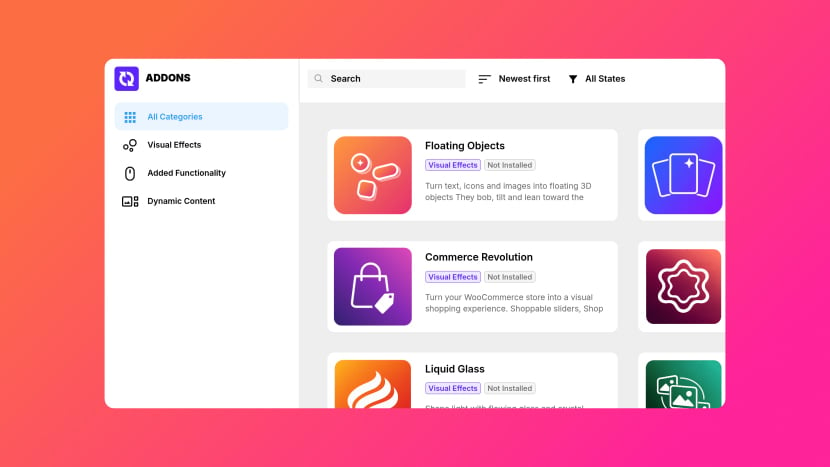
Addon Library
UI Navigation Map: Addon Library

Go to the Plugin Dashboard and click Addons in the menu at the top, or in the Module Editor open the Settings Sidebar and click Addons, then:
- Addon Library
- Close
- Category Sidebar
- Categories
- Need Help?
- Copyright & License Info
- Toolbar
- Search
- Sort
- State Filter
- Browse Effects
- Check for Updates
- Update All
- Addon Grid
- Addon Tile
- Category Label
- Install State
- New Badge
- Action Required
- Enabled
- Usage
- Details Panel
- Addon Guide
- Addon Updates
- Update Addon
- Requirements
- Add to Module
- Remove from Module
- Add/Remove in Editor
- Enable Global Addon
- Disable Global Addon
- Configure Settings
- Adding an Addon to a Module
- Global Addons
Slider Revolution builds modules, which are the sliders, carousels, hero sections and similar blocks placed on a WordPress page. An add-on is an optional extension that gives Slider Revolution a new effect, layer type or feature, such as particle effects or a before and after comparison.
The Addon Library is the window where add-ons are browsed, installed, updated and switched on. Most add-ons are switched on per module, from the Module Editor. Global add-ons work across the whole site and are switched on from the Plugin Dashboard.
This article covers the controls of the Addon Library window, the tiles in its grid, the details panel, and what happens when an add-on is added to a module. It does not describe individual add-ons, since each has its own documentation.
To open the window from the dashboard, go to the Plugin Dashboard, the Slider Revolution start page in the WordPress admin.
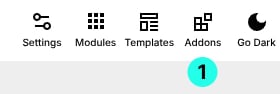
Then click Addons 1 in the menu at the top of the page.
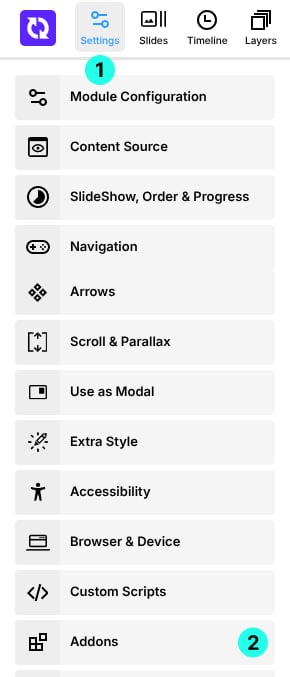
To open it from a module, go to the Module Editor and click Settings 1 in the Top Bar to open the Settings Sidebar.
Then click Addons 2 in the sidebar's list.
The Addon Library opens over the page with All Categories selected.
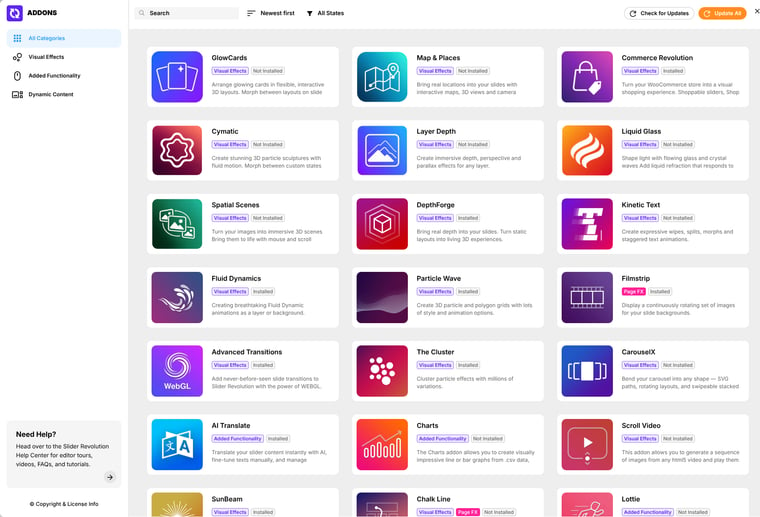
Close (Button)
Closes the Addon Library window.

Category Sidebar
The sidebar on the left of the window holds the list of categories, a link to the Help Center, and the copyright and license terms of the library's content.
Categories (Tab Select)
Sets which add-ons the grid shows, by the kind of add-on. The selected category is highlighted.
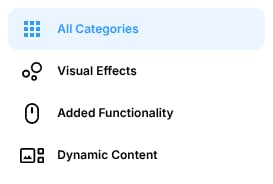
Options:
- All Categories: Shows every add-on.
- Visual Effects: Shows add-ons that add effects, animations and visual layer types.
- Added Functionality: Shows add-ons that add features, such as translation or charts.
- Dynamic Content: Shows add-ons that fill modules from a content source.
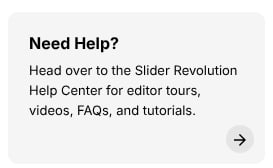
Need Help? (Button)
Opens the Slider Revolution Help Center in a new browser tab, where the editor tours, videos, frequently asked questions and tutorials are.
Copyright & License Info (Button)
Opens the copyright and licensing terms of the Slider Revolution library. Tabs on the left of the window show the terms for templates, images, objects, videos, SVG icons and font icons.
The terms state that templates and add-ons from the library are only used with a registered license key on the website they are used on.

Toolbar
The row at the top of the window holds the search field, the controls that filter and order the grid, and the buttons that check for and install updates.

Search (Text)
Filters the grid by the title of the add-on, as you type. The search starts from the third character typed.
Sort (Dropdown)
Sets the order of the tiles in the grid. The dropdown shows the order chosen.
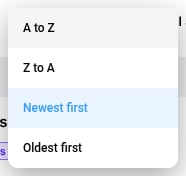
Options:
- A to Z: Orders add-ons alphabetically by title.
- Z to A: Orders add-ons in reverse alphabetical order.
- Newest first: Places the most recently released add-ons first. This is the order the window opens with.
- Oldest first: Places the earliest released add-ons first.
State Filter (Dropdown)
Limits the grid to add-ons in a given state. The same four choices are listed wherever the window was opened, but Enabled in Module only finds add-ons in the Module Editor, and Global Addons only on the Plugin Dashboard.
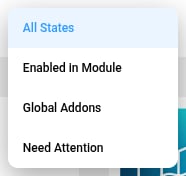
Options:
- All States: Shows every add-on in the selected category.
- Enabled in Module: Shows the add-ons switched on for the module being edited.
- Global Addons: Shows the global add-ons.
- Need Attention: Shows installed add-ons that have a newer version available. Add-ons that are not installed are not included, even where a module uses them.
Browse Effects (Button)
Setting Visibility
- Visible when the window is opened from the Module Editor.
- Hidden when the window is opened from the Plugin Dashboard.
Closes the Addon Library and opens the Effects Library, where effects from add-ons are added to the module.
Check for Updates (Button)
Loads the latest list of add-ons from the Slider Revolution server, so new add-ons and new versions appear in the grid.
Update All (Button)
Setting Visibility
- Visible when an add-on needs attention: a module uses an add-on that is not installed or not active, an add-on is older than Slider Revolution needs, or a newer version is available.
- Hidden when no add-on needs attention.
Opens a window that lists the add-ons needing attention, each with its issue and the number of modules that use it. The issue reads Not Installed, Not Compatible or Outdated, and a Fix button beside each add-on installs, activates or updates it.

On a site where Slider Revolution is not registered, the registration window opens instead.
Addon Grid
The grid holds a tile for each add-on. Clicking a tile opens its Details Panel and shows a short video or image of the add-on.
When the window is opened from the Module Editor, the grid lists the add-ons that work per module. Global add-ons are only listed when it is opened from the Plugin Dashboard.
Addon Tile (Readout)
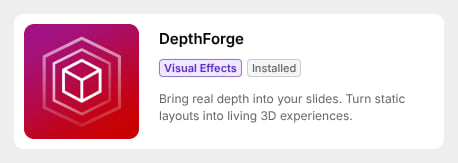
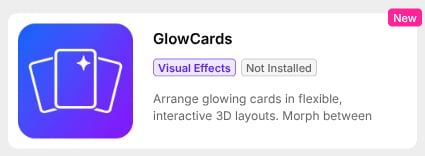
Shows the add-on's icon, its title, its Category Label and Install State, and a short description. A long title is shortened.
Category Label (Readout)
Shows the category the add-on belongs to.

Options:
- Visual Effects: The add-on adds effects, animations or visual layer types.
- Added Functionality: The add-on adds a feature.
- Dynamic Content: The add-on fills modules from a content source.
- Page FX: The add-on also adds effects to WordPress pages, outside of modules. It is shown beside the category, or in its place.
Install State (Readout)
Shows whether the add-on is installed on the site.

Options:
- Installed: The add-on is installed.
- Not Installed: The add-on is not installed. It is installed when it is first added to a module or enabled.
New Badge (Readout)
Setting Visibility
- Visible when the add-on was added to the library since the current WordPress user last opened it.
- Hidden when the user has opened the library since the add-on was added.
Marks an add-on that is new since the last visit. The badge sits at the top right corner of the tile.
The library stores, for each WordPress user, which add-ons they have seen. Opening the library marks every add-on in the list as seen, so the badges clear on the next visit. The first visit marks nothing as new.
Action Required (Readout)
Setting Visibility
- Visible when the add-on has a newer version available, or does not support the installed version of Slider Revolution.
- Hidden when the add-on is up to date and supports the installed version.
Marks an add-on that has a newer version available or does not support the installed version of Slider Revolution. The label sits at the top right corner of the tile, in orange.
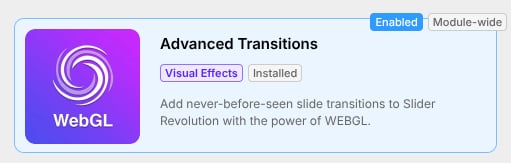
Enabled (Readout)
Setting Visibility
- Visible when the add-on is switched on for the module being edited, or, on the Plugin Dashboard, when a global add-on is enabled.
- Hidden when the add-on is not switched on, or Slider Revolution is not registered.
Marks an add-on that is in use. The label sits at the top right corner of the tile.
Usage (Readout)
Setting Visibility
- Visible when the window is opened from the Module Editor and the add-on is switched on for the module.
- Hidden when the add-on is not switched on, or the window is opened from the Plugin Dashboard.
Shows how the module uses the add-on. The label sits beside Enabled.
Options:
- N layers: The number of layers in the module that use the add-on.
- Module-wide: The add-on works on the module as a whole rather than on layers.
- Not used, off on save: No layer uses the add-on any more, so it is switched off for the module the next time the module is saved. Shown in orange.
Details Panel
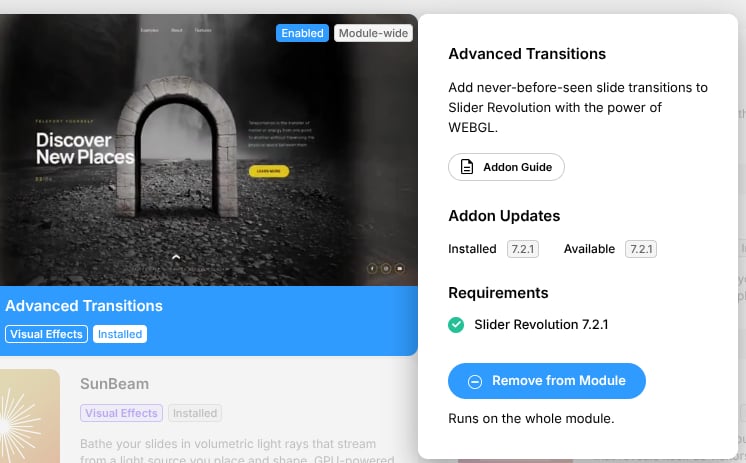
The panel opens beside a tile when the tile is clicked. It shows the add-on's title and description, its versions, its requirements and the buttons that switch it on or off. Moving the pointer off the tile, or clicking outside the panel, closes it.
Addon Guide (Button)
Opens the user guide for the add-on.
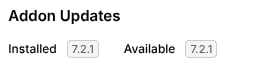
Addon Updates (Readout)
Shows the Installed version of the add-on, or N/A when it is not installed, beside the Available version, the newest one released. The installed version is shown in red when a newer one is available.
Update Addon (Button)
Setting Visibility
- Visible when the add-on is installed and a newer version is available.
- Hidden when the add-on is not installed or is up to date.
Updates the add-on to the Available version. A message names the add-on while it updates.
Requirements (List)
Lists the version of Slider Revolution the add-on needs, with a green check mark when the installed version supports the add-on and a red cross when it does not.

Add to Module (Button)
Setting Visibility
- Visible when the window is opened from the Module Editor and the add-on is not switched on for the module.
- Hidden when the add-on is already switched on for the module, or the window is opened from the Plugin Dashboard.
Switches the add-on on for the module being edited, installing and activating it first where needed, as described in Adding an Addon to a Module.
Remove from Module (Button)
Setting Visibility
- Visible when the window is opened from the Module Editor and the add-on is switched on for the module.
- Hidden when the add-on is not switched on for the module, or the window is opened from the Plugin Dashboard.
Switches the add-on off for the module being edited. A message confirms that it was removed. The add-on stays installed on the site, and other modules that use it are not affected.
Below the button, a line says how the module uses the add-on, such as Used by 3 layers in this module or Runs on the whole module.
Add/Remove in Editor (Button)
Setting Visibility
- Visible when the window is opened from the Plugin Dashboard and the add-on is not a global add-on.
- Hidden when the add-on is a global add-on, or the window is opened from the Module Editor.
Shows that the add-on is switched on and off per module, from the Addon Library opened in the Module Editor. The button is grayed out and does nothing on the dashboard.
Enable Global Addon (Button)
Setting Visibility
- Visible when the add-on is a global add-on that is not enabled.
- Hidden when the add-on is enabled, or works per module.
Installs the global add-on where needed and activates it for the whole site, as described in Global Addons. On a site where Slider Revolution is not registered, the registration window opens instead.
Disable Global Addon (Button)
Setting Visibility
- Visible when the add-on is a global add-on that is enabled.
- Hidden when the add-on is not enabled, or works per module.
Deactivates the global add-on for the whole site. It stays installed and can be enabled again.
Configure Settings (Button)
Setting Visibility
- Visible when the add-on is an enabled global add-on other than Backup Addon, or an active add-on with site wide settings of its own.
- Hidden when the add-on is not active, or has no site wide settings.
Opens the add-on's tab of the Global Settings Panel, where its site wide settings are set.
Adding an Addon to a Module
Clicking Add to Module switches the add-on on for the module open in the Module Editor. On a site where Slider Revolution is not registered, the registration window opens instead, and nothing changes.
An add-on that is not installed is installed first, and one that is installed but inactive is activated. The add-on's settings and panels are then loaded into the editor.
The Addon Library closes, and a message confirms that the add-on was added. The module is changed, so it has to be saved to keep the add-on switched on.
An add-on with module settings of its own adds an entry for them to the Settings Sidebar list. A newly added add-on's entry carries a New tag, which is removed the first time that panel is opened.
Global Addons
A global add-on works across the whole site rather than inside one module, such as one that adds a login page or backs up modules. Global add-ons are listed only when the window is opened from the Plugin Dashboard, and Global Addons in the State Filter lists them alone.
Enable Global Addon installs the add-on where needed and activates it, and the tile then shows Enabled. Most global add-ons then have Configure Settings, which opens their settings in the Global Settings Panel.