
Animation Targets: Background
UI Navigation Map: Animation Targets: Background

Go to the Module Editor, select the Slide Background from its track at the bottom of the Timeline, in the Right Sidebar click the Animation icon in the Mode Switcher to enter Animation Mode, choose Advanced at the bottom of the sidebar, and click the Background tile under Animation Targets, then:
- Background Target
- Timing and Flow Section
- Duration
- Easing
- Engine
- Transition Tab
- Transition Style
- Stacking Order
- Performance Priority
- Incoming Tab
- Opacity
- X
- Y
- Scale X
- Scale Y
- X Rotation
- Masking
- Columns
- Rows
- Leaving Tab
- Use Default Values
- Opacity
- X
- Y
- Scale X
- Scale Y
- X Rotation
- Masking
- Columns
- Rows
- Easing
- Filter Tab
- Use Color Filters
- Blur
- Mono.
- Lum.
- Sepia
- Inv.
- Cont.
- Sat.
- Easing
- Use Motion Filter
- Motion
- Overlay
- Post Processing Section
- Effect
- Glitches Effect
- Intensity
- Frequency
- Glitch & Noise Effect
- Amount
- Film Effect
- Noise
- Scanlines
- Size
- Grayscale
- Grain Effect
- Amount
- Speed
- Color
- Exposure
- Dither Effect
- Levels
- Scale
- Mix
- Motion Blur Effect
- Amount
- Angle
- Bokeh Effect
- Blur
- Vignette Effect
- Amount
- Size
- Softness
- Chromatic Effect
- Amount
- Mode
- Angle
- Mix
- Posterize Effect
- Levels
- Mix
- Halftone Effect
- Dot Size
- Style
- Softness
- Angle
- Mix
- Pixelate Effect
- Block Size
- Mix
- Timing Section
- Start
- End
- Fade
- Shape
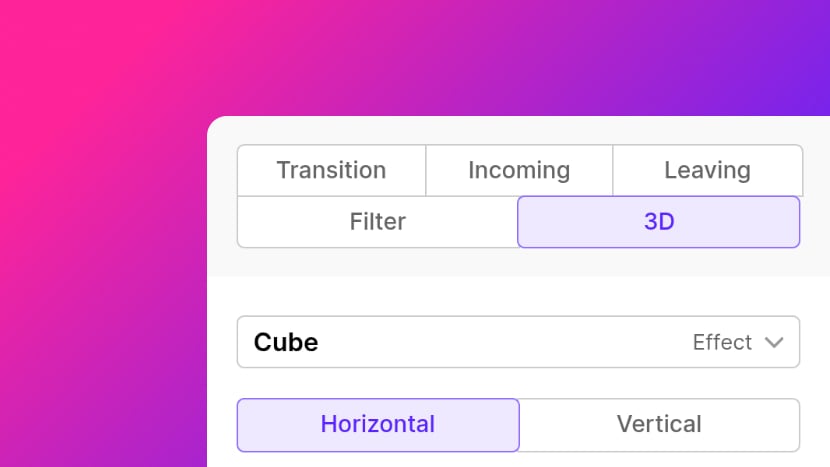
- 3D Tab
- Effect
- Direction
- Easing
- Distance
- Tilt
- Side Color (on first Animation)
- Rotation
- In
- Out
- Use Shadow Effect
- Min
- Max
- Lim
- Shadow Color
- Timing and Flow Section
Every slide in Slider Revolution has a background, usually an image, a video or a color, behind the layers placed on the slide. When the module moves from one slide to the next, the new slide's background replaces the old one with a transition.
The Background target holds that transition for a slide. It sets how long the change takes, how the incoming and leaving backgrounds move, and the color filters, post processing and 3D effects that play while it runs.
This article covers the settings of the Background target in Advanced Mode. Ready-made transitions are applied in Animation Essentials Mode, and a transition applied there can be adjusted here afterward. The layers' own target is covered in Animation Targets: Layer.
To reach the settings, go to the Module Editor and select the Slide Background, the last row of the Timeline.
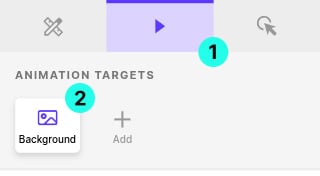
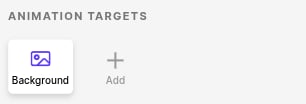
In the Right Sidebar, click the Animation icon 1 in the Mode Switcher to enter Animation Mode, choose Advanced at the bottom of the sidebar, and click the Background tile 2 under Animation Targets.
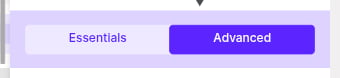
The Essentials and Advanced switch sits at the bottom of the sidebar, and Advanced has to be chosen for the targets to show.
Background Target
The Background target takes the place of the Layer target when the Slide Background is selected. It has no Keyframes section, because a slide's background transition is a single movement from the previous slide's background to this one.
Its settings are a Timing and Flow section and five tabs: Transition, Incoming, Leaving, Filter and 3D. Add above the tiles offers Pan Zoom Animation, a separate target that moves the background image while the slide shows.
Timing and Flow Section
In the Timing and Flow section set how long the background transition takes, the curve it follows, and the engine that plays it.
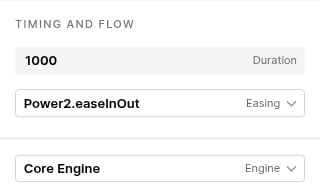
Duration (Number, milliseconds)
Sets how long the background transition takes, from the moment the slide starts to change until the new background is fully in place.

Easing (Dropdown)
Sets the curve the background transition follows, from a constant speed to curves that speed up, slow down, overshoot or bounce. Each family below is offered as easeIn, easeOut and easeInOut, which place the curve at the start, the end or both ends of the movement. Linear and the three Late curves are single entries.

Options:
- Linear: A constant speed from start to end.
- Power0 to Power4: Curves of increasing strength,
Power0being nearly linear andPower4the most pronounced. - Quad, Cubic, Quart, Quint: The same curves under their mathematical names, in order of increasing strength.
- Sine: A shallow curve based on a sine wave.
- Expo: A sharp curve that starts or ends very fast.
- Circ: A curve that starts or ends abruptly, based on a quarter circle.
- Strong: The strongest of the plain curves.
- Back: Overshoots the end value, then returns to it.
- Elastic: Overshoots and oscillates around the end value, with each swing smaller, before stopping on it.
- Bounce: Reaches the end value and rebounds from it several times, each rebound smaller, before stopping on it.
- Late, Late2, Late3: Custom curves that hold near the start and do most of their movement at the end.
Engine (Dropdown)
Sets which engine plays the background transition. The choice changes the tabs below the section.

Options:
- Core Engine: The transition is built from the Transition, Incoming, Leaving, Filter and 3D tabs described below.
- Advanced Transitions: The transition is one of the shader effects of the Advanced Transitions addon. The tabs become Settings, which holds the addon's own transition settings, and Filters, which holds the Post Processing section.
Transition Tab
Section Visibility
- Visible when Engine is set to Core Engine.
- Hidden when Engine is set to Advanced Transitions.
In the Transition tab set how the incoming and leaving backgrounds are combined while the transition plays.
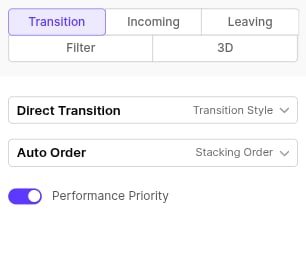
Transition Style (Dropdown)
Sets how the new background takes over from the previous one, directly or by passing through a color or a parallax slide.

Options:
- Direct Transition: The incoming background replaces the leaving one directly.
- Double Slide Effect: A band crosses the slide from the side the new background enters from, carrying a darkened copy of the new background, while the previous background slides out underneath.
- Fade Through Dark: The leaving background fades to black before the incoming background fades in.
- Fade Through Light: The leaving background fades to white before the incoming background fades in.
- Fade Through Transparent: The leaving background fades out to transparent before the incoming background fades in.
Stacking Order (Dropdown)
Sets which of the two backgrounds sits in front while the transition plays.

Options:
- Auto Order: The order is chosen to suit the transition.
- Coming BG over Leaving: The incoming background is drawn in front of the leaving one.
- Leaving BG over Coming: The leaving background is drawn in front of the incoming one.
Performance Priority (Toggle)
A switch in the Transition tab of the Background target. The default is On.

Options:
- On
- Off
Incoming Tab
Section Visibility
- Visible when Engine is set to Core Engine.
- Hidden when Engine is set to Advanced Transitions.
In the Incoming tab set where the new slide's background starts from as it comes in. The background moves from these values to its normal place over the transition's Duration.
The background can also be cut into a grid of pieces with Columns and Rows, each piece moving on its own.
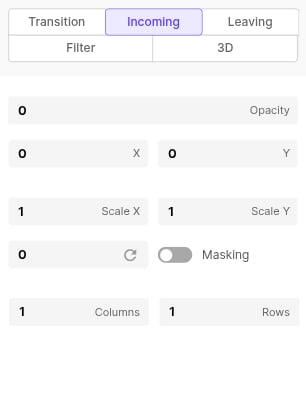
Opacity (Number, range)
Sets how opaque the incoming background is when the transition starts. It fades from this value to fully opaque.

Options:
- 0: Minimum. The incoming background starts fully transparent and fades in.
- 1: Maximum. The incoming background is fully opaque from the start.
X (Number, popup)
Sets how far to the side the incoming background starts, so it slides in horizontally. A percentage is measured against the background's width. Clicking the field opens a popup with the options below.
Options:
- Single: The field takes one value.
- Cycle: The field takes a list of values separated by commas, and each piece of a background cut into columns and rows takes the next value in turn.
- Random: The field takes a lowest and a highest value separated by a comma, and the background takes a random value between them.
- Inherit: No value is set, and the field shows
*. - PX: The value is in pixels.
- %: The value is a percentage.
- Auto Direction: When switched on, the value is reversed when the slide was reached by going back to a previous slide, so the background comes in from the other side.
Y (Number, popup)
Sets how far up or down the incoming background starts, so it slides in vertically. A percentage is measured against the background's height. Clicking the field opens a popup with the options below.
Options:
- Single: The field takes one value.
- Cycle: The field takes a list of values separated by commas, and each piece of a background cut into columns and rows takes the next value in turn.
- Random: The field takes a lowest and a highest value separated by a comma, and the background takes a random value between them.
- Inherit: No value is set, and the field shows
*. - PX: The value is in pixels.
- %: The value is a percentage.
- Auto Direction: When switched on, the value is reversed when the slide was reached by going back to a previous slide, so the background comes in from the other side.
Scale X (Number, popup)
Sets the horizontal scale the incoming background starts at. 1 is its normal width, and it scales from this value to 1 over the transition. Clicking the field opens a popup with the options below.
Options:
- Single: The field takes one value.
- Cycle: The field takes a list of values separated by commas, and each piece of a background cut into columns and rows takes the next value in turn.
- Random: The field takes a lowest and a highest value separated by a comma, and the background takes a random value between them.
- Inherit: No value is set, and the field shows
*. - Auto Direction: When switched on, the value is reversed when the slide was reached by going back to a previous slide.
Scale Y (Number, popup)
Sets the vertical scale the incoming background starts at. 1 is its normal height, and it scales from this value to 1 over the transition. Clicking the field opens a popup with the options below.
Options:
- Single: The field takes one value.
- Cycle: The field takes a list of values separated by commas, and each piece of a background cut into columns and rows takes the next value in turn.
- Random: The field takes a lowest and a highest value separated by a comma, and the background takes a random value between them.
- Inherit: No value is set, and the field shows
*. - Auto Direction: When switched on, the value is reversed when the slide was reached by going back to a previous slide.
X Rotation (Number, popup)
Sets the angle, in degrees, the incoming background starts turned to, in the plane of the slide. It turns from this angle to 0 over the transition. Clicking the field opens a popup with the options below.
Options:
- Single: The field takes one value.
- Cycle: The field takes a list of values separated by commas, and each piece of a background cut into columns and rows takes the next value in turn.
- Random: The field takes a lowest and a highest value separated by a comma, and the background takes a random value between them.
- Inherit: No value is set, and the field shows
*. - Auto Direction: When switched on, the value is reversed when the slide was reached by going back to a previous slide.
Masking (Toggle)
Sets whether each piece of the incoming background is clipped to its own cell of the grid set by Columns and Rows.

Options:
- On: Each piece moves inside its own cell and is hidden outside it, and percentage X and Y values are measured against the piece rather than the whole background.
- Off: The pieces move freely across the slide.
Columns (Number)
Sets how many vertical strips the incoming background is cut into, each animating on its own. 1 keeps the background in one piece across its width.
Options:
- Number: The background is cut into that many columns.
- Random: A random number of columns is used.
- Default: The transition's own number of columns is used.
Rows (Number)
Sets how many horizontal strips the incoming background is cut into, each animating on its own. 1 keeps the background in one piece across its height.
Options:
- Number: The background is cut into that many rows.
- Random: A random number of rows is used.
- Default: The transition's own number of rows is used.
Leaving Tab
Section Visibility
- Visible when Engine is set to Core Engine.
- Hidden when Engine is set to Advanced Transitions.
In the Leaving tab set where the previous slide's background goes as it leaves. The background moves from its normal place to these values over the transition's Duration.
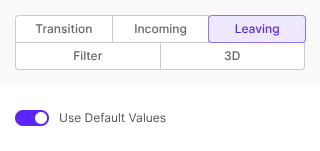
Use Default Values (Toggle)
Sets whether the leaving background's movement follows from the Incoming tab or is set separately here.

Options:
- On: The leaving background's values are worked out from the Incoming tab, and the settings below are hidden.
- Off: The settings below are shown, and the leaving background moves to the values set in them.
Opacity (Number, range)
Setting Visibility
- Visible when Use Default Values toggled to Off.
- Hidden when Use Default Values toggled to On.
Sets how opaque the leaving background is when the transition ends. It fades from fully opaque to this value.

Options:
- 0: Minimum. The leaving background fades out completely.
- 1: Maximum. The leaving background stays fully opaque.
X (Number, popup)
Setting Visibility
- Visible when Use Default Values toggled to Off.
- Hidden when Use Default Values toggled to On.
Sets how far to the side the leaving background moves, so it slides out horizontally. A percentage is measured against the background's width. Clicking the field opens a popup with the options below.
Options:
- Single: The field takes one value.
- Cycle: The field takes a list of values separated by commas, and each piece of a background cut into columns and rows takes the next value in turn.
- Random: The field takes a lowest and a highest value separated by a comma, and the background takes a random value between them.
- Inherit: No value is set, and the field shows
*. - PX: The value is in pixels.
- %: The value is a percentage.
- Auto Direction: When switched on, the value is reversed when the slide was reached by going back to a previous slide, so the background leaves to the other side.
Y (Number, popup)
Setting Visibility
- Visible when Use Default Values toggled to Off.
- Hidden when Use Default Values toggled to On.
Sets how far up or down the leaving background moves, so it slides out vertically. A percentage is measured against the background's height. Clicking the field opens a popup with the options below.
Options:
- Single: The field takes one value.
- Cycle: The field takes a list of values separated by commas, and each piece of a background cut into columns and rows takes the next value in turn.
- Random: The field takes a lowest and a highest value separated by a comma, and the background takes a random value between them.
- Inherit: No value is set, and the field shows
*. - PX: The value is in pixels.
- %: The value is a percentage.
- Auto Direction: When switched on, the value is reversed when the slide was reached by going back to a previous slide, so the background leaves to the other side.
Scale X (Number, popup)
Setting Visibility
- Visible when Use Default Values toggled to Off.
- Hidden when Use Default Values toggled to On.
Sets the horizontal scale the leaving background ends at. 1 is its normal width, and it scales from 1 to this value over the transition. Clicking the field opens a popup with the options below.
Options:
- Single: The field takes one value.
- Cycle: The field takes a list of values separated by commas, and each piece of a background cut into columns and rows takes the next value in turn.
- Random: The field takes a lowest and a highest value separated by a comma, and the background takes a random value between them.
- Inherit: No value is set, and the field shows
*. - Auto Direction: When switched on, the value is reversed when the slide was reached by going back to a previous slide.
Scale Y (Number, popup)
Setting Visibility
- Visible when Use Default Values toggled to Off.
- Hidden when Use Default Values toggled to On.
Sets the vertical scale the leaving background ends at. 1 is its normal height, and it scales from 1 to this value over the transition. Clicking the field opens a popup with the options below.
Options:
- Single: The field takes one value.
- Cycle: The field takes a list of values separated by commas, and each piece of a background cut into columns and rows takes the next value in turn.
- Random: The field takes a lowest and a highest value separated by a comma, and the background takes a random value between them.
- Inherit: No value is set, and the field shows
*. - Auto Direction: When switched on, the value is reversed when the slide was reached by going back to a previous slide.
X Rotation (Number, popup)
Setting Visibility
- Visible when Use Default Values toggled to Off.
- Hidden when Use Default Values toggled to On.
Sets the angle, in degrees, the leaving background ends turned to, in the plane of the slide. It turns from 0 to this angle over the transition. Clicking the field opens a popup with the options below.
Options:
- Single: The field takes one value.
- Cycle: The field takes a list of values separated by commas, and each piece of a background cut into columns and rows takes the next value in turn.
- Random: The field takes a lowest and a highest value separated by a comma, and the background takes a random value between them.
- Inherit: No value is set, and the field shows
*. - Auto Direction: When switched on, the value is reversed when the slide was reached by going back to a previous slide.
Masking (Toggle)
Setting Visibility
- Visible when Use Default Values toggled to Off.
- Hidden when Use Default Values toggled to On.
Sets whether each piece of the leaving background is clipped to its own cell of the grid set by Columns and Rows.

Options:
- On: Each piece moves inside its own cell and is hidden outside it, and percentage X and Y values are measured against the piece rather than the whole background.
- Off: The pieces move freely across the slide.
Columns (Number)
Setting Visibility
- Visible when Use Default Values toggled to Off.
- Hidden when Use Default Values toggled to On.
Sets how many vertical strips the leaving background is cut into, each animating on its own. 1 keeps the background in one piece across its width.
Options:
- Number: The background is cut into that many columns.
- Random: A random number of columns is used.
- Default: The transition's own number of columns is used.
Rows (Number)
Setting Visibility
- Visible when Use Default Values toggled to Off.
- Hidden when Use Default Values toggled to On.
Sets how many horizontal strips the leaving background is cut into, each animating on its own. 1 keeps the background in one piece across its height.
Options:
- Number: The background is cut into that many rows.
- Random: A random number of rows is used.
- Default: The transition's own number of rows is used.
Easing (Dropdown)
Setting Visibility
- Visible when Use Default Values toggled to Off.
- Hidden when Use Default Values toggled to On.
Sets the curve the leaving background follows as it moves out, separately from the Easing of the incoming background. It offers the same curves.

Options:
- Linear: A constant speed from start to end.
- Power0 to Power4: Curves of increasing strength,
Power0being nearly linear andPower4the most pronounced. - Quad, Cubic, Quart, Quint: The same curves under their mathematical names, in order of increasing strength.
- Sine: A shallow curve based on a sine wave.
- Expo: A sharp curve that starts or ends very fast.
- Circ: A curve that starts or ends abruptly, based on a quarter circle.
- Strong: The strongest of the plain curves.
- Back: Overshoots the end value, then returns to it.
- Elastic: Overshoots and oscillates around the end value, with each swing smaller, before stopping on it.
- Bounce: Reaches the end value and rebounds from it several times, each rebound smaller, before stopping on it.
- Late, Late2, Late3: Custom curves that hold near the start and do most of their movement at the end.
Filter Tab
Section Visibility
- Visible when Engine is set to Core Engine.
- Hidden when Engine is set to Advanced Transitions, where the Filters tab holds the Post Processing section only.
In the Filter tab set the color filters and the motion blur the background shows while the transition plays, and the post processing effect below them.
The color filters start at the values set here and return to none over the second half of the transition.
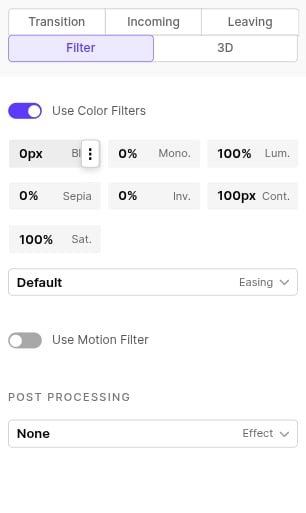
Use Color Filters (Toggle)
Sets whether the background transition plays with color filters.

Options:
- On: The color filter settings below are shown, and the background starts the transition with them applied.
- Off: The transition plays without color filters.
Blur (Number, pixels)
Setting Visibility
- Visible when Use Color Filters toggled to On.
- Hidden when Use Color Filters toggled to Off.
Sets how blurred the background is at the start of the transition, in pixels. 0px adds no blur.
Mono. (Number, percentage)
Setting Visibility
- Visible when Use Color Filters toggled to On.
- Hidden when Use Color Filters toggled to Off.
Sets how far the background is turned to monochrome, shades of gray only, at the start of the transition. 0% keeps its colors and 100% makes it fully gray.
Lum. (Number, percentage)
Setting Visibility
- Visible when Use Color Filters toggled to On.
- Hidden when Use Color Filters toggled to Off.
Sets the luminance, or brightness, of the background at the start of the transition. 100% is its normal brightness, lower values darken it and higher values brighten it.
Sepia (Number, percentage)
Setting Visibility
- Visible when Use Color Filters toggled to On.
- Hidden when Use Color Filters toggled to Off.
Sets how far the background is tinted to warm brown tones at the start of the transition. 0% adds no tint.
Inv. (Number, percentage)
Setting Visibility
- Visible when Use Color Filters toggled to On.
- Hidden when Use Color Filters toggled to Off.
Sets how far the background's colors are inverted at the start of the transition. 0% keeps them as they are and 100% inverts them fully.
Cont. (Number, percentage)
Setting Visibility
- Visible when Use Color Filters toggled to On.
- Hidden when Use Color Filters toggled to Off.
Sets the contrast of the background at the start of the transition. 100% is its normal contrast, lower values flatten it and higher values strengthen it.
Sat. (Number, percentage)
Setting Visibility
- Visible when Use Color Filters toggled to On.
- Hidden when Use Color Filters toggled to Off.
Sets the color saturation of the background at the start of the transition. 100% is its normal saturation, 0% removes the color and 200% doubles it.
Easing (Dropdown)
Setting Visibility
- Visible when Use Color Filters toggled to On.
- Hidden when Use Color Filters toggled to Off.
Sets the curve the color filters follow as they return to none over the second half of the transition. Default uses the transition's own Easing, and the other entries are the same curves offered there.

Use Motion Filter (Toggle)
Sets whether the moving background is blurred in the direction it travels while the transition plays.

Options:
- On: The Motion and Overlay settings below are shown, and the background is blurred as it moves.
- Off: The background moves without motion blur.
Motion (Number, pixels)
Setting Visibility
- Visible when Use Motion Filter toggled to On.
- Hidden when Use Motion Filter toggled to Off.
Sets the strength of the motion blur, in pixels. The default is 80px.
Overlay (Dropdown)
Setting Visibility
- Visible when Use Motion Filter toggled to On.
- Hidden when Use Motion Filter toggled to Off.
A dropdown shown with the Motion setting of the motion filter. No option is selected until one is chosen.
Options:
- None
- Partial
- Full
Post Processing Section
In the Post Processing section add an effect that changes how the background looks while the transition plays, such as grain, blur or a halftone pattern. The section sits in the Filter tab, or in the Filters tab when Engine is set to Advanced Transitions.
Each effect has its own settings, described below by effect, and a Timing section that sets when within the transition it runs. The effect affects the slide background only, not the layers.
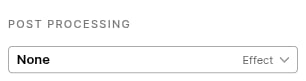
Effect (Dropdown)
Sets the post processing effect played over the background during the transition. The effects are grouped as Grain & Glitch, Blur and Stylize.

Options:
- None: No post processing effect is played.
- Glitches: Splits the background's color channels apart in short bursts, with torn bands and specks.
- Glitch & Noise: Adds wave distortion, shaking, blocks of noise and white noise.
- Film: Adds grain and horizontal scanlines, like old film.
- Grain: Adds moving grain to the background.
- Dither: Reduces the background to a few levels per color with an ordered dot pattern.
- Motion Blur: Smears the background along one direction.
- Bokeh: Blurs the whole background evenly with a round, soft-edged blur.
- Vignette: Darkens the edges of the background.
- Chromatic: Splits the color channels apart, toward the edges or along one direction.
- Posterize: Reduces the background to flat bands of color.
- Halftone: Redraws the background as a pattern of dots or lines.
- Pixelate: Redraws the background as large square blocks.
Glitches Effect
Section Visibility
- Visible when Effect is set to Glitches.
- Hidden when Effect is set to any other effect.
The Glitches settings set how strong the glitch bursts are and how often they come.
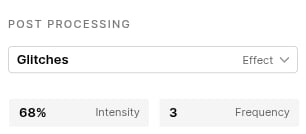
Intensity (Number, percentage, range)
Setting Visibility
- Visible when Effect is set to Glitches.
- Hidden when Effect is set to any other effect.
Sets how far the color channels are split apart and how strongly the background is torn in each glitch burst.
Options:
- 0%: Minimum. The bursts have no visible effect.
- 100%: Maximum. The bursts split and tear the background as far as they can.
Frequency (Number, range)
Setting Visibility
- Visible when Effect is set to Glitches.
- Hidden when Effect is set to any other effect.
Sets how often the glitch bursts come during the transition.
Options:
- 1: Minimum. The bursts come least often.
- 20: Maximum. The bursts come most often.
Glitch & Noise Effect
Section Visibility
- Visible when Effect is set to Glitch & Noise.
- Hidden when Effect is set to any other effect.
The Glitch & Noise settings set how much of the effect is mixed into the background. Its glitches come at intervals that follow the transition's own length.
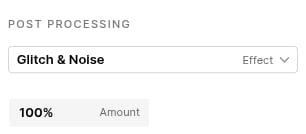
Amount (Number, percentage, range)
Setting Visibility
- Visible when Effect is set to Glitch & Noise.
- Hidden when Effect is set to any other effect.
Sets how much of the distortion and noise is mixed into the background.
Options:
- 0%: Minimum. None of the effect is mixed in.
- 100%: Maximum. The full effect is mixed in.
Film Effect
Section Visibility
- Visible when Effect is set to Film.
- Hidden when Effect is set to any other effect.
The Film settings set the grain, the scanlines and the color of the film look.
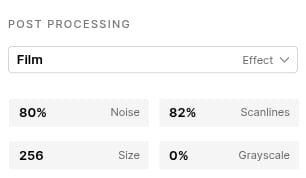
Noise (Number, percentage, range)
Setting Visibility
- Visible when Effect is set to Film.
- Hidden when Effect is set to any other effect.
Sets the strength of the random brightness grain.
Options:
- 0%: Minimum. No grain is added.
- 100%: Maximum. The grain is at its strongest.
Scanlines (Number, percentage, range)
Setting Visibility
- Visible when Effect is set to Film.
- Hidden when Effect is set to any other effect.
Sets how dark the horizontal scanlines are.
Options:
- 0%: Minimum. No scanlines are drawn.
- 100%: Maximum. The scanlines are at their darkest.
Size (Number, range)
Setting Visibility
- Visible when Effect is set to Film.
- Hidden when Effect is set to any other effect.
Sets how many scanlines are drawn across the background. Higher values give more, finer lines.
Options:
- 0: Minimum. The fewest scanlines are drawn.
- 500: Maximum. The most scanlines are drawn.
Grayscale (Number, percentage, range)
Setting Visibility
- Visible when Effect is set to Film.
- Hidden when Effect is set to any other effect.
Sets how far the background is turned to grayscale while the effect plays.
Options:
- 0%: Minimum. The background keeps its colors.
- 100%: Maximum. The background is fully gray.
Grain Effect
Section Visibility
- Visible when Effect is set to Grain.
- Hidden when Effect is set to any other effect.
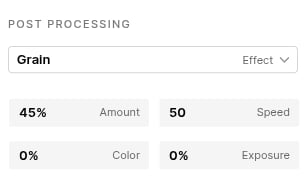
The Grain settings set how strong the grain is, how fast it changes, whether it is colored, and the brightness of the background under it.
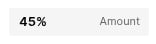
Amount (Number, percentage, range)
Setting Visibility
- Visible when Effect is set to Grain.
- Hidden when Effect is set to any other effect.
Sets how far the grain moves each pixel's brightness up or down.
Options:
- 0%: Minimum. No grain is added.
- 100%: Maximum. The grain is at its strongest.
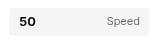
Speed (Number, range)
Setting Visibility
- Visible when Effect is set to Grain.
- Hidden when Effect is set to any other effect.
Sets how often the grain pattern changes.
Options:
- 0: Minimum. The grain pattern stays still.
- 100: Maximum. The grain pattern changes fastest.
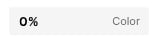
Color (Number, percentage, range)
Setting Visibility
- Visible when Effect is set to Grain.
- Hidden when Effect is set to any other effect.
Sets how colored the grain is.
Options:
- 0%: Minimum. The grain is monochrome.
- 100%: Maximum. The grain is fully colored.
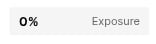
Exposure (Number, percentage, range)
Setting Visibility
- Visible when Effect is set to Grain.
- Hidden when Effect is set to any other effect.
Darkens or brightens the background while the grain plays. 0% leaves its brightness unchanged.
Options:
- -100%: Minimum. The background is darkened as far as it can be.
- 100%: Maximum. The background is brightened as far as it can be.
Dither Effect
Section Visibility
- Visible when Effect is set to Dither.
- Hidden when Effect is set to any other effect.
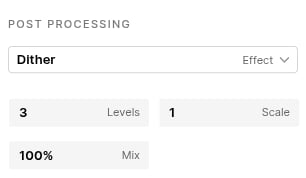
The Dither settings set how many color levels remain, the size of the dot pattern, and how much of the effect is mixed in.
Levels (Number, range)
Setting Visibility
- Visible when Effect is set to Dither.
- Hidden when Effect is set to any other effect.
Sets how many levels each color channel is reduced to.
Options:
- 2: Minimum. Each channel keeps two levels, the coarsest result.
- 8: Maximum. Each channel keeps eight levels, the finest result.
Scale (Number, range)
Setting Visibility
- Visible when Effect is set to Dither.
- Hidden when Effect is set to any other effect.
Sets the size of the dot pattern.
Options:
- 1: Minimum. The dots are at their smallest.
- 8: Maximum. The dots are at their largest.
Mix (Number, percentage, range)
Setting Visibility
- Visible when Effect is set to Dither.
- Hidden when Effect is set to any other effect.
Sets how much of the dithered image is mixed with the original background.
Options:
- 0%: Minimum. Only the original background shows.
- 100%: Maximum. Only the dithered image shows.
Motion Blur Effect
Section Visibility
- Visible when Effect is set to Motion Blur.
- Hidden when Effect is set to any other effect.
The Motion Blur settings set how far the blur reaches and the direction it smears in.
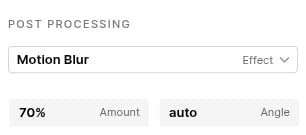
Amount (Number, percentage, range)
Setting Visibility
- Visible when Effect is set to Motion Blur.
- Hidden when Effect is set to any other effect.
Sets how far the blur reaches at its strongest.

Options:
- 0%: Minimum. No blur is added.
- 100%: Maximum. The blur reaches as far as it can.
Angle (Number, degrees)
Setting Visibility
- Visible when Effect is set to Motion Blur.
- Hidden when Effect is set to any other effect.
Sets the direction the blur smears in, in degrees. Auto points it along the direction the transition moves the background, and a number sets a fixed direction.
Bokeh Effect
Section Visibility
- Visible when Effect is set to Bokeh.
- Hidden when Effect is set to any other effect.
The Bokeh settings set the strength of the round blur.
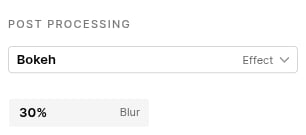
Blur (Number, percentage, range)
Setting Visibility
- Visible when Effect is set to Bokeh.
- Hidden when Effect is set to any other effect.
Sets the radius of the blur.
Options:
- 0%: Minimum. No blur is added.
- 100%: Maximum. The blur is at its widest.
Vignette Effect
Section Visibility
- Visible when Effect is set to Vignette.
- Hidden when Effect is set to any other effect.
The Vignette settings set how dark the edges become, how far the darkening reaches and how soft its edge is.
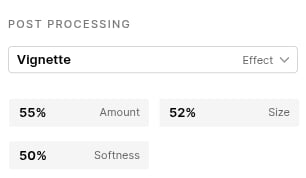
Amount (Number, percentage, range)
Setting Visibility
- Visible when Effect is set to Vignette.
- Hidden when Effect is set to any other effect.
Sets how dark the edges of the background become.

Options:
- 0%: Minimum. The edges are not darkened.
- 100%: Maximum. The edges are darkened as far as they can be.
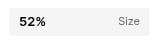
Size (Number, percentage, range)
Setting Visibility
- Visible when Effect is set to Vignette.
- Hidden when Effect is set to any other effect.
Sets the size of the clear area in the middle of the background, inside the darkened edges.
Options:
- 0%: Minimum. The clear area is at its smallest.
- 100%: Maximum. The clear area is at its largest.
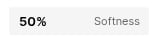
Softness (Number, percentage, range)
Setting Visibility
- Visible when Effect is set to Vignette.
- Hidden when Effect is set to any other effect.
Sets how gradually the darkened edges blend into the clear area.
Options:
- 0%: Minimum. The darkening ends in a sharp line.
- 100%: Maximum. The darkening fades in as gradually as it can.
Chromatic Effect
Section Visibility
- Visible when Effect is set to Chromatic.
- Hidden when Effect is set to any other effect.
The Chromatic settings set how far the color channels split, the pattern they split in, and how much of the effect is mixed in.
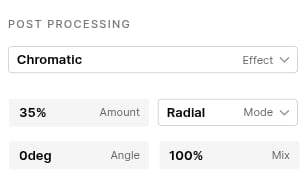
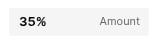
Amount (Number, percentage, range)
Setting Visibility
- Visible when Effect is set to Chromatic.
- Hidden when Effect is set to any other effect.
Sets how far the color channels are split apart.
Options:
- 0%: Minimum. The channels are not split.
- 100%: Maximum. The channels are split as far as they can be.
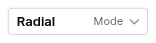
Mode (Dropdown)
Setting Visibility
- Visible when Effect is set to Chromatic.
- Hidden when Effect is set to any other effect.
Sets the pattern the color channels split in.
Options:
- Radial: The channels split outward from the center, more toward the edges.
- Linear: The channels split along one direction, set by Angle.
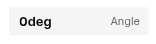
Angle (Number, degrees, range)
Setting Visibility
- Visible when Effect is set to Chromatic.
- Hidden when Effect is set to any other effect.
Sets the direction the color channels split along, in degrees.
Options:
- -180deg: Minimum. The split runs along the direction turned a half turn one way.
- 180deg: Maximum. The split runs along the direction turned a half turn the other way.
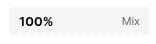
Mix (Number, percentage, range)
Setting Visibility
- Visible when Effect is set to Chromatic.
- Hidden when Effect is set to any other effect.
Sets how much of the split image is mixed with the original background.
Options:
- 0%: Minimum. Only the original background shows.
- 100%: Maximum. Only the split image shows.
Posterize Effect
Section Visibility
- Visible when Effect is set to Posterize.
- Hidden when Effect is set to any other effect.
The Posterize settings set how many color bands remain and how much of the effect is mixed in.

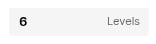
Levels (Number, range)
Setting Visibility
- Visible when Effect is set to Posterize.
- Hidden when Effect is set to any other effect.
Sets how many levels each color channel is reduced to.
Options:
- 2: Minimum. Each channel keeps two levels, the flattest result.
- 32: Maximum. Each channel keeps 32 levels, the closest to the original.
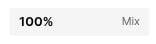
Mix (Number, percentage, range)
Setting Visibility
- Visible when Effect is set to Posterize.
- Hidden when Effect is set to any other effect.
Sets how much of the posterized image is mixed with the original background.
Options:
- 0%: Minimum. Only the original background shows.
- 100%: Maximum. Only the posterized image shows.
Halftone Effect
Section Visibility
- Visible when Effect is set to Halftone.
- Hidden when Effect is set to any other effect.
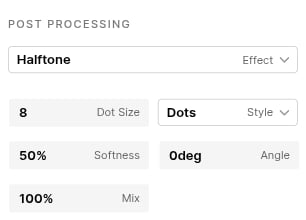
The Halftone settings set the size, shape, softness and angle of the pattern, and how much of it is mixed in.
Dot Size (Number, range)
Setting Visibility
- Visible when Effect is set to Halftone.
- Hidden when Effect is set to any other effect.
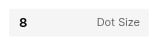
Sets the size of the dots or lines in the pattern.
Options:
- 2: Minimum. The pattern is at its finest.
- 40: Maximum. The pattern is at its coarsest.
Style (Dropdown)
Setting Visibility
- Visible when Effect is set to Halftone.
- Hidden when Effect is set to any other effect.
Sets the shape the pattern is made of.
Options:
- Dots: The background is redrawn as dots.
- Lines: The background is redrawn as lines.
Softness (Number, percentage, range)
Setting Visibility
- Visible when Effect is set to Halftone.
- Hidden when Effect is set to any other effect.
Sets how soft the edges of the dots or lines are.
Options:
- 0%: Minimum. The edges are sharp.
- 100%: Maximum. The edges are as soft as they can be.
Angle (Number, degrees, range)
Setting Visibility
- Visible when Effect is set to Halftone.
- Hidden when Effect is set to any other effect.
Sets the angle the pattern is laid at, in degrees.
Options:
- 0deg: Minimum. The pattern runs level.
- 180deg: Maximum. The pattern is turned a half turn.
Mix (Number, percentage, range)
Setting Visibility
- Visible when Effect is set to Halftone.
- Hidden when Effect is set to any other effect.
Sets how much of the halftone image is mixed with the original background.
Options:
- 0%: Minimum. Only the original background shows.
- 100%: Maximum. Only the halftone image shows.
Pixelate Effect
Section Visibility
- Visible when Effect is set to Pixelate.
- Hidden when Effect is set to any other effect.
The Pixelate settings set the size of the blocks and how much of the effect is mixed in.
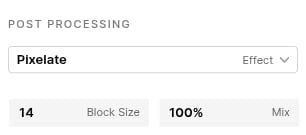
Block Size (Number, range)
Setting Visibility
- Visible when Effect is set to Pixelate.
- Hidden when Effect is set to any other effect.
Sets the size of the square blocks the background is redrawn in.
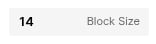
Options:
- 2: Minimum. The blocks are at their smallest.
- 120: Maximum. The blocks are at their largest.
Mix (Number, percentage, range)
Setting Visibility
- Visible when Effect is set to Pixelate.
- Hidden when Effect is set to any other effect.
Sets how much of the pixelated image is mixed with the original background.
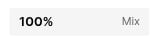
Options:
- 0%: Minimum. Only the original background shows.
- 100%: Maximum. Only the pixelated image shows.
Timing Section
Section Visibility
- Visible when Effect is set to any effect other than None.
- Hidden when Effect is set to None.
In the Timing section set when the post processing effect runs within the transition. The values are percentages of the transition, from 0% at its start to 100% at its end.
Left unset, each field shows the window the chosen effect uses by default, since some effects start late on purpose.
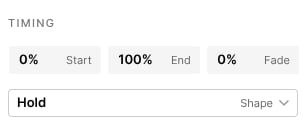
Start (Number, percentage, range)
Setting Visibility
- Visible when Effect is set to any effect other than None.
- Hidden when Effect is set to None.
Sets the point in the transition where the effect begins.
Options:
- 0%: Minimum. The effect begins as the transition starts.
- 100%: Maximum. The effect begins as the transition ends.
End (Number, percentage, range)
Setting Visibility
- Visible when Effect is set to any effect other than None.
- Hidden when Effect is set to None.
Sets the point in the transition where the effect is gone.
Options:
- 0%: Minimum. The effect ends as the transition starts.
- 100%: Maximum. The effect lasts until the transition ends.
Fade (Number, percentage, range)
Setting Visibility
- Visible when Effect is set to any effect other than None.
- Hidden when Effect is set to None.
Sets how much of the transition the effect takes to fade in and out at the edges of its window, as a percentage of the transition.
Options:
- 0%: Minimum. The effect switches on and off at once.
- 50%: Maximum. The effect fades over half of the transition.
Shape (Dropdown)
Setting Visibility
- Visible when Effect is set to any effect other than None.
- Hidden when Effect is set to None.
Sets how the strength of the effect changes across its window. Left unset, it uses the chosen effect's own shape.

Options:
- Hold: The effect stays at full strength between Start and End.
- Fade Out at the End: The effect is at full strength, then fades out over the end of its window.
- Resolve to Clean: The effect is at full strength at the start and clears to nothing by the end.
- Build Up: The effect starts at nothing and builds to full strength by the end.
3D Tab
Section Visibility
- Visible when Engine is set to Core Engine.
- Hidden when Engine is set to Advanced Transitions.
In the 3D tab turn the background transition into a movement in depth, such as a turning cube or a background thrown off the slide. The settings below Effect depend on the effect chosen.
When the Incoming tab cuts the background into columns or rows, each strip or cell makes the 3D movement on its own.
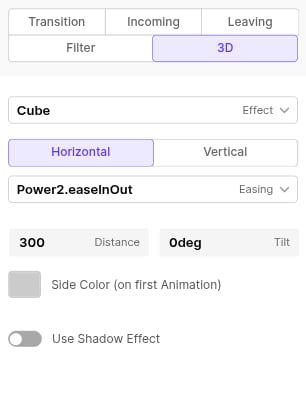
Effect (Dropdown)
Sets the 3D movement the backgrounds make during the transition.

Options:
- None: The transition plays flat, with no 3D movement.
- Cube: The two backgrounds are faces of a closed cube that turns to show the new one.
- Stage Turn: The two backgrounds are the inside walls of a cube, with the pivot in front of the slide, so the view turns into the new background like turning in a room.
- Dynamic Toss: The previous background swings about a pivot behind the slide and is thrown off the stage, tumbling, and the new background swings in after it.
- Slide Flip: The previous background flips away on a hinge at its edge, and the new background hinges in.
Direction (Tab Select)
Setting Visibility
- Visible when Effect is set to Cube, Stage Turn, Dynamic Toss or Slide Flip.
- Hidden when Effect is set to None.
Sets the axis the 3D movement turns around.

Options:
- Horizontal: The backgrounds turn sideways, around the vertical axis.
- Vertical: The backgrounds turn up or down, around the horizontal axis.
Easing (Dropdown)
Setting Visibility
- Visible when Effect is set to Cube, Stage Turn, Dynamic Toss or Slide Flip.
- Hidden when Effect is set to None.
Sets the curve the 3D turn follows, separately from the transition's own Easing. It offers the same curves.

Distance (Number)
Setting Visibility
- Visible when Effect is set to Cube, Stage Turn or Dynamic Toss.
- Hidden when Effect is set to None or Slide Flip.
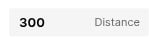
Sets how far, in pixels, the slide pulls back into depth during the turn. The default is 300.
Tilt (Number, degrees)
Setting Visibility
- Visible when Effect is set to Cube, Stage Turn or Dynamic Toss.
- Hidden when Effect is set to None or Slide Flip.
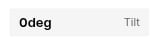
Tilts the turn on the other axis, in degrees. The tilt is not applied to the module's first transition in.
Side Color (on first Animation) (Color Swatch)
Setting Visibility
- Visible when Effect is set to Cube or Stage Turn.
- Hidden when Effect is set to None, Dynamic Toss or Slide Flip.
Sets the color of the cube's other face on the module's first transition, when there is no previous slide's background to show on it.

Rotation (Number, degrees)
Setting Visibility
- Visible when Effect is set to Dynamic Toss.
- Hidden when Effect is set to any other effect.
Sets how far, in degrees, the background spins in the plane of the slide as it is thrown. Left empty, a random spin of up to 10 degrees either way is used.
In (Number, range)
Setting Visibility
- Visible when Effect is set to Dynamic Toss.
- Hidden when Effect is set to any other effect.
Sets how far the incoming background travels as it comes in. The default is 1.5.

Options:
- 0: Minimum. The incoming background travels the shortest distance.
- 3: Maximum. The incoming background travels the furthest.
Out (Number, range)
Setting Visibility
- Visible when Effect is set to Dynamic Toss.
- Hidden when Effect is set to any other effect.
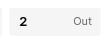
Sets how far the leaving background travels as it is thrown away. The default is 2.
Options:
- 0: Minimum. The leaving background travels the shortest distance.
- 3: Maximum. The leaving background travels the furthest.
Use Shadow Effect (Toggle)
Setting Visibility
- Visible when Effect is set to Cube, Stage Turn, Dynamic Toss or Slide Flip.
- Hidden when Effect is set to None.
Sets whether the backgrounds darken as they turn away during the 3D movement.

Options:
- On: The Min, Max, Lim and Shadow Color settings below are shown, and a shadow darkens the turning backgrounds.
- Off: The backgrounds turn without a shadow.
Min (Number, range)
Setting Visibility
- Visible when Use Shadow Effect toggled to On.
- Hidden when Use Shadow Effect toggled to Off.
One of three values, with Max and Lim, that shape the shadow of the 3D effect. The default is 0.
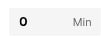
Options:
- 0: Minimum. The lowest value the field accepts.
- 0.5: Maximum. The highest value the field accepts.
Max (Number, range)
Setting Visibility
- Visible when Use Shadow Effect toggled to On.
- Hidden when Use Shadow Effect toggled to Off.
One of three values, with Min and Lim, that shape the shadow of the 3D effect. The default is 0.5.
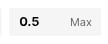
Options:
- 0.5: Minimum. The lowest value the field accepts.
- 1: Maximum. The highest value the field accepts.
Lim (Number, range)
Setting Visibility
- Visible when Use Shadow Effect toggled to On.
- Hidden when Use Shadow Effect toggled to Off.
One of three values, with Min and Max, that shape the shadow of the 3D effect. The default is 1.
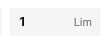
Options:
- 0.2: Minimum. The lowest value the field accepts.
- 1: Maximum. The highest value the field accepts.
Shadow Color (Color Swatch)
Setting Visibility
- Visible when Use Shadow Effect toggled to On.
- Hidden when Use Shadow Effect toggled to Off.
Sets the color of the shadow on the turning backgrounds. The default is black.