
Animation Targets: Text Splitting
UI Navigation Map: Animation Targets: Text Splitting

Go to the Module Editor, in the Right Sidebar click the Animation icon in the Mode Switcher to enter Animation Mode, select a text layer, choose Advanced at the bottom of the sidebar, click Add under Animation Targets and choose Animate By Chars., Animate By Words or Animate By Lines, then select a keyframe:
- Text Splitting Targets
- Timing and Flow Section
- Split Duration
- Easing
- Split Delay
- Dir
- Chars., Words and Lines Section
- Reset Keyframe
- Opacity
- Gap
- X
- Y
- Z
- Scale X
- Scale Y
- Skew X
- Skew Y
- X Rotation
- Y Rotation
- Z Rotation
- Orig. X
- Orig. Y
- Orig. Z
- Text Shadow Section (Toggle)
- X
- Y
- Blur
- Shadow Color
- Text Color Section (Toggle)
- Custom Text Color
- Filter Section (Toggle)
- Blur
- Mono.
- Lum.
- Contrast
- Saturation
- Timing and Flow Section
In Slider Revolution, a layer is a single element placed on a slide, such as a piece of text, an image, a button or a shape. Its animation is made of keyframes, each holding the layer's values at one moment, and the layer moves from one keyframe's values to the next.
A layer's animation is split into animation targets, each animating one part of the layer. The three text splitting targets break a text layer's text into characters, words or lines and animate each part on its own, one after another, so the text appears or disappears one part at a time.
This article covers the settings the Chars., Words and Lines targets hold at a keyframe. How keyframes are added and selected is covered in Animation Advanced Mode, and the layer's main target in Animation Targets: Layer.
To add a text splitting target, go to the Module Editor and, in the Right Sidebar, click the Animation icon in the Mode Switcher to enter Animation Mode. Select a text layer and choose Advanced at the bottom of the sidebar. Then click Add 1 under Animation Targets and choose Animate By Chars. 2, Animate By Words 3 or Animate By Lines 4 under Text Splitting.
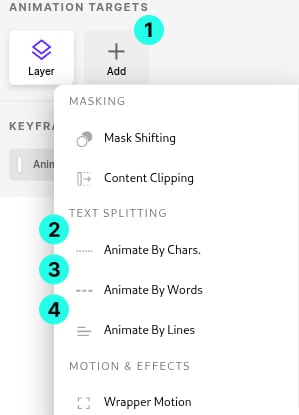
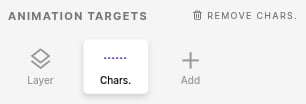
The new target appears as a tile, Chars. for characters, Words or Lines. Click the tile and select a keyframe in the Keyframes section, or click a frame on the Timeline, to see the target's values at that moment.
An Essentials preset that animates text by part adds the same targets, so its keyframes can be adjusted here. A target that is no longer wanted is removed with the Remove button at the top right of Animation Targets, which reads Remove Chars., Remove Words or Remove Lines.
Text Splitting Targets
The Chars., Words and Lines targets are offered for text layers only. Each splits the text into parts of its own size, characters, words or lines, and plays its keyframes on every part, starting each part a little after the one before.
A layer can have more than one of the three at once, and their animations then play together. Each has its own keyframes, shown under Keyframes, and its own Timing and Flow.
The three targets offer the same settings, described once below, with two differences. Gap is offered by Chars. only. Text Shadow and Text Color are offered by the smallest split the layer has, Chars. if it has one, otherwise Words, otherwise Lines. Text Color is then no longer offered on the Layer target, while Text Shadow is offered on both.
Timing and Flow Section
Section Visibility
- Visible when a Chars., Words or Lines target is selected with a keyframe other than the first.
- Hidden when the first keyframe, Anim From, is selected.
In the Timing and Flow section of a Chars., Words or Lines target set how long each part takes to move into the selected keyframe, the curve it follows, and the order and spacing in which the parts start.
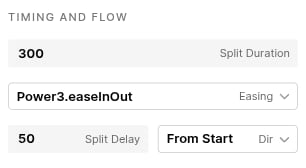
Split Duration (Number, milliseconds)
Sets how long each character, word or line of the Chars., Words or Lines target takes to move into the keyframe. The whole text takes longer, since each part starts after the one before.

Easing (Dropdown)
Sets the curve each character, word or line of the Chars., Words or Lines target follows as it moves into the keyframe. Each family below is offered as easeIn, easeOut and easeInOut, which place the curve at the start, the end or both ends of the movement. Linear and the three Late curves are single entries.

Options:
- Linear: A constant speed from start to end.
- Power0 to Power4: Curves of increasing strength,
Power0being the same as Linear andPower4the most pronounced. - Quad, Cubic, Quart, Quint: The same curves under their mathematical names, in order of increasing strength.
- Sine: A shallow curve based on a sine wave.
- Expo: A sharp curve that starts or ends very fast.
- Circ: A curve that starts or ends abruptly, based on a quarter circle.
- Strong: The strongest of the plain curves.
- Back: Overshoots the end value, then returns to it.
- Elastic: Overshoots and oscillates around the end value, with each swing smaller, before stopping on it.
- Bounce: Reaches the end value and rebounds from it several times, each rebound smaller, before stopping on it.
- Late, Late2, Late3: Custom curves that hold near the start and do most of their movement at the end. Late3 starts moving earliest of the three, Late2 holds the longest.
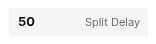
Split Delay (Number, milliseconds, range)
Sets the time between the start of one character, word or line of the Chars., Words or Lines target and the start of the next. The default is 50 milliseconds.
Options:
- 0: Minimum. Every part moves at the same time.
- 1000: Maximum. Each part starts a full second after the one before.
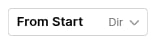
Dir (Dropdown)
Sets the direction of the stagger, the order in which the characters, words or lines of the Chars., Words or Lines target start moving.
When Auto Direction is switched on for X and the slide was reached by going back to a previous slide, From Start and From End swap, so the order follows the direction of navigation.
Options:
- From Start: The first part starts first, and the rest follow in reading order.
- From End: The last part starts first, and the rest follow in reverse order.
- From Center: The parts in the middle start first, and the rest follow outward.
- From Edges: The parts at both ends start first, and the rest follow inward.
- Random: The parts start in a random order.
Chars., Words and Lines Section
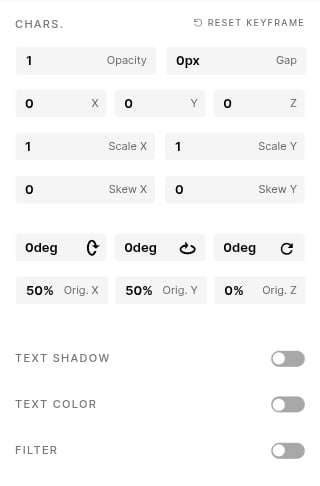
In the section named for the selected target, Chars., Words or Lines, set the values each character, word or line holds at the selected keyframe: opacity, position, scale, skew, rotation and transform origin.
Most of the fields open a popup when clicked, where the value can be a single number, a cycle of values handed out to the parts in turn, a random range, or inherited. The value can also be set by dragging left and right on the field.
Reset Keyframe (Button)
Returns the selected keyframe's settings in the Chars., Words or Lines target to their defaults.
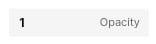
Opacity (Number, range)
Sets how opaque each character, word or line of the Chars., Words or Lines target is at the keyframe.
Options:
- 0: Minimum. Each part is fully transparent.
- 1: Maximum. Each part is fully opaque.
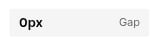
Gap (Number, pixels)
Setting Visibility
- Visible when the Chars. target is selected.
- Hidden when the Words or Lines target is selected.
Sets extra space added between the characters of the Chars. target at the keyframe, in pixels. Animating it from one keyframe to the next spreads the letters apart or draws them together.
X (Number, popup)
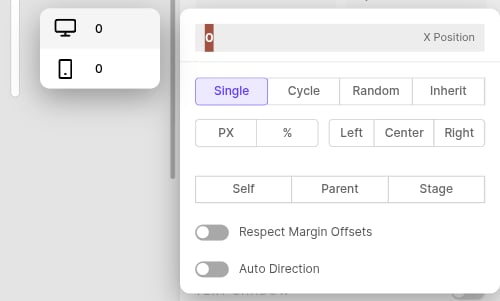
Sets the horizontal position of each character, word or line of the Chars., Words or Lines target at the keyframe, as an offset from where the part sits in the text. Clicking the field opens a popup with the options below.
X can hold a different value for each device size. While the field is being edited, the value for every device is listed beside the popup, with the current device highlighted.
Options:
- Single: The field takes one value, used by every part.
- Cycle: The field takes a list of values separated by commas, and each part takes the next value in turn, starting again from the first.
- Random: The field takes a lowest and a highest value separated by a comma, and each part takes a random value between them.
- Inherit: No value is set at this keyframe, so each part keeps the value it already has. The field shows
*. - PX: The value is in pixels.
- %: The value is a percentage.
- Left: The parts are placed at the left edge of the reference chosen with Self, Parent or Stage.
- Center: The parts are centered on the reference.
- Right: The parts are placed at the right edge of the reference.
- Outside: With Left or Right, the parts sit just outside the edge. This is the default.
- Inside: With Left or Right, the parts sit just inside the edge. It is not offered with Center, and is grayed out with Self, where choosing Self returns the field to Outside.
- Self: The edges are those of each part's own position.
- Parent: The edges are those of the container the layer sits in.
- Stage: The edges are those of the slide's content area.
- Respect Margin Offsets: When switched on, the layer's offset inside its own wrapper, set by its margins, is taken into account when the parts are placed against an edge.
- Auto Direction: When switched on, the value is reversed when the slide was reached by going back to a previous slide, so the movement follows the direction of navigation.
Y (Number, popup)
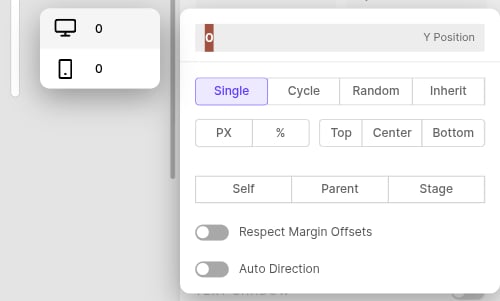
Sets the vertical position of each character, word or line of the Chars., Words or Lines target at the keyframe, as an offset from where the part sits in the text. Clicking the field opens a popup with the options below.
Y can hold a different value for each device size. While the field is being edited, the value for every device is listed beside the popup, with the current device highlighted.
Options:
- Single: The field takes one value, used by every part.
- Cycle: The field takes a list of values separated by commas, and each part takes the next value in turn, starting again from the first.
- Random: The field takes a lowest and a highest value separated by a comma, and each part takes a random value between them.
- Inherit: No value is set at this keyframe, so each part keeps the value it already has. The field shows
*. - PX: The value is in pixels.
- %: The value is a percentage.
- Top: The parts are placed at the top edge of the reference chosen with Self, Parent or Stage.
- Center: The parts are centered on the reference.
- Bottom: The parts are placed at the bottom edge of the reference.
- Outside: With Top or Bottom, the parts sit just outside the edge. This is the default.
- Inside: With Top or Bottom, the parts sit just inside the edge. It is not offered with Center, and is grayed out with Self, where choosing Self returns the field to Outside.
- Self: The edges are those of each part's own position.
- Parent: The edges are those of the container the layer sits in.
- Stage: The edges are those of the slide's content area.
- Respect Margin Offsets: When switched on, the layer's offset inside its own wrapper, set by its margins, is taken into account when the parts are placed against an edge.
- Auto Direction: When switched on, the value is reversed when the slide was reached by going back to a previous slide, so the movement follows the direction of navigation.
Z (Number, popup)
Sets the position of each character, word or line of the Chars., Words or Lines target along the depth axis at the keyframe. A positive value brings the part toward the viewer and a negative value moves it away. Clicking the field opens a popup with the options below.
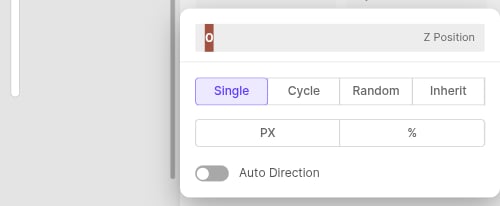
Options:
- Single: The field takes one value, used by every part.
- Cycle: The field takes a list of values separated by commas, and each part takes the next value in turn, starting again from the first.
- Random: The field takes a lowest and a highest value separated by a comma, and each part takes a random value between them.
- Inherit: No value is set at this keyframe, so each part keeps the value it already has. The field shows
*. - PX: The value is in pixels.
- %: The value is a percentage.
- Auto Direction: When switched on, the value is reversed when the slide was reached by going back to a previous slide.
Scale X (Number, popup)
Sets the horizontal scale of each character, word or line of the Chars., Words or Lines target at the keyframe. 1 is the part's own width. Clicking the field opens a popup with the options below.
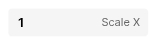
Options:
- Single: The field takes one value, used by every part.
- Cycle: The field takes a list of values separated by commas, and each part takes the next value in turn, starting again from the first.
- Random: The field takes a lowest and a highest value separated by a comma, and each part takes a random value between them.
- Inherit: No value is set at this keyframe, so each part keeps the value it already has. The field shows
*. - Auto Direction: When switched on, the value is reversed when the slide was reached by going back to a previous slide.
Scale Y (Number, popup)
Sets the vertical scale of each character, word or line of the Chars., Words or Lines target at the keyframe. 1 is the part's own height. Clicking the field opens a popup with the options below.
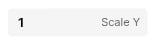
Options:
- Single: The field takes one value, used by every part.
- Cycle: The field takes a list of values separated by commas, and each part takes the next value in turn, starting again from the first.
- Random: The field takes a lowest and a highest value separated by a comma, and each part takes a random value between them.
- Inherit: No value is set at this keyframe, so each part keeps the value it already has. The field shows
*. - Auto Direction: When switched on, the value is reversed when the slide was reached by going back to a previous slide.
Skew X (Number, popup)
Slants each character, word or line of the Chars., Words or Lines target horizontally at the keyframe, in degrees. Clicking the field opens a popup with the options below.
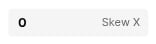
Options:
- Single: The field takes one value, used by every part.
- Cycle: The field takes a list of values separated by commas, and each part takes the next value in turn, starting again from the first.
- Random: The field takes a lowest and a highest value separated by a comma, and each part takes a random value between them.
- Inherit: No value is set at this keyframe, so each part keeps the value it already has. The field shows
*. - Auto Direction: When switched on, the value is reversed when the slide was reached by going back to a previous slide.
Skew Y (Number, popup)
Slants each character, word or line of the Chars., Words or Lines target vertically at the keyframe, in degrees. Clicking the field opens a popup with the options below.

Options:
- Single: The field takes one value, used by every part.
- Cycle: The field takes a list of values separated by commas, and each part takes the next value in turn, starting again from the first.
- Random: The field takes a lowest and a highest value separated by a comma, and each part takes a random value between them.
- Inherit: No value is set at this keyframe, so each part keeps the value it already has. The field shows
*. - Auto Direction: When switched on, the value is reversed when the slide was reached by going back to a previous slide.
X Rotation (Number, popup)
Turns each character, word or line of the Chars., Words or Lines target around its horizontal axis at the keyframe, in degrees, so it tips forward or back. Clicking the field opens a popup with the options below.
Options:
- Single: The field takes one value, used by every part.
- Cycle: The field takes a list of values separated by commas, and each part takes the next value in turn, starting again from the first.
- Random: The field takes a lowest and a highest value separated by a comma, and each part takes a random value between them.
- Inherit: No value is set at this keyframe, so each part keeps the value it already has. The field shows
*. - Auto Direction: When switched on, the value is reversed when the slide was reached by going back to a previous slide.
Y Rotation (Number, popup)
Turns each character, word or line of the Chars., Words or Lines target around its vertical axis at the keyframe, in degrees, so it swings to the left or right. Clicking the field opens a popup with the options below.
Options:
- Single: The field takes one value, used by every part.
- Cycle: The field takes a list of values separated by commas, and each part takes the next value in turn, starting again from the first.
- Random: The field takes a lowest and a highest value separated by a comma, and each part takes a random value between them.
- Inherit: No value is set at this keyframe, so each part keeps the value it already has. The field shows
*. - Auto Direction: When switched on, the value is reversed when the slide was reached by going back to a previous slide.
Z Rotation (Number, popup)
Turns each character, word or line of the Chars., Words or Lines target in the plane of the slide at the keyframe, in degrees. A positive value turns it clockwise. Clicking the field opens a popup with the options below.
Options:
- Single: The field takes one value, used by every part.
- Cycle: The field takes a list of values separated by commas, and each part takes the next value in turn, starting again from the first.
- Random: The field takes a lowest and a highest value separated by a comma, and each part takes a random value between them.
- Inherit: No value is set at this keyframe, so each part keeps the value it already has. The field shows
*. - Auto Direction: When switched on, the value is reversed when the slide was reached by going back to a previous slide.
Orig. X (Number, percentage)
Sets the horizontal position of the transform origin, the point each character, word or line of the Chars., Words or Lines target scales, skews and rotates around, as a percentage of the part's width. 50% is its center.
The transform origin belongs to the target rather than to one keyframe, so the same value applies at every keyframe.
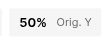
Orig. Y (Number, percentage)
Sets the vertical position of the transform origin, the point each character, word or line of the Chars., Words or Lines target scales, skews and rotates around, as a percentage of the part's height. 50% is its center.
The transform origin belongs to the target rather than to one keyframe, so the same value applies at every keyframe.
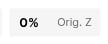
Orig. Z (Number, percentage)
Sets the depth of the transform origin, the point each character, word or line of the Chars., Words or Lines target rotates around, in front of or behind the part. At 0% the part rotates around a point on its own surface.
The transform origin belongs to the target rather than to one keyframe, so the same value applies at every keyframe.
Text Shadow Section (Toggle)
Section Visibility
- Visible when the selected Chars., Words or Lines target is the smallest split the layer has, Chars. if the layer has it, otherwise Words, otherwise Lines.
- Hidden when the layer also has a smaller split, such as Words when Chars. is present.
In the Text Shadow section of a Chars., Words or Lines target set the shadow behind each part of the text at the keyframe. Use the section toggle to give the keyframe a text shadow of its own.
When the toggle is on, the parts animate to this keyframe's shadow. When it is off, they animate back to the text shadow set in the layer's Extra Style panel.
Switching the toggle on starts the keyframe from the layer's own text shadow, or from a soft dark shadow when the layer has none.
A layer with several shadow levels shows one set of fields per level. The number of levels is set in the Extra Style panel and cannot be changed here.
The Layer target keeps its own Text Shadow section while the text is split, and a shadow animated there is applied to every part.
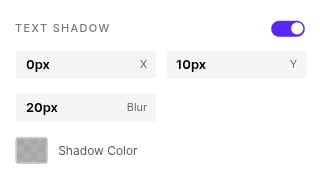
X (Number, pixels, range)
Setting Visibility
- Visible when Text Shadow toggled to On.
- Hidden when Text Shadow toggled to Off, or when the Text Shadow section is hidden.
Offsets the text shadow of each character, word or line horizontally at the keyframe.
Options:
- -50px: Minimum. The shadow sits furthest to the left of the text.
- 50px: Maximum. The shadow sits furthest to the right of the text.
Y (Number, pixels, range)
Setting Visibility
- Visible when Text Shadow toggled to On.
- Hidden when Text Shadow toggled to Off, or when the Text Shadow section is hidden.
Offsets the text shadow of each character, word or line vertically at the keyframe.
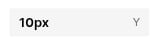
Options:
- -50px: Minimum. The shadow sits furthest above the text.
- 50px: Maximum. The shadow sits furthest below the text.
Blur (Number, pixels, range)
Setting Visibility
- Visible when Text Shadow toggled to On.
- Hidden when Text Shadow toggled to Off, or when the Text Shadow section is hidden.
Softens the edge of the text shadow of each character, word or line at the keyframe.
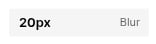
Options:
- 0px: Minimum. The shadow has a hard, sharply defined edge.
- 100px: Maximum. The shadow is diffused into a soft haze.
Shadow Color (Color Swatch)
Setting Visibility
- Visible when Text Shadow toggled to On.
- Hidden when Text Shadow toggled to Off, or when the Text Shadow section is hidden.
Sets the color of the text shadow of each character, word or line at the keyframe.
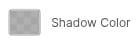
Text Color Section (Toggle)
Section Visibility
- Visible when the selected Chars., Words or Lines target is the smallest split the layer has, Chars. if the layer has it, otherwise Words, otherwise Lines.
- Hidden when the layer also has a smaller split, such as Words when Chars. is present.
In the Text Color section of a Chars., Words or Lines target set the color of each part of the text at the keyframe. Use the section toggle to give the keyframe a text color of its own.
When the toggle is on, the parts change gradually to this keyframe's color. When it is off, they return to the color set in the layer's style. While the text is split, its color is animated here rather than on the Layer target.
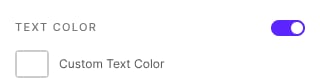
Custom Text Color (Color Swatch)
Setting Visibility
- Visible when Text Color toggled to On.
- Hidden when Text Color toggled to Off, or when the Text Color section is hidden.
Sets the color each character, word or line takes at the keyframe.

Filter Section (Toggle)
In the Filter section of a Chars., Words or Lines target blur each part of the text or change its color values at the keyframe. Use the section toggle to give the keyframe filter values of its own.
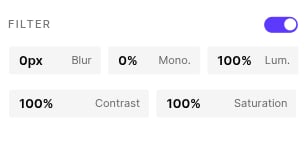
Blur (Number, pixels)
Setting Visibility
- Visible when Filter toggled to On.
- Hidden when Filter toggled to Off.
Sets how blurred each character, word or line is at the keyframe, in pixels. 0px adds no blur.
Mono. (Number, percentage)
Setting Visibility
- Visible when Filter toggled to On.
- Hidden when Filter toggled to Off.
Sets how far each character, word or line is turned to monochrome, shades of gray only, at the keyframe. 0% keeps its colors and 100% makes it fully gray.
Lum. (Number, percentage)
Setting Visibility
- Visible when Filter toggled to On.
- Hidden when Filter toggled to Off.
Sets the luminance, or brightness, of each character, word or line at the keyframe. 100% is its normal brightness, lower values darken it and higher values brighten it.
Contrast (Number, percentage)
Setting Visibility
- Visible when Filter toggled to On.
- Hidden when Filter toggled to Off.
Sets the contrast of each character, word or line at the keyframe. 100% is its normal contrast, lower values flatten it and higher values strengthen it.
Saturation (Number, percentage)
Setting Visibility
- Visible when Filter toggled to On.
- Hidden when Filter toggled to Off.
Sets the color saturation of each character, word or line at the keyframe. 100% is its normal saturation, 0% removes the color and 200% doubles it.