
Bulk Style Editor
UI Navigation Map: Bulk Style Editor

Go to the Module Editor, click Layers in the Top Bar to open the Layers sidebar, and click Bulk Style Editor at the foot of the sidebar, then:
- Bulk Style Editor
- Close
- Editing Paths Section
- Path List
- Add Path
- Colors in Use Section
- Color Swatches
- Font Families in Use Section
- Font Family
- Font Weight
- Attributes Section
- Device
- Values Differ
- Attribute Fields
- Edit Path Rules
- Path Rules Section
- Layer Type
- Slides
- Filter Type
- Filter Value
- Delete
- Add Filter
- Attributes to Edit
- Path Name
- Delete Path
- Duplicate Path
- Cancel
- Update Path
- Bulk Edit Targets Section
- Slide Switch
- Layer Checkbox
- Footer
- Target Count
- Show Targets
- Run Bulk Edit
- Running a Bulk Edit
A module in Slider Revolution is made of slides, and each slide holds layers such as text, buttons and images. Each layer has its own colors, fonts and spacing, set one layer at a time in the Module Editor.
The Bulk Style Editor is a window that changes these styles on many layers at once. It can replace a color or a font everywhere it is used in the module, or set chosen style values on every layer that matches a set of rules.
A set of rules is called a path. A path names which layers to change, on which slides, and which style values to set. The window always has two paths of its own, Colors in Use and Font Families in Use, and more can be added.
This article covers the controls of the Bulk Style Editor window, how paths are set up, and what happens when a bulk edit runs.
To open the window, go to the Module Editor and click Layers 1 in the Top Bar to open the Layers sidebar.
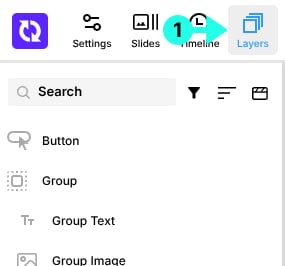
Then click the Bulk Style Editor button at the foot of the sidebar.

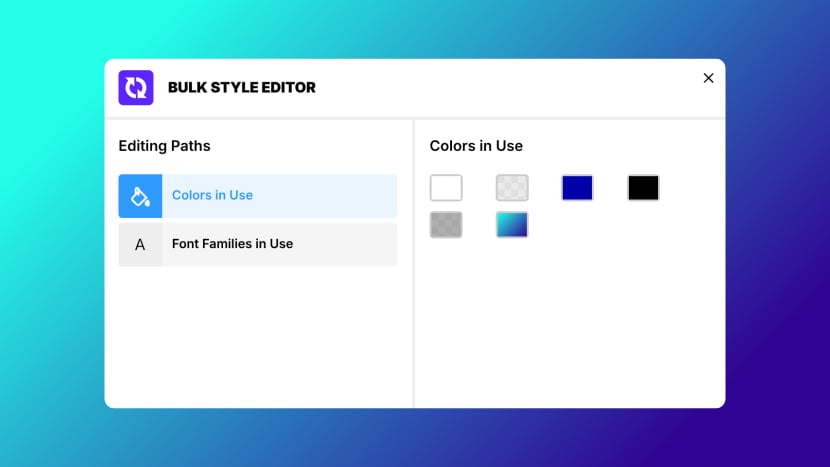
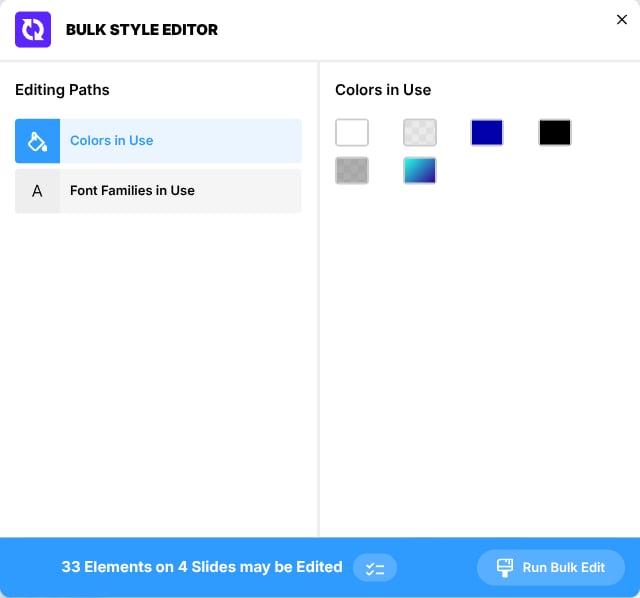
The window opens with Colors in Use selected.
It also opens from the Module styles button in Quick Edit, where the paths can be used but not added or changed.
Close (Button)
Closes the Bulk Style Editor window. Paths added or changed are kept with the module, and are saved when the module is saved.

Editing Paths Section
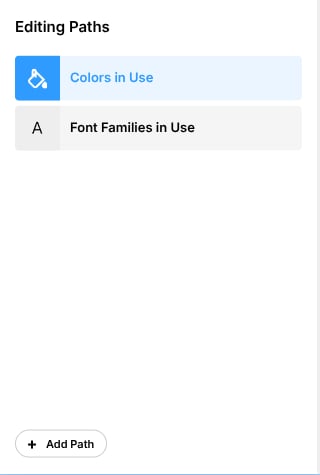
The left column of the window lists the paths. The selected path sets what the middle column shows.
Path List (Tab Select)
Sets which path the window works with. The selected path is highlighted. Added paths are listed first, then the two paths every module has.
Options:
- Colors in Use: Lists every color used by the module's layers, so a color can be replaced everywhere at once.
- Font Families in Use: Lists every font family and weight used by the module's text and button layers, so a font can be replaced everywhere at once.
- Added paths: Paths made with Add Path, each listed by its Path Name. Selecting one shows its Attributes.
Add Path (Button)
Setting Visibility
- Visible when the pointer is over the Editing Paths column.
- Hidden when the window was opened from Quick Edit.
Adds a path named New Path to the top of the Path List. A new path selects Contents layers on All Slides, and edits their font, font size, line height, letter spacing and text color.
Colors in Use Section
Section Visibility
- Visible when Colors in Use is selected in the Path List.
- Hidden when another path is selected.
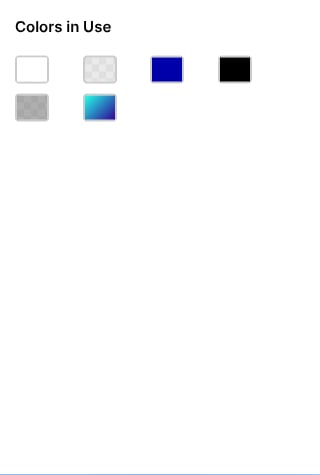
The middle column shows one swatch for each color the module's layers use, including gradients. Transparent colors are left out.
Color Swatches (Color Swatch)
Setting Visibility
- Visible when Colors in Use is selected in the Path List.
- Hidden when another path is selected.
Each swatch shows one color in use. Click a swatch to open the Color Picker and choose the color that replaces it.
The colors are collected from the layers' background, text, overlay, border, hover, text stroke and glow colors, and from the colors of some add-on layers.
Choosing a color from the Brand Colors palette of the Color Picker links every field the edit changes to that brand color. A later change to the brand color then changes those fields too.
Font Families in Use Section
Section Visibility
- Visible when Font Families in Use is selected in the Path List.
- Hidden when another path is selected.
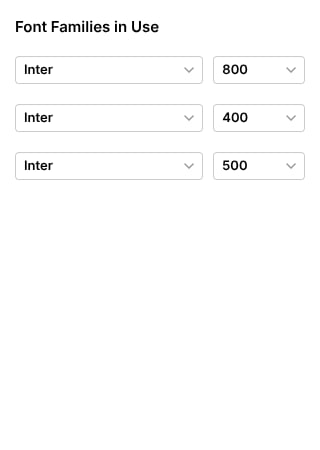
The middle column shows one row for each font family and weight the module's layers use. Each row has a Font Family and a Font Weight dropdown, set to the font in use.
Font Family (Dropdown)
Setting Visibility
- Visible when Font Families in Use is selected in the Path List.
- Hidden when another path is selected.
Sets the font family that replaces the one in use on this row. The list can be searched by typing. Choosing a brand font links every field the edit changes to that brand font.
Font Weight (Dropdown)
Setting Visibility
- Visible when Font Families in Use is selected in the Path List.
- Hidden when another path is selected.
Sets the font weight that replaces the one in use on this row. The weights offered are those the chosen font family has.
Attributes Section
Section Visibility
- Visible when an added path is selected in the Path List.
- Hidden when Colors in Use or Font Families in Use is selected, or the path's rules are being edited.
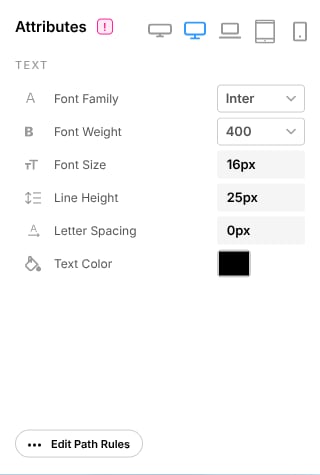
The middle column shows the style values the selected path edits, grouped under Text, Spacing and Border. Each field shows the value of the first layer the path selects.
Device (Tab Select)
Setting Visibility
- Visible when an added path is selected and the module has its device sizes set up.
- Hidden when Colors in Use or Font Families in Use is selected.
Sets which device size the values are read from and written to. Values that differ between device sizes, such as font size and spacing, are edited for one device at a time. The selected device is highlighted.
Options:
- Wide Screen: Edits the values used at the Wide Screen size.
- Desktop: Edits the values used at the Desktop size.
- Notebook: Edits the values used at the Notebook size.
- Tablet: Edits the values used at the Tablet size.
- Mobile: Edits the values used at the Mobile size.
Values Differ (Readout)
Setting Visibility
- Visible when the layers the path selects have different values for one of the attributes.
- Hidden when every selected layer has the same values.
Shows an exclamation mark beside the Attributes title. Hovering it explains that the target layers' values differ, and that the fields show the values of the first layer.
Attribute Fields (Form)
Setting Visibility
- Visible when an added path is selected in the Path List.
- Hidden when Colors in Use or Font Families in Use is selected.
One field for each attribute in the path's Attributes to Edit. The value set in each field is written to every target layer when the bulk edit runs.
Options:
- Font Family: A dropdown of font families, with a Font Weight dropdown below it.
- Font Size: A number in pixels.
- Line Height: A number in pixels.
- Letter Spacing: A number in pixels.
- Text Color: A color swatch.
- Text Decoration: A dropdown of None, Underline and Line Through.
- Text Transform: A dropdown of None, Capitalize, Uppercase and Lowercase.
- Margin Top, Margin Bottom, Margin Left, Margin Right: A number in pixels each.
- Padding Top, Padding Bottom, Padding Left, Padding Right: A number in pixels each.
- Border Style: A dropdown of None, Solid, Dotted, Dashed and Double.
- Border Color: A color swatch.
- Border Radius: A number in pixels.
Edit Path Rules (Button)
Setting Visibility
- Visible when the pointer is over the Attributes column of an added path.
- Hidden when the window was opened from Quick Edit.
Opens the selected path's rules in the middle column, in place of its Attributes, and widens the window.
Path Rules Section
Section Visibility
- Visible when Edit Path Rules has been clicked.
- Hidden when Cancel or Update Path is clicked.
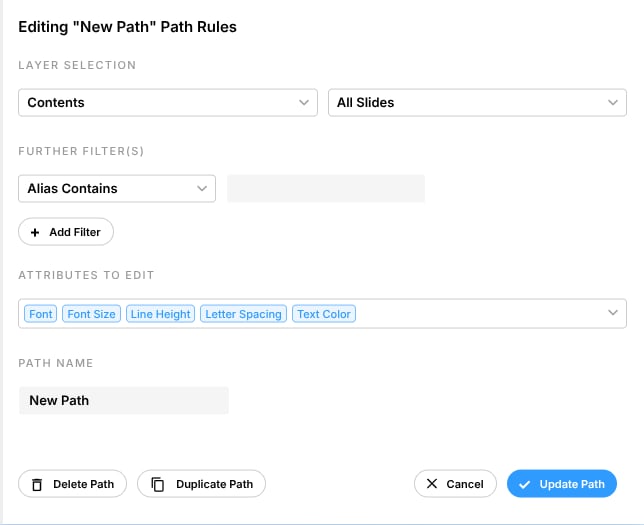
The middle column, titled Editing followed by the path's name and Path Rules, sets which layers the path selects and which attributes it edits. The Bulk Edit Targets list updates as the rules change.
Layer Type (Dropdown)
Setting Visibility
- Visible when the path's rules are being edited.
- Hidden when the path's Attributes are shown.
Sets which kind of layer the path selects. It is the first dropdown under Layer Selection.
Options:
- All Layers: Selects every layer.
- Headlines: Selects text layers whose HTML tag is a heading, such as H1 or H2.
- Contents: Selects text layers whose HTML tag is not a heading.
- Buttons: Selects button layers.
Slides (Dropdown)
Setting Visibility
- Visible when the path's rules are being edited.
- Hidden when the path's Attributes are shown.
Sets which slides the path looks for layers on. It is the second dropdown under Layer Selection.
Options:
- All Slides: Every slide, including the Static Slide.
- Current Slide: The slide open in the editor.
- Static Slide: The Static Slide only, which holds the layers shown on every slide.
- No Static Slides: Every slide except the Static Slide.
- First Slide Only: The first slide.
- Last Slide Only: The last slide.
- Every Second Slide: The first, third, fifth and every other slide after them.
Filter Type (Dropdown)
Setting Visibility
- Visible when the path's rules are being edited and a filter has been added with Add Filter.
- Hidden when the path has no filters.
Sets which property of a layer the filter compares. It is the first dropdown of a row under Further Filter(s). A layer is selected only when it matches every filter of the path.
Options:
- Alias Contains: The layer's name contains the text in Filter Value, in upper or lower case.
- Tag: The layer's HTML tag.
- Font Style, Font Size, Font Weight, Font Family, Line Height, Letter Spacing, Text Transform, Text Decoration, Text Color: The layer's value for that text setting equals the Filter Value.
- Margin Top, Margin Bottom, Margin Left, Margin Right, Padding Top, Padding Bottom, Padding Left, Padding Right: The layer's value for that spacing equals the Filter Value.
- Border Style: The layer's border style equals the Filter Value.
Filter Value (Text)
Setting Visibility
- Visible when the path's rules are being edited and a filter has been added with Add Filter.
- Hidden when the path has no filters.
Sets the value the filter compares with. For Alias Contains it is a text field. For the other types it is a dropdown listing the values the module's layers use, such as each font size in use, and a custom value can be typed.
Values that differ between device sizes are compared at the size chosen in Device.
Delete (Button)
Setting Visibility
- Visible when the pointer is over a filter row.
- Hidden when the pointer is not over a filter row.
Removes that filter from the path.
Add Filter (Button)
Setting Visibility
- Visible when the path's rules are being edited.
- Hidden when the path's Attributes are shown.
Adds a filter row under Further Filter(s), set to Alias Contains with an empty value.
Attributes to Edit (Multi-select)
Setting Visibility
- Visible when the path's rules are being edited.
- Hidden when the path's Attributes are shown.
Sets which style values the path edits. Each chosen attribute is shown as a label in the field, and gets a field under Attributes.
Options:
- Text Settings: Font Family & Weight, Font Size, Line Height, Letter Spacing, Text Color, Text Decoration, Text Transform.
- Spacing: Margin Top, Margin Bottom, Margin Left, Margin Right, Padding Top, Padding Bottom, Padding Left, Padding Right.
- Border: Border Style, Border Color, Border Radius.
Path Name (Text)
Setting Visibility
- Visible when the path's rules are being edited.
- Hidden when the path's Attributes are shown.
Sets the name the path is listed by in the Path List. An empty name is saved as Unnamed Path.
Delete Path (Button)
Setting Visibility
- Visible when the pointer is over the path's rules.
- Hidden when the pointer is not over the path's rules.
Removes the path from the Path List.
Duplicate Path (Button)
Setting Visibility
- Visible when the pointer is over the path's rules.
- Hidden when the pointer is not over the path's rules.
Adds a copy of the path to the Path List, with Copy added to its name.
Cancel (Button)
Setting Visibility
- Visible when the pointer is over the path's rules.
- Hidden when the pointer is not over the path's rules.
Discards the changes made to the rules and returns to the path's Attributes.
Update Path (Button)
Setting Visibility
- Visible when the pointer is over the path's rules.
- Hidden when the pointer is not over the path's rules.
Keeps the changes made to the rules and returns to the path's Attributes.
Bulk Edit Targets Section
Section Visibility
- Visible when Show Targets is on.
- Hidden when Show Targets is off.
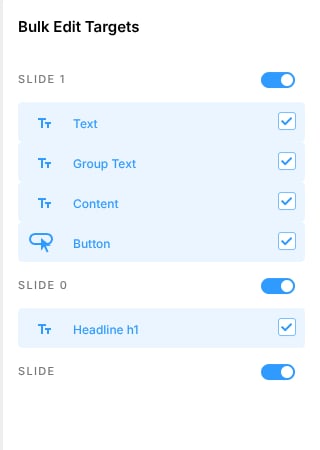
The right column lists the layers the selected path would edit, grouped by slide. Each slide can be left out, and each layer can be left out one by one.
Slide Switch (Toggle)
Setting Visibility
- Visible when Show Targets is on.
- Hidden when Show Targets is off.
Sets whether the layers on this slide are edited. A switch sits beside each slide's name. Turning it off hides the slide's layers in the list and leaves them out of the bulk edit.
Options:
- On: The slide's checked layers are edited.
- Off: No layer on the slide is edited.
Layer Checkbox (Checkbox)
Setting Visibility
- Visible when Show Targets is on and the layer's slide is switched on.
- Hidden when the layer's Slide Switch is off.
Sets whether this layer is edited. Each layer is listed with its icon, its name and its slide's name, and a checked layer is highlighted.
Options:
- Checked: The layer is edited.
- Unchecked: The layer is left out.
Footer
The bar at the foot of the window shows how many layers the bulk edit will change, and runs it.

Target Count (Readout)
Shows how many layers will be edited and on how many slides, in the form 6 Elements on 3 Slides may be Edited. It counts the checked layers on slides that are switched on.
Show Targets (Toggle Button)
Setting Visibility
- Visible when the selected path has at least one target layer.
- Hidden when the path selects no layers.
Shows or hides the Bulk Edit Targets column on the right of the window. The button shows a checklist icon beside the Target Count.
Options:
- On: The target list is shown and the window widens.
- Off: The target list is hidden.
Run Bulk Edit (Button)
Applies the selected path to every target layer, as described in Running a Bulk Edit. It is disabled while the path has no target layers.
Running a Bulk Edit
Clicking Run Bulk Edit changes every checked layer on the slides that are switched on. What it changes depends on the path.
With Colors in Use, each swatch whose color was changed replaces the original color in every color field of the target layers that uses it. A brand color chosen for a swatch is linked to each field it is written to.
With Font Families in Use, each row whose family or weight was changed replaces that family and weight on the target layers. A brand font is linked to each field it is written to.
With an added path, the value of every field under Attributes is written to every target layer, at the device size chosen in Device.
The footer then turns green and reads, for example, 5 Elements edited successfully. Clicking the check mark beside it returns the window to its starting state, with the lists and values read again from the module.
The changes are made to the module in the editor, like any other edit, and are kept once the module is saved.