
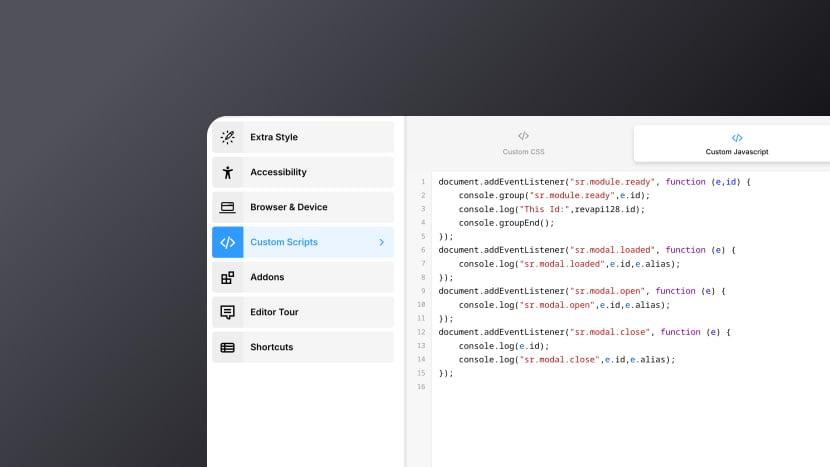
Custom Scripts Panel
UI Navigation Map: Custom Scripts panel

Go to the Module Editor, click Settings in the Top Bar to open the Settings Sidebar, and click Custom Scripts, then:
- Custom CSS Tab
- CSS Editor
- Tags
- Custom Javascript Tab
- JavaScript Editor
- Methods
- Events
- Examples
A module in Slider Revolution can have its own CSS and JavaScript, written by hand, alongside the settings made in the editor. CSS changes how the module looks, and JavaScript controls the module or reacts to what it does, such as a change of slide.
The Custom Scripts panel is where that code is written. It has one code editor for CSS and one for JavaScript, and a drawer of ready-made snippets that can be inserted into each.
This article covers the two tabs of the panel, the snippets each offers, and how the code is used on the page.
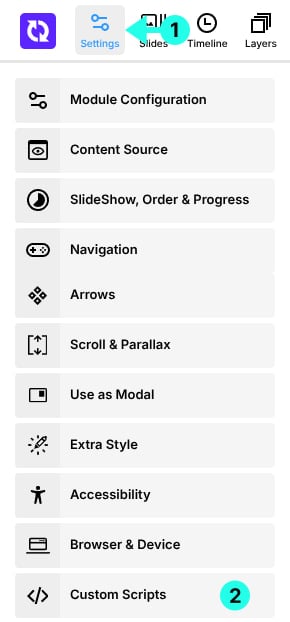
To open the panel, go to the Module Editor and click the Settings button 1 in the Top Bar to open the Settings Sidebar. Then click Custom Scripts 2 in the sidebar's list.
The code is saved with the module, and is added to the page wherever the module is shown. The JavaScript runs when the module is built on the page.
Only a WordPress administrator can save changes to the custom CSS and JavaScript. When a user with a different role saves the module, the code it had before is kept.
Custom CSS Tab
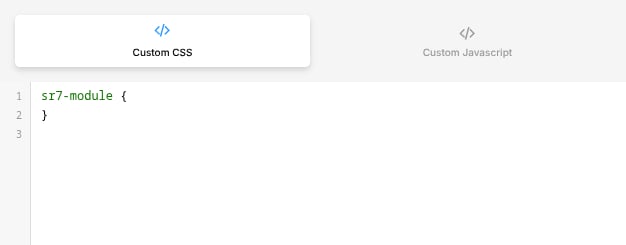
The Custom CSS tab holds the CSS editor, and a Tags drawer on the right edge of the panel with the element names the module is built from.
CSS Editor (Text Area)
Holds the module's custom CSS. The editor shows line numbers and colors the code as CSS. The CSS is added to the page with the module.
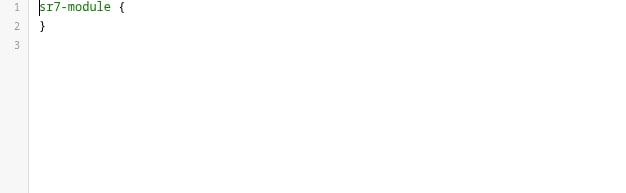
The module's elements are named after their role, such as sr7-module for the whole module and sr7-slide for a slide, so a rule can target them without an ID. The Tags drawer inserts these names.
Tags (Button Group)
Lists the elements the module is built from. Click Tags on the right edge of the panel to slide the drawer out, and click it again to close it.
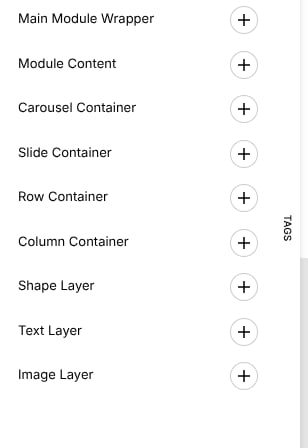
Each entry has a plus button that inserts an empty CSS rule for that element into the CSS Editor, at the cursor.
Options:
- Main Module Wrapper: Inserts a rule for
sr7-module, the element that wraps the whole module. - Module Content: Inserts a rule for
sr7-content, the element that holds the slides. - Carousel Container: Inserts a rule for
sr7-carousel, the element that holds the slides of a carousel. - Slide Container: Inserts a rule for
sr7-slide, each slide. - Row Container: Inserts a rule for
sr7-row, each row layer. - Column Container: Inserts a rule for
sr7-col, each column layer. - Shape Layer: Inserts a rule for
sr7-shp, each shape layer. - Text Layer: Inserts a rule for
sr7-txt, each text layer. - Image Layer: Inserts a rule for
sr7-img, each image layer.
Custom Javascript Tab
The Custom Javascript tab holds the JavaScript editor, and a drawer on the right edge of the panel with three tabs of snippets: Methods, Events and Examples.
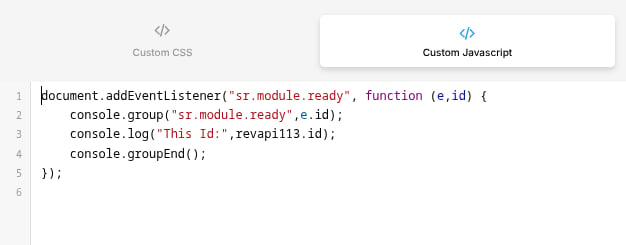
The snippets call the module through its API object, named revapi followed by the module's ID, such as revapi113. The ID is filled in when a snippet is inserted.
JavaScript Editor (Text Area)
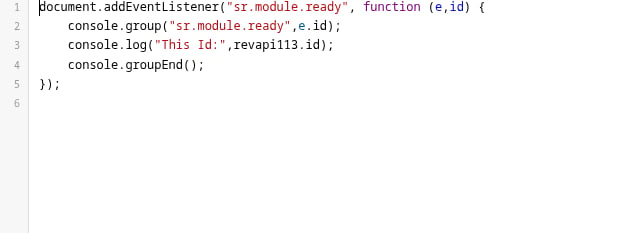
Holds the module's custom JavaScript. The editor shows line numbers and colors the code as JavaScript. The code runs on the page when the module is built.
Methods (Button Group)
Lists the commands the module's API offers. Click Methods on the right edge of the panel to slide the drawer out. Hovering an entry shows what it does, and hovering its plus button shows the command.
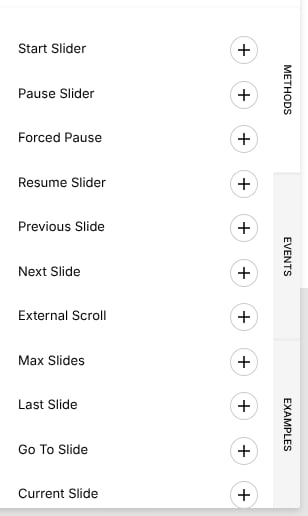
Each plus button inserts the command, with a comment explaining it, into the JavaScript Editor at the cursor.
Options:
- Start Slider: Inserts
revapi.start(), which starts a module that is set to wait for the API. - Pause Slider: Inserts
revapi.pause(), which pauses the module's progress. - Forced Pause: Inserts
revapi.forcedPause(), which pauses the module and keeps it paused, even when it scrolls back into view, untilresume()is called. - Resume Slider: Inserts
revapi.resume(), which resumes the module's progress. - Previous Slide: Inserts
revapi.prevSlide(), which shows the previous slide. - Next Slide: Inserts
revapi.nextSlide(), which shows the next slide. - External Scroll: Inserts
revapi.scroll(offset), which scrolls the page to the given position. - Max Slides: Inserts
revapi.maxSlide(), which returns the number of slides. - Last Slide: Inserts
revapi.lastSlide(), which returns the last slide the navigation can reach. - Go To Slide: Inserts
revapi.showSlide(2), which shows a slide. The value can be"first","last","random", a slide ID,"+2"or"-1"to move by a number of slides, or an index counted from0. - Current Slide: Inserts
revapi.currentSlide(), which returns the current slide's index, key and order. - Redraw Slider: Inserts
revapi.redraw(), which redraws the module. - Kill Slider: Inserts
revapi.kill(), which stops the module and removes it from the page. - Go To Frame: Inserts
revapi.playScene(layerid, scene), which plays a layer's animation scene, such as"in","out"or"scene_1". - Remove Slide: Inserts
revapi.removeSlide(slidekey), which removes one slide from the module's loop.
Events (Button Group)
Lists the events the module sends as it runs. Click Events on the right edge of the panel to switch the drawer to this list.
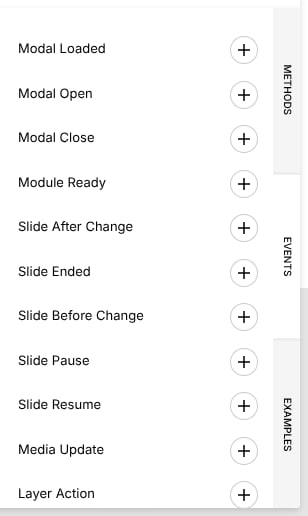
Each plus button inserts a listener for that event into the JavaScript Editor, at the cursor. The listener logs the event's details to the browser console, as a starting point for code of your own.
Options:
- Modal Loaded:
sr.modal.loaded, sent when a module used as a modal has loaded. - Modal Open:
sr.modal.open, sent when a modal opens. - Modal Close:
sr.modal.close, sent when a modal closes. - Module Ready:
sr.module.ready, sent when the module is ready. - Slide After Change:
sr.slide.afterChange, sent after the slide changes, with the current and previous slide. - Slide Ended:
sr.slide.ended, sent when a slide has played to its end, with the current and next slide. - Slide Before Change:
sr.slide.beforeChange, sent before the slide changes, with the current and next slide. - Slide Pause:
sr.slide.pause, sent when the module pauses. - Slide Resume:
sr.slide.resume, sent when the module resumes. - Media Update:
sr.media.update, sent when a video or audio layer's player changes state. - Layer Action:
sr.layer.action, sent when a layer's animation or action runs, with the layer and scene. - Module Finished:
sr.module.finished, sent when the module has played every slide and stopped.
Examples (Button Group)
Lists complete scripts for common tasks. Click Examples on the right edge of the panel to switch the drawer to this list.
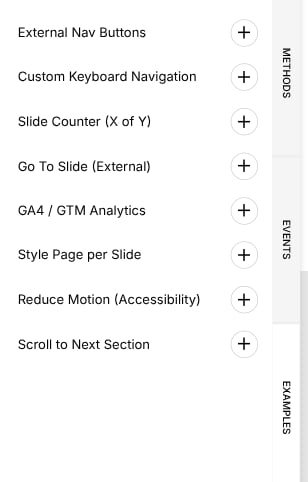
Each plus button inserts the script, with comments saying what to change, into the JavaScript Editor at the cursor.
Options:
- External Nav Buttons: Makes two elements on the page, with the IDs
prev-btnandnext-btn, show the previous and next slide when clicked. - Custom Keyboard Navigation: Shows the previous slide when
Ais pressed and the next slide whenDis pressed. - Slide Counter (X of Y): Writes the current slide number and the number of slides, such as
2 / 5, into the element with the IDslide-counter, on every slide change. - Go To Slide (External): Makes any element with a
data-goto-slideattribute show the slide at that index when clicked,0being the first slide. - GA4 / GTM Analytics: Sends an
rs_slide_viewevent with the module, slide index and slide ID to Google Tag Manager on every slide change. It needs Google Tag Manager or gtag.js already on the page. - Style Page per Slide: Adds a class such as
sr-slide-0to the page'sbodyfor the current slide, so other elements on the page can be styled per slide. - Reduce Motion (Accessibility): Pauses the module after its first slide change for visitors whose system is set to reduce motion.
- Scroll to Next Section: Scrolls the page to the element with the ID
next-sectiononce the module has played every slide.