
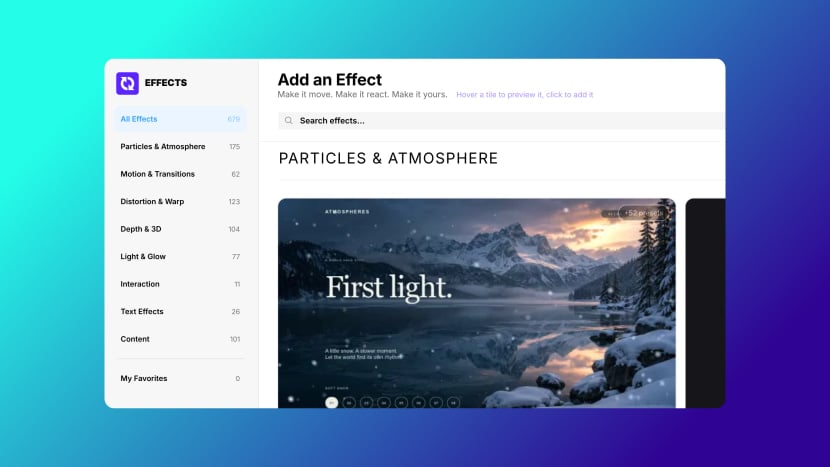
Effects Library
UI Navigation Map: Effects Library

Go to the Module Editor, click Add in the Top Bar to open the Add sidebar, and click Effects in the All Layer Types section, then:
- Effects Library
- Close
- Category Sidebar
- Categories
- Quick Add
- Browse Add-ons
- Toolbar
- Back to all effects
- Search
- Target
- Sort
- Effects Grid
- Collection Tile
- Effect Tile
- Target Badge
- Status Badge
- Add to Favorites
- Add Effect
- To selected layer
- New layer
- Advanced Transitions
- Adding an Effect
Effects are ready-made visual effects that are added to a slide in the Module Editor, the screen where a module's slides and layers are built. Examples are falling snow, particle waves, image distortions, lighting and typing text.
Most effects come from Slider Revolution add-ons, which are optional plugins that extend Slider Revolution. A few effects are built in and need no add-on.
The Effects Library is the window where every effect is browsed, previewed and added. It lists the effects of every add-on, whether or not that add-on is installed, and installs what an effect needs when it is added.
This article covers the controls of the Effects Library window, the tiles in its grid, and what happens when an effect is added. It does not describe the individual effects, since they change as add-ons are released.
To open the window, go to the Module Editor and click the Add button 1 in the Top Bar to open the Add sidebar.
Then click Effects 2, the first entry in the All Layer Types section.

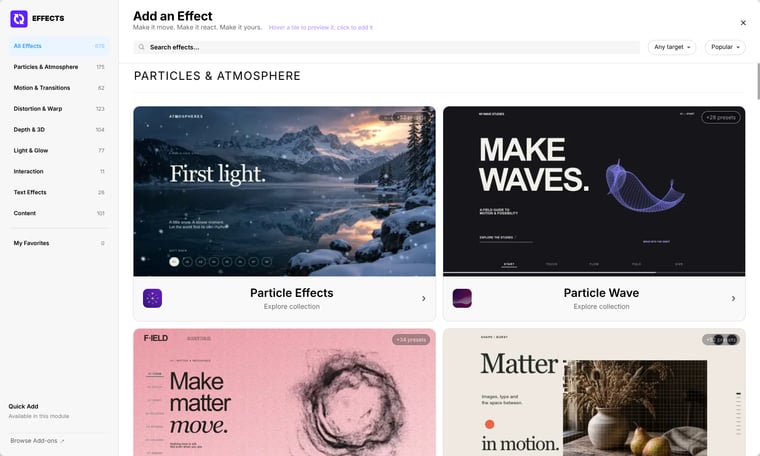
The Effects Library opens over the editor with All Effects selected, showing every effect grouped by category.
Close (Button)
Closes the Effects Library window without adding anything. The window also closes by itself once an effect has been added.

Category Sidebar
The sidebar on the left of the window holds the list of categories, the Quick Add list of add-on layers, and a link to the Addon Library.
Categories (Tab Select)
Sets which effects the grid shows. Each category is followed by the number of effects it holds, and the selected category is highlighted.
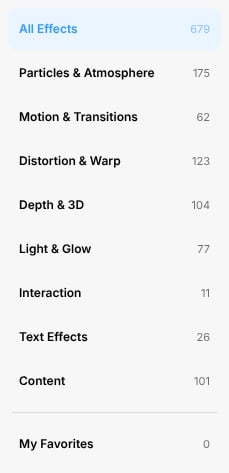
Options:
- All Effects: Shows every effect, grouped under the category names as headings.
- Particles & Atmosphere: Shows particle and atmosphere effects, such as snow, fire and particle waves.
- Motion & Transitions: Shows effects that reveal, split, fold or transition content, and the Advanced Transitions tile.
- Distortion & Warp: Shows effects that distort, ripple or morph images and layers.
- Depth & 3D: Shows 3D objects and effects that add depth to a slide.
- Light & Glow: Shows light beams, glows and color treatments.
- Interaction: Shows effects that follow or respond to the pointer.
- Text Effects: Shows effects for text, such as typing, animated lettering and counting numbers.
- Content: Shows effects that add content of their own, such as animations, charts, maps and weather.
- My Favorites: Shows the effects marked with Add to Favorites.
Quick Add (Button Group)
Lists the layers that the add-ons switched on for the current module can add. Clicking an entry closes the window and adds that add-on's layer to the slide with its default settings.
The list shows only add-ons already switched on for this module, and only their layers that no tile in the grid already adds. It is empty for a module that uses no such add-on.
Browse Add-ons (Button)
Closes the Effects Library and opens the Addon Library, where add-ons are installed, activated and updated.

Toolbar
The row below the window's title holds the search field and the controls that filter and order the grid.

Back to all effects (Button)
Setting Visibility
- Visible when a collection is open.
- Hidden when the grid shows the categories.
Closes the open collection and returns the grid to the categories. The same button also appears as the last tile of a collection's grid.

Search (Text)
Filters the grid as you type, matching the effect's name, the name of its add-on, and its category.
In the categories, a search shows every matching effect from every collection under its category heading, in place of the Collection Tile entries. Inside a collection it filters that collection's effects only.
The search text is kept when a collection is opened or closed, so it applies to the next grid as well. Clear the field to show everything again.
Target (Dropdown)
Setting Visibility
- Visible when the grid shows the categories.
- Hidden when a collection is open.
Filters the grid by where an effect is placed when it is added. The button shows the value chosen, and reads Any target while no filter is set.
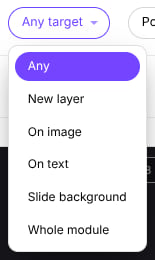
Options:
- Any: Shows effects for every target.
- New layer: Shows only effects added as a new layer of their own.
- On image: Shows only effects placed on an image layer.
- On text: Shows only effects placed on a text layer.
- Slide background: Shows only effects placed on the slide background.
- Whole module: Shows only effects applied to the whole module rather than to a layer.
Sort (Dropdown)
Setting Visibility
- Visible when the grid shows the categories.
- Hidden when a collection is open.
Sets the order of the tiles within each category. The button shows the order chosen.
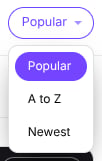
Options:
- Popular: Orders effects by popularity, the most popular first.
- A to Z: Orders effects alphabetically by name.
- Newest: Places the effects marked as new first.
Effects Grid
The grid holds the tiles. With All Effects selected they are grouped under the category names, and with a single category selected that category's tiles are shown at a larger size.
Some tiles open a collection of effects and others add a single effect. Hovering a tile plays a preview of it.
Collection Tile (Button)
Setting Visibility
- Visible when the grid shows the categories and the Search field is empty.
- Hidden when a collection is open, or text is typed in Search.
Opens the collection of one add-on, which is every effect that add-on provides. The tile shows the add-on's picture, a badge with the number of effects inside, the add-on's icon and name, and Explore collection.
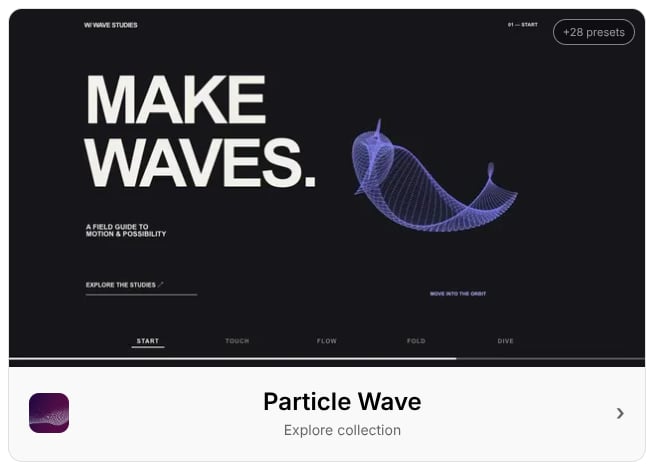
Inside a collection the grid shows only that add-on's effects, headed with the add-on's name followed by Add-on. The Target and Sort controls are replaced by Back to all effects.
Effect Tile (Button)
Adds one effect. The tile shows a picture of the effect, its name and Add this effect, and hovering it plays a preview of the effect.
The picture shows the Target Badge 1, a Status Badge 2 where the effect needs something first, and the Add to Favorites heart 3.
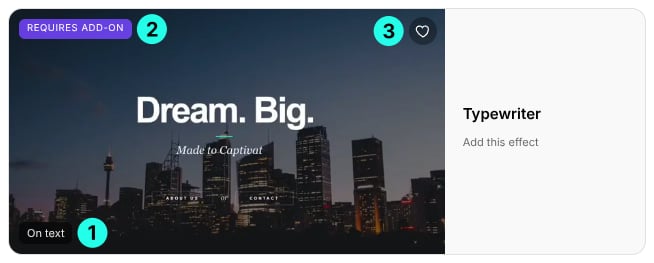
Clicking the picture does the same as the filled button shown while the pointer is over the tile, which for most effects adds a new layer. What is added, and where, is described in Adding an Effect.
Some add-ons consist of a single effect. Their effect tile is shown at the size of a Collection Tile, with the add-on's name in place of the effect's.
Target Badge (Readout)
Shows where the effect is placed when it is added. The badge sits on the lower left of the tile's picture.
Options:
- New layer: The effect is added as a new layer of its own.
- On image: The effect is placed on an image layer.
- On text: The effect is placed on a text layer.
- Slide background: The effect is placed on the slide background.
- Whole module: The effect is applied to the whole module, and no layer is added.
Status Badge (Readout)
Setting Visibility
- Visible when the add-on the effect needs is not installed or not active, or when Slider Revolution is not registered on the site.
- Hidden when the add-on is installed and active, or the effect is built in.
Shows what has to happen before the effect can be used. The badge sits on the upper left of the tile's picture. Adding the effect takes care of it, as described in Adding an Effect.
Options:
- Requires add-on: The add-on is not installed. Adding the effect installs and activates it.
- Activate: The add-on is installed but not active. Adding the effect activates it.
- Register: Slider Revolution is not registered on this site. Adding the effect asks for registration first.
Add to Favorites (Toggle Button)
Marks the effect as a favorite, shown as a heart at the upper right of the tile's picture. Favorites are listed under My Favorites in Categories.
Favorites are saved in the current browser, so they do not carry over to another browser or computer.
Options:
- On: The heart is filled and the effect is listed under My Favorites.
- Off: The heart is empty and the effect is not listed.
Add Effect (Button)
Setting Visibility
- Visible when the pointer is over an Effect Tile and no layer the effect can be placed on is selected.
- Hidden when a layer the effect can be placed on is selected.
Adds the effect in the place its Target Badge names. The button replaces Add this effect under the tile's name while the pointer is over the tile.
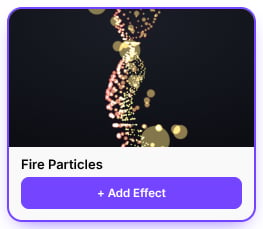
To selected layer (Button)
Setting Visibility
- Visible when the pointer is over an Effect Tile and a layer the effect can be placed on is selected.
- Hidden when no layer the effect can be placed on is selected.
Applies the effect to the layer selected in the editor, instead of adding a new layer. The button's tooltip names the selected layer.
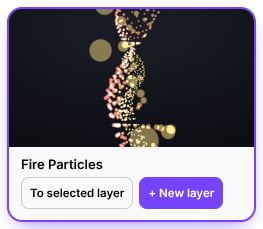
A layer fits when it is the kind the effect works on, such as a text layer for an On text effect or an image layer for an On image effect. A selected slide background fits effects that can be placed on it.
New layer (Button)
Setting Visibility
- Visible when the pointer is over an Effect Tile and a layer the effect can be placed on is selected.
- Hidden when no layer the effect can be placed on is selected.
Adds the effect on a new layer, leaving the selected layer unchanged. It appears beside To selected layer.
Advanced Transitions (Button)
Setting Visibility
- Visible when All Effects or Motion & Transitions is selected in Categories.
- Hidden when text is typed in Search, or Target is set to anything other than Any.
Opens the transitions available for the slide background. The window closes, the slide background is selected, and the editor switches to Animation Mode, where the transitions are listed in the sidebar.
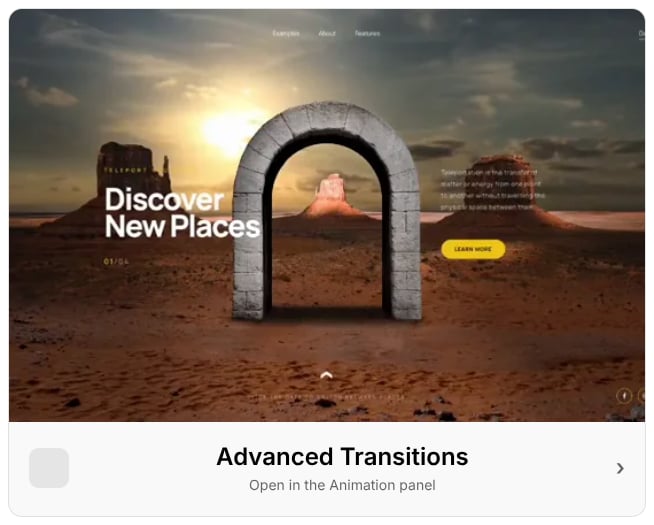
If the slide has no image or video as its background, a sample photograph is set as the background first.
The transitions are described in Slide Background Reveal Transitions, Slide Background Motion Transitions and Slide Background Distortion Transitions.
Adding an Effect
Clicking an Effect Tile, or one of the buttons shown while the pointer is over it, adds the effect in one step. The tile shows that it is busy while the steps below run.
If the add-on the effect needs is not installed, it is installed and activated first. The add-on is then switched on for the current module.
On a site where Slider Revolution is not registered, the registration window opens first, and the effect is added once the site is registered. Built in effects, such as Counter, need no add-on and no registration.
Where the effect is placed follows its Target Badge. A New layer effect adds a layer covering the slide with a transparent background, or the add-on's own layer type where it has one.
An On image effect adds an image layer with a sample photograph. An On text effect adds a text layer reading Slider Revolution. With To selected layer, the selected layer is used instead.
A Slide background effect selects the slide background. If the background has no image or video, a sample photograph is set as its image before the effect is applied.
A Whole module effect adds no layer. The effect is switched on for the module, and the Settings Sidebar opens at the add-on's own panel.
The window then closes and the effect's preset is applied. For an effect on a layer, the layer is selected and the add-on's own tab opens in the Layer panel, where the effect's settings are changed.
A message then confirms that the effect was applied. If a step fails, the message reads Could not add the effect followed by the reason, and the effect is not applied.