
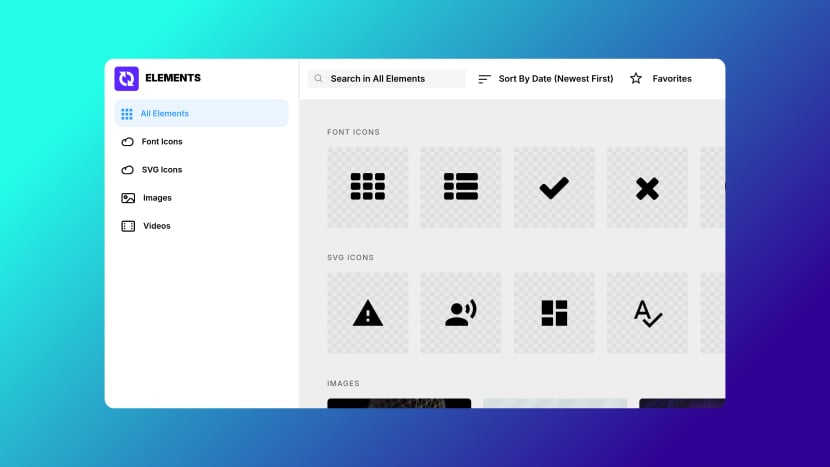
Elements Library
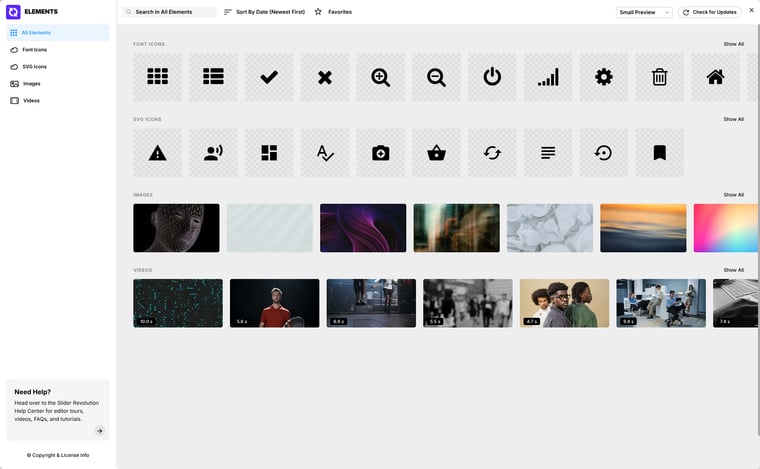
UI Navigation Map: Elements Library

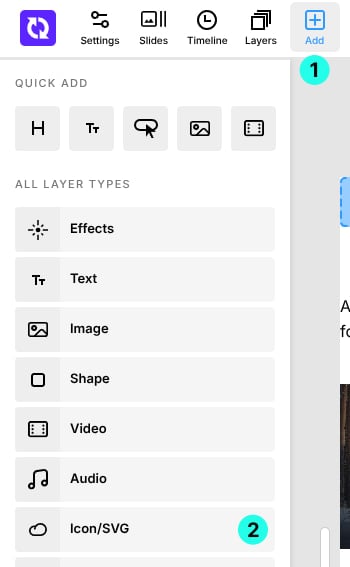
In the Module Editor click Add in the Top Bar, then click Icon/SVG, or Slider Revolution Elements under Image or Video. The library also opens from the Slider Revolution button of an image or video field. Then:
- Elements Library
- Close
- Category Sidebar
- Categories
- Need Help?
- Copyright & License Info
- Toolbar
- Search
- Sort
- Favorites
- Preview Size
- Check for Updates
- Elements Area
- Category Rows
- Show All
- Element Tile
- Details Button
- Details Popup
- Type Label
- Tag Labels
- Duration
- Dimensions
- Add to Favorites
- Insert
- Inserting an Element
Slider Revolution builds modules, which are the sliders, carousels, hero sections and similar blocks placed on a WordPress page. A module is made of layers, such as text, images and videos, placed on its slides.
The Elements Library is the window of ready-made media from Slider Revolution's library: font icons, SVG icons, stock images and stock videos. A chosen element is added to the module as a new layer, or set as the image or video of the field the window was opened from.
This article covers the controls of the Elements Library window, its tiles and details popup, and what happens when an element is inserted. It does not describe individual elements, since the library changes as elements are published.
To open the window, go to the Module Editor and click Add 1 in the Top Bar to open the Add Sidebar.
Then click Icon/SVG 2. The window opens on the Font Icons category.
Slider Revolution Elements in the sidebar's Image and Video menus opens it on the Images or Videos category instead. Every other category can still be chosen in the window.
It also opens from the Slider Revolution button of an image or video field, such as the layer's image in the Layer Panel: Content. Opened this way, the window shows only the kind of element the field takes.
Close (Button)
Closes the Elements Library window without inserting anything.

Category Sidebar
The sidebar on the left of the window holds the list of categories, a link to the Help Center, and the copyright and license terms of the library's content.
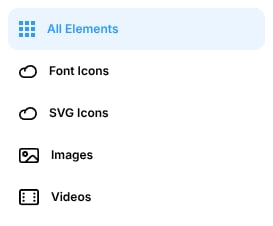
Categories (Tab Select)
Sets which kind of element the window shows. The selected category is highlighted. When the window was opened from a field, only that field's category is listed.
Options:
- All Elements: Shows a row of each category, as described in Category Rows.
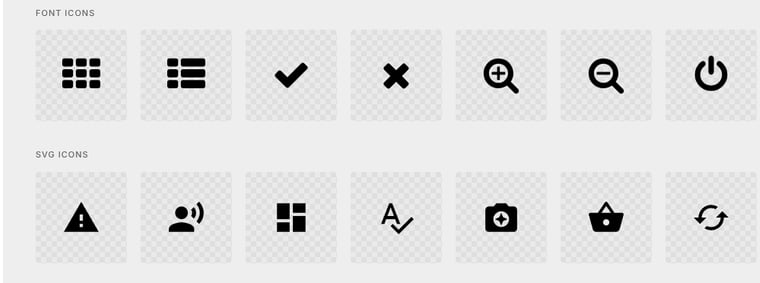
- Font Icons: Shows icons from icon fonts, inserted as a text layer.
- SVG Icons: Shows icons drawn as SVG graphics, inserted as an SVG layer.
- Images: Shows stock photographs and backgrounds.
- Videos: Shows stock video clips.
Need Help? (Button)
Opens the Slider Revolution Help Center in a new browser tab, where the editor tours, videos, frequently asked questions and tutorials are.
Copyright & License Info (Button)
Opens the copyright and licensing terms of the Slider Revolution library. Tabs on the left of the window show the terms for templates, images, objects, videos, SVG icons and font icons.

Toolbar
The row at the top of the window holds the search field, the controls that filter and order the elements, and the controls for tile size and updates.

Search (Text)
Filters the elements by keyword, in the selected category. The field reads Search in followed by the category name, and the results update a moment after typing stops.
An x at the right of the field clears the search.
Sort (Dropdown)
Sets the order of the elements. The dropdown shows the order chosen.
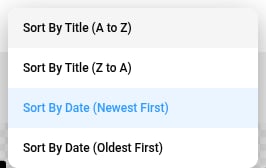
Options:
- Sort By Title (A to Z): Orders elements alphabetically by title.
- Sort By Title (Z to A): Orders elements in reverse alphabetical order.
- Sort By Date (Newest First): Places the most recently published elements first. This is the order the window opens with.
- Sort By Date (Oldest First): Places the earliest published elements first.
Favorites (Toggle Button)
Limits the window to the elements marked with Add to Favorites. Click it again to show every element.
Options:
- On: Only favorite elements are shown.
- Off: The window is not limited to favorites.
Preview Size (Dropdown)
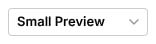
Sets the height of the image and video tiles, so the pictures can be seen in more detail. Icon tiles keep their size.
Options:
- Small Preview: Shows image and video tiles at the smaller size. This is the size the window opens with.
- Large Preview: Shows image and video tiles at a larger size.
Check for Updates (Button)
Loads the latest list of elements from the Slider Revolution server, so elements published since the list was last loaded appear in the window.
Elements Area
The area to the right of the sidebar shows the elements of the selected category, or a row of each category under All Elements.
Category Rows (Readout)
Setting Visibility
- Visible when All Elements is the selected category.
- Hidden when any other category is selected.
Shows each category as a row under its name, with the first of its elements. Drag a row sideways to see more of it. More elements load as the row nears its end.
Show All (Button)
Setting Visibility
- Visible when All Elements is the selected category.
- Hidden when any other category is selected.
Selects the row's category, so the window shows every element in it. The link sits at the right end of the row's name.
In a category, the elements fill the area as a grid, and more load as you scroll down.

Element Tile (Button)
Shows a picture of the element. A video tile shows the clip's length, and plays the clip while the pointer is over it.
Clicking a tile inserts the element, as described in Inserting an Element.
Details Button (Button)
Setting Visibility
- Visible when the pointer is over an Element Tile.
- Hidden when the pointer is not over the tile.
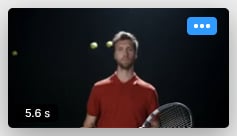
Opens the Details Popup for the element. The button shows three dots, in the tile's top right corner.
Details Popup
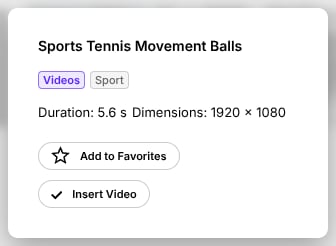
The popup opens beside a tile when its Details Button is clicked, in front of the window. It shows the element's title, its labels, what is known of its size and length, and the buttons to save or insert it.
Type Label (Button)
Shows the element's category. Clicking it selects that category in the sidebar.

Tag Labels (Button Group)
Shows the keywords the element is filed under. Clicking one searches for it, which lists the elements that share the keyword.

Duration (Readout)
Setting Visibility
- Visible when the element is a video.
- Hidden when the element is an icon or image.
Shows the length of the video clip, such as 10.0 s.

Dimensions (Readout)
Setting Visibility
- Visible when the element's width and height are known, such as for a video.
- Hidden when the element has no recorded size.
Shows the width and height of the element in pixels, such as 1920 x 1080.
Add to Favorites (Toggle Button)
Marks the element as a favorite, or removes the mark. Favorites are saved on the site and listed with the Favorites button in the toolbar.
Options:
- On: The element is listed under Favorites.
- Off: The element is not listed.
Insert (Button)
Inserts the element, in the same way as clicking its tile. The button names the kind of element, such as Insert Image or Insert Video.
Inserting an Element
Clicking an Element Tile or Insert inserts the element, and the window closes. On a site where Slider Revolution is not registered, the registration window opens instead, and nothing is inserted.
An image or video is first loaded from the Slider Revolution server, while a Loading Library Element message shows.
Opened from the Add Sidebar, the element is added to the slide as a new layer:
- An image becomes an image layer, 300 pixels on its longer side.
- A video becomes a video layer, 300 pixels on its longer side, which starts playing in the editor.
- A font icon becomes a text layer showing the icon, at a font size of 30 pixels.
- An SVG icon becomes an SVG layer, 150 by 150 pixels.
Opened from an image or video field, the element becomes that field's image or video, and no layer is added.