
Full Screen Actions
UI Navigation Map: Full Screen actions

In the Right Sidebar click the Action icon to enter Action Mode, click Add New Action, then in the Action Settings Panel open the Type dropdown and choose an action from the Full Screen group:
- Full Screen Actions
- Enter Fullscreen Panel
- Type
- Event
- Trigger
- Timing Section
- Delay
- Next Delay
- Exit Fullscreen Panel
- Type
- Event
- Trigger
- Timing Section
- Delay
- Next Delay
- Toggle Fullscreen Panel
- Type
- Event
- Trigger
- Timing Section
- Delay
- Next Delay
- Enter Fullscreen Panel
An action makes something happen when a visitor interacts with a layer, such as a click on a button. Actions are set up in Action Mode, one of the three modes of the Module Editor's Right Sidebar.
The Full Screen actions make the module fill the browser window and return it to the page. The browser's own toolbars stay in view, since the module fills the window rather than the screen.
This article covers the three Full Screen actions and every setting in their panels.
To set one up, go to the Module Editor and click the Action icon 1 in the Mode Switcher of the Right Sidebar to enter Action Mode.
Then click Add New Action 2, which opens the Action Settings Panel.
Open the Type dropdown 3 and choose an action from the Full Screen group.

An action is added to the slide shown in the editor, and runs from the layers chosen in its Trigger.
Enter Fullscreen Panel
The Enter Fullscreen panel configures what makes the module fill the browser window. The module covers the whole window, on top of the rest of the page, until it exits full screen.
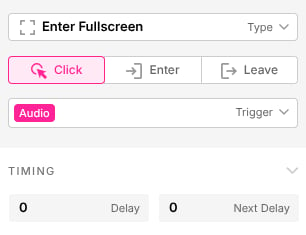
Type (Dropdown)
Sets which action is performed when the trigger fires. Choosing Enter Fullscreen from the Full Screen group of the list gives this panel.

Event (Tab Select)
Sets which visitor interaction with the trigger layers makes the module enter full screen.

Options:
- Click: Enters full screen when a trigger layer is clicked or tapped.
- Enter: Enters full screen when the pointer moves over a trigger layer.
- Leave: Enters full screen when the pointer moves off a trigger layer.
Trigger (Multi-select)
Selects the layer or layers that make the module enter full screen. The list is searchable, and any number of the current slide's layers can be selected.

Timing Section (Expander)
In the Timing section set the pauses that surround the action, so that a sequence of actions can be staggered rather than all firing at once.

Delay (Number, milliseconds)
Setting Visibility
- Visible when Timing section is expanded.
- Hidden when Timing section is collapsed.
Sets how long to wait after the event fires before the module enters full screen. A value of 0 runs it immediately.

Next Delay (Number, milliseconds)
Setting Visibility
- Visible when Timing section is expanded.
- Hidden when Timing section is collapsed.
Sets a pause measured from this action, before the next action on the same trigger runs.

Exit Fullscreen Panel
The Exit Fullscreen panel configures what returns the module from full screen to its normal size and place on the page.

Type (Dropdown)
Sets which action is performed when the trigger fires. Choosing Exit Fullscreen from the Full Screen group of the list gives this panel.

Event (Tab Select)
Sets which visitor interaction with the trigger layers makes the module exit full screen.

Options:
- Click: Exits full screen when a trigger layer is clicked or tapped.
- Enter: Exits full screen when the pointer moves over a trigger layer.
- Leave: Exits full screen when the pointer moves off a trigger layer.
Trigger (Multi-select)
Selects the layer or layers that make the module exit full screen. The list is searchable, and any number of the current slide's layers can be selected.

Timing Section (Expander)
In the Timing section set the pauses that surround the action, so that a sequence of actions can be staggered rather than all firing at once.
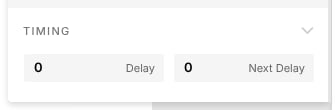
Delay (Number, milliseconds)
Setting Visibility
- Visible when Timing section is expanded.
- Hidden when Timing section is collapsed.
Sets how long to wait after the event fires before the module exits full screen. A value of 0 runs it immediately.
Next Delay (Number, milliseconds)
Setting Visibility
- Visible when Timing section is expanded.
- Hidden when Timing section is collapsed.
Sets a pause measured from this action, before the next action on the same trigger runs.

Toggle Fullscreen Panel
The Toggle Fullscreen panel configures what switches the module in and out of full screen. Each time the action runs, a module in full screen exits it, and a module that is not enters it.

Type (Dropdown)
Sets which action is performed when the trigger fires. Choosing Toggle Fullscreen from the Full Screen group of the list gives this panel.

Event (Tab Select)
Sets which visitor interaction with the trigger layers switches the module in or out of full screen.

Options:
- Click: Switches full screen on or off when a trigger layer is clicked or tapped.
- Enter: Switches full screen on or off when the pointer moves over a trigger layer.
- Leave: Switches full screen on or off when the pointer moves off a trigger layer.
Trigger (Multi-select)
Selects the layer or layers that switch the module in or out of full screen. The list is searchable, and any number of the current slide's layers can be selected.

Timing Section (Expander)
In the Timing section set the pauses that surround the action, so that a sequence of actions can be staggered rather than all firing at once.
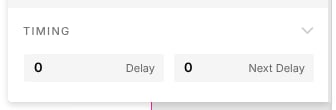
Delay (Number, milliseconds)
Setting Visibility
- Visible when Timing section is expanded.
- Hidden when Timing section is collapsed.
Sets how long to wait after the event fires before full screen switches. A value of 0 runs it immediately.

Next Delay (Number, milliseconds)
Setting Visibility
- Visible when Timing section is expanded.
- Hidden when Timing section is collapsed.
Sets a pause measured from this action, before the next action on the same trigger runs.