
Layer Actions
UI Navigation Map: Layer and Counter actions

In the Right Sidebar click the Action icon to enter Action Mode, click Add New Action, then in the Action Settings Panel open the Type dropdown and choose an action from the Layer or Counter group:
- Layer Actions
- Toggle Class Panel
- Type
- Event
- Trigger
- Target(s) Section
- Layers
- Class Section
- Classes
- Timing Section
- Delay
- Next Delay
- Simulate User Click Panel
- Type
- Event
- Trigger
- Target(s) Section
- Layers
- Timing Section
- Delay
- Next Delay
- Start Counter Panel
- Type
- Event
- Trigger
- Target(s) Section
- Layers
- Timing Section
- Delay
- Next Delay
- Reset Counter Panel
- Type
- Event
- Trigger
- Target(s) Section
- Layers
- Timing Section
- Delay
- Next Delay
- Toggle Class Panel
An action makes something happen when a visitor interacts with a layer, such as a click on a button. Actions are set up in Action Mode, one of the three modes of the Module Editor's Right Sidebar.
The layer actions act on other layers of the module. The actions that fire them are on the trigger layers, and the layers they act on are chosen as their targets.
The Layer group holds Toggle Class and Simulate User Click. The Counter group holds Start Counter and Reset Counter, which control counter layers. A counter is a text layer with its Counter setting switched on, which counts up to the number in its own text.
This article covers the four actions and every setting in their panels.
To set one up, go to the Module Editor and click the Action icon 1 in the Mode Switcher of the Right Sidebar to enter Action Mode.
Then click Add New Action 2, which opens the Action Settings Panel.
Open the Type dropdown 3 and choose an action from the Layer or Counter group.
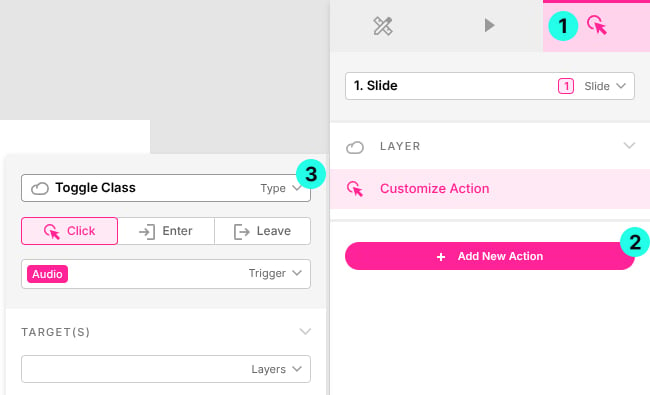
An action is added to the slide shown in the editor, and runs from the layers chosen in its Trigger.
Toggle Class Panel
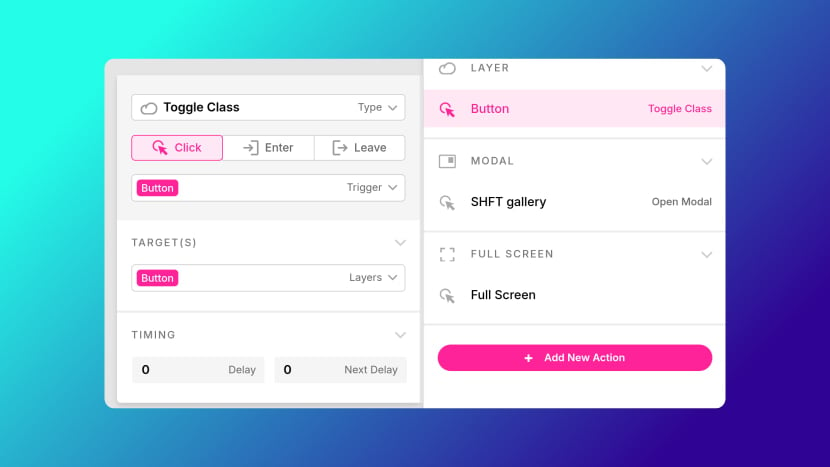
The Toggle Class panel configures which CSS classes are switched on and off, on which layers, and what triggers the switch.

Type (Dropdown)
Sets which action is performed when the trigger fires. Choosing Toggle Class from the Layer group of the list gives this panel.

Event (Tab Select)
Sets which visitor interaction with the trigger layers toggles the class.

Options:
- Click: Toggles the class when a trigger layer is clicked or tapped.
- Enter: Toggles the class when the pointer moves over a trigger layer.
- Leave: Toggles the class when the pointer moves off a trigger layer.
Trigger (Multi-select)
Selects the layer or layers that toggle the class. The list is searchable, and any number of the current slide's layers can be selected.

Target(s) Section (Expander)
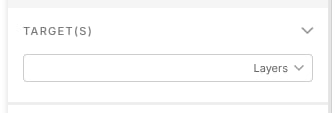
In the Target(s) section choose the layers the class is toggled on.
Layers (Multi-select)
Setting Visibility
- Visible when Target(s) section is expanded.
- Hidden when Target(s) section is collapsed.
Selects the layer or layers the class is added to or removed from. Each time the action runs, a target that does not have the class gains it, and a target that has it loses it.
The list is searchable. It groups the layers of the current slide under Current Slide Layers, and those of the static slide, whose layers appear on top of every slide, under Static Slide Layers.

Class Section (Expander)
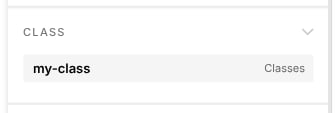
In the Class section enter the class or classes to toggle on the target layers.
Classes (Text)
Setting Visibility
- Visible when Class section is expanded.
- Hidden when Class section is collapsed.
Sets the CSS class toggled on the target layers, such as active. A leading dot is ignored, so .active and active toggle the same class. An empty field toggles nothing.
Several classes can be entered, separated by spaces. Each one is toggled separately, so a target that has one class and not the other gains the missing class and loses the one it had.
The class changes how a layer looks only when CSS on the page styles it.

Timing Section (Expander)
In the Timing section set the pauses that surround the action, so that a sequence of actions can be staggered rather than all firing at once.

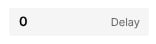
Delay (Number, milliseconds)
Setting Visibility
- Visible when Timing section is expanded.
- Hidden when Timing section is collapsed.
Sets how long to wait after the event fires before the class is toggled. A value of 0 runs it immediately.
Next Delay (Number, milliseconds)
Setting Visibility
- Visible when Timing section is expanded.
- Hidden when Timing section is collapsed.
Sets a pause measured from this action, before the next action on the same trigger runs.

Simulate User Click Panel
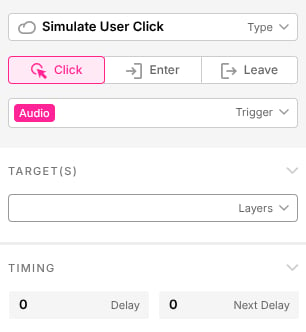
The Simulate User Click panel configures which layers receive a click as though the visitor had clicked them, and what sends it. The target layers then run their own click actions.
Type (Dropdown)
Sets which action is performed when the trigger fires. Choosing Simulate User Click from the Layer group of the list gives this panel.

Event (Tab Select)
Sets which visitor interaction with the trigger layers sends the click.

Options:
- Click: Sends the click when a trigger layer is clicked or tapped.
- Enter: Sends the click when the pointer moves over a trigger layer.
- Leave: Sends the click when the pointer moves off a trigger layer.
Trigger (Multi-select)
Selects the layer or layers that send the click. The list is searchable, and any number of the current slide's layers can be selected.

Target(s) Section (Expander)
In the Target(s) section choose the layers that receive the click.

Layers (Multi-select)
Setting Visibility
- Visible when Target(s) section is expanded.
- Hidden when Target(s) section is collapsed.
Selects the layer or layers that receive the click.
The list is searchable. It groups the layers of the current slide under Current Slide Layers, and those of the static slide, whose layers appear on top of every slide, under Static Slide Layers.

Timing Section (Expander)
In the Timing section set the pauses that surround the action, so that a sequence of actions can be staggered rather than all firing at once.

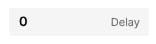
Delay (Number, milliseconds)
Setting Visibility
- Visible when Timing section is expanded.
- Hidden when Timing section is collapsed.
Sets how long to wait after the event fires before the click is sent. A value of 0 runs it immediately.
Next Delay (Number, milliseconds)
Setting Visibility
- Visible when Timing section is expanded.
- Hidden when Timing section is collapsed.
Sets a pause measured from this action, before the next action on the same trigger runs.

Start Counter Panel
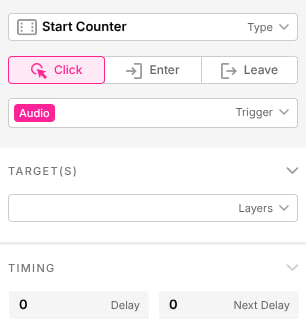
The Start Counter panel configures which counter layers start counting, and what starts them. A counter whose Start setting is By Action Only waits at its From value until an action starts it.
Type (Dropdown)
Sets which action is performed when the trigger fires. Choosing Start Counter from the Counter group of the list gives this panel.

Event (Tab Select)
Sets which visitor interaction with the trigger layers starts the counters.

Options:
- Click: Starts the counters when a trigger layer is clicked or tapped.
- Enter: Starts the counters when the pointer moves over a trigger layer.
- Leave: Starts the counters when the pointer moves off a trigger layer.
Trigger (Multi-select)
Selects the layer or layers that start the counters. The list is searchable, and any number of the current slide's layers can be selected.

Target(s) Section (Expander)
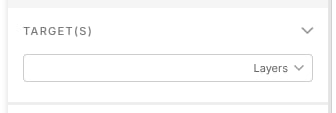
In the Target(s) section choose the counter layers to start.
Layers (Multi-select)
Setting Visibility
- Visible when Target(s) section is expanded.
- Hidden when Target(s) section is collapsed.
Selects the counter layer or layers to start. Each one counts from its From value up to the number in its text, over its own Duration, and runs again from From each time the action fires.
A counter set to count down to a date has no count to start. It shows the time left from the moment it appears.
The list shows every layer, not only counters, and a layer without Counter switched on does not respond. It groups the layers of the current slide under Current Slide Layers, and those of the static slide, whose layers appear on top of every slide, under Static Slide Layers.

Timing Section (Expander)
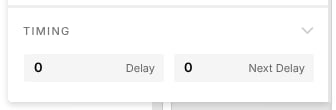
In the Timing section set the pauses that surround the action, so that a sequence of actions can be staggered rather than all firing at once.
Delay (Number, milliseconds)
Setting Visibility
- Visible when Timing section is expanded.
- Hidden when Timing section is collapsed.
Sets how long to wait after the event fires before the counters start. A value of 0 runs it immediately.
Next Delay (Number, milliseconds)
Setting Visibility
- Visible when Timing section is expanded.
- Hidden when Timing section is collapsed.
Sets a pause measured from this action, before the next action on the same trigger runs.

Reset Counter Panel
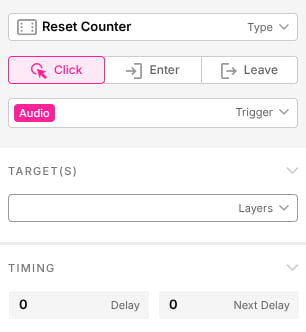
The Reset Counter panel configures which counter layers are set back to their start, and what resets them. A reset counter stops counting and shows its From value until it is started again.
Type (Dropdown)
Sets which action is performed when the trigger fires. Choosing Reset Counter from the Counter group of the list gives this panel.

Event (Tab Select)
Sets which visitor interaction with the trigger layers resets the counters.

Options:
- Click: Resets the counters when a trigger layer is clicked or tapped.
- Enter: Resets the counters when the pointer moves over a trigger layer.
- Leave: Resets the counters when the pointer moves off a trigger layer.
Trigger (Multi-select)
Selects the layer or layers that reset the counters. The list is searchable, and any number of the current slide's layers can be selected.

Target(s) Section (Expander)
In the Target(s) section choose the counter layers to reset.
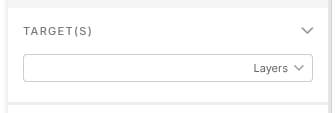
Layers (Multi-select)
Setting Visibility
- Visible when Target(s) section is expanded.
- Hidden when Target(s) section is collapsed.
Selects the counter layer or layers to reset. Each one stops where it is and shows its From value again.
A counter set to count down to a date stops updating instead, until Start Counter runs it again.
The list shows every layer, not only counters, and a layer without Counter switched on does not respond. It groups the layers of the current slide under Current Slide Layers, and those of the static slide, whose layers appear on top of every slide, under Static Slide Layers.

Timing Section (Expander)
In the Timing section set the pauses that surround the action, so that a sequence of actions can be staggered rather than all firing at once.
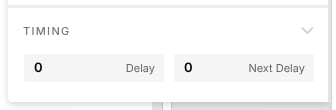
Delay (Number, milliseconds)
Setting Visibility
- Visible when Timing section is expanded.
- Hidden when Timing section is collapsed.
Sets how long to wait after the event fires before the counters reset. A value of 0 runs it immediately.

Next Delay (Number, milliseconds)
Setting Visibility
- Visible when Timing section is expanded.
- Hidden when Timing section is collapsed.
Sets a pause measured from this action, before the next action on the same trigger runs.