
Scene Actions
UI Navigation Map: Scene actions

In the Right Sidebar click the Action icon to enter Action Mode, click Add New Action, then in the Action Settings Panel open the Type dropdown and choose an action from the Scenes group:
- Scene Actions
- Play Scene Panel
- Type
- Event
- Trigger
- Target Scenes Section
- Slide
- to Scene
- Timing Section
- Delay
- Next Delay
- Reset Child Timelines
- Toggle Scene Panel
- Type
- Event
- Trigger
- Target Scenes Section
- Slide
- First Scene
- Second Scene
- Timing Section
- Delay
- Next Delay
- Reset Child Timelines
- Play Scene Panel
An action makes something happen when a visitor interacts with a layer, such as a click on a button. Actions are set up in Action Mode, one of the three modes of the Module Editor's Right Sidebar.
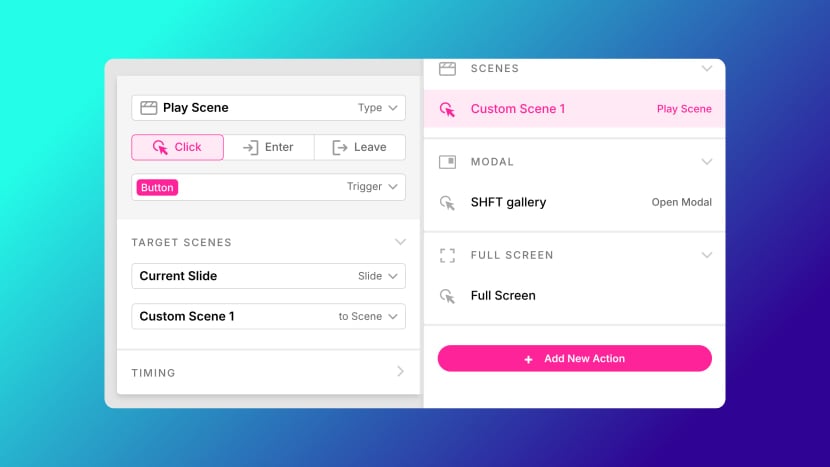
The Scenes actions play scenes. A scene is an animation sequence for a slide's layers, built on the Timeline. A custom scene does not play on its own, so an action is what starts it.
Play Scene plays one chosen scene. Toggle Scene plays two chosen scenes in turn, one on each trigger, such as a button that opens a panel on one click and closes it on the next.
This article covers the two Scenes actions and every setting in their panels.
To set one up, go to the Module Editor and click the Action icon 1 in the Mode Switcher of the Right Sidebar to enter Action Mode.
Then click Add New Action 2, which opens the Action Settings Panel.
Open the Type dropdown 3 and choose an action from the Scenes group.
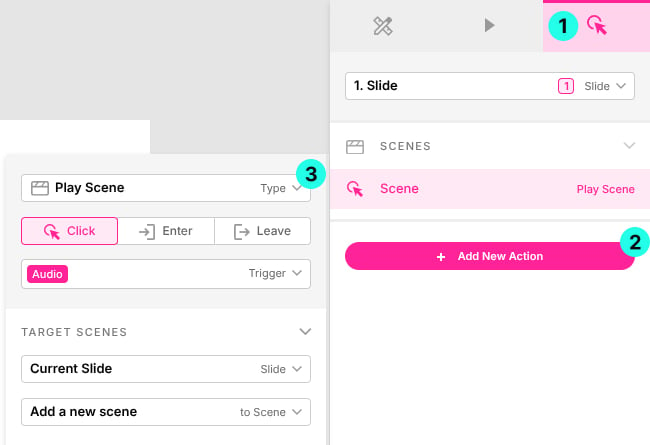
An action is added to the slide shown in the editor, and runs from the layers chosen in its Trigger.
Play Scene Panel
The Play Scene panel configures which scene plays, and what starts it. The scene animates the layers chosen as its Affected Layers when it was created.
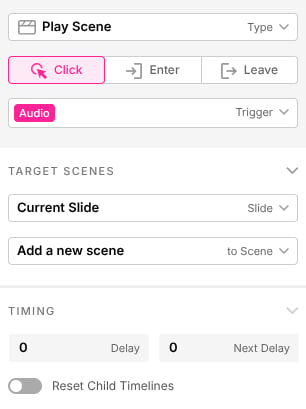
Type (Dropdown)
Sets which action is performed when the trigger fires. Choosing Play Scene from the Scenes group of the list gives this panel.

Event (Tab Select)
Sets which visitor interaction with the trigger layers plays the scene.

Options:
- Click: Plays the scene when a trigger layer is clicked or tapped.
- Enter: Plays the scene when the pointer moves over a trigger layer.
- Leave: Plays the scene when the pointer moves off a trigger layer.
Trigger (Multi-select)
Selects the layer or layers that play the scene. The list is searchable, and any number of the current slide's layers can be selected.

Target Scenes Section (Expander)
In the Target Scenes section choose the slide whose scenes are listed, and the scene to play.
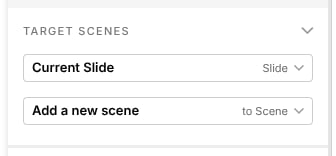
Slide (Dropdown)
Setting Visibility
- Visible when Target Scenes section is expanded.
- Hidden when Target Scenes section is collapsed.
Selects which slide's scenes are listed in to Scene.
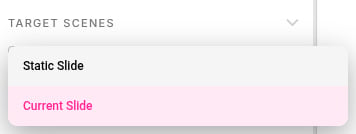
Options:
- Static Slide: Lists the scenes of the module's static slide, whose layers appear on top of every slide.
- Current Slide: Lists the scenes of the slide being edited.
to Scene (Dropdown)
Setting Visibility
- Visible when Target Scenes section is expanded.
- Hidden when Target Scenes section is collapsed.
Selects the scene to play. The list shows the custom scenes of the slide chosen in Slide, by the names they were given on the Timeline.
The last entry, Add a new scene, opens the Quick Scene Setup panel, which creates a custom scene.

Timing Section (Expander)
In the Timing section set the pauses that surround the action, and whether the scene's layers start from the beginning of their animations.
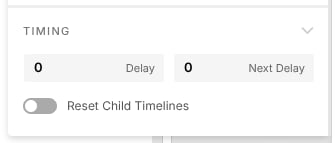
Delay (Number, milliseconds)
Setting Visibility
- Visible when Timing section is expanded.
- Hidden when Timing section is collapsed.
Sets how long to wait after the event fires before the scene plays. A value of 0 runs it immediately.
Next Delay (Number, milliseconds)
Setting Visibility
- Visible when Timing section is expanded.
- Hidden when Timing section is collapsed.
Sets a pause measured from this action, before the next action on the same trigger runs.
Reset Child Timelines (Toggle)
Setting Visibility
- Visible when Timing section is expanded.
- Hidden when Timing section is collapsed, or Type is set to an action outside the Scenes group.
Determines whether the timelines of the layers within the scene are returned to their start when the scene is played.

Options:
- On: Reset the child timelines.
- Off: Leave the child timelines as they are.
Toggle Scene Panel
The Toggle Scene panel configures two scenes that play in turn. The first time the event fires, the First Scene plays. The next time, the Second Scene plays, and the action keeps alternating between the two from then on.
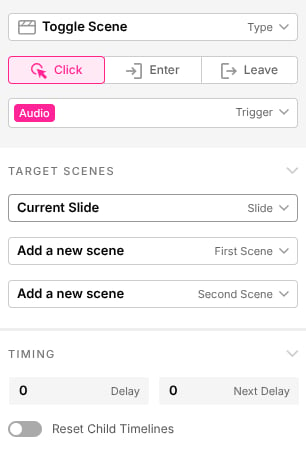
Type (Dropdown)
Sets which action is performed when the trigger fires. Choosing Toggle Scene from the Scenes group of the list gives this panel.

Event (Tab Select)
Sets which visitor interaction with the trigger layers plays the next scene in turn.

Options:
- Click: Plays the next scene when a trigger layer is clicked or tapped.
- Enter: Plays the next scene when the pointer moves over a trigger layer.
- Leave: Plays the next scene when the pointer moves off a trigger layer.
Trigger (Multi-select)
Selects the layer or layers that switch between the two scenes. The list is searchable, and any number of the current slide's layers can be selected.

Target Scenes Section (Expander)
In the Target Scenes section choose the slide whose scenes are listed, and the two scenes the action switches between.
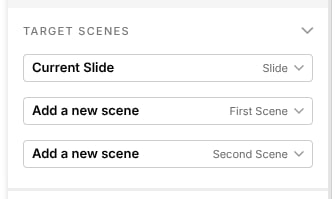
Slide (Dropdown)
Setting Visibility
- Visible when Target Scenes section is expanded.
- Hidden when Target Scenes section is collapsed.
Selects which slide's scenes are listed in First Scene and Second Scene.
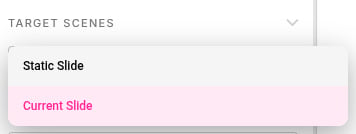
Options:
- Static Slide: Lists the scenes of the module's static slide, whose layers appear on top of every slide.
- Current Slide: Lists the scenes of the slide being edited.
First Scene (Dropdown)
Setting Visibility
- Visible when Target Scenes section is expanded.
- Hidden when Target Scenes section is collapsed.
Selects the scene that plays the first time the event fires, and every odd time after that. The list shows the custom scenes of the slide chosen in Slide.
The last entry, Add a new scene, opens the Quick Scene Setup panel, which creates a custom scene.

Second Scene (Dropdown)
Setting Visibility
- Visible when Target Scenes section is expanded.
- Hidden when Target Scenes section is collapsed.
Selects the scene that plays the second time the event fires, and every even time after that. The list shows the custom scenes of the slide chosen in Slide.
The last entry, Add a new scene, opens the Quick Scene Setup panel, which creates a custom scene.

Timing Section (Expander)
In the Timing section set the pauses that surround the action, and whether the scene's layers start from the beginning of their animations.
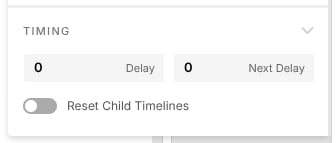
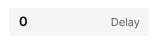
Delay (Number, milliseconds)
Setting Visibility
- Visible when Timing section is expanded.
- Hidden when Timing section is collapsed.
Sets how long to wait after the event fires before the next scene plays. A value of 0 runs it immediately.
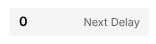
Next Delay (Number, milliseconds)
Setting Visibility
- Visible when Timing section is expanded.
- Hidden when Timing section is collapsed.
Sets a pause measured from this action, before the next action on the same trigger runs.
Reset Child Timelines (Toggle)
Setting Visibility
- Visible when Timing section is expanded.
- Hidden when Timing section is collapsed, or Type is set to an action outside the Scenes group.
Determines whether the timelines of the layers within the scene are returned to their start each time a scene is played.

Options:
- On: Reset the child timelines.
- Off: Leave the child timelines as they are.