- Scroll Animation Page FX
- Page FX · Scroll Animation Block
- Page FX · Scroll Animation Panel
- Scroll Animation Dialog
Scroll Animation Page FX
UI Navigation Map: Scroll Animation Page FX

Scroll Animation Page FX is used in the WordPress block editor rather than in the Module Editor. There are two ways to reach it.
To add a dedicated Scroll Animation block, edit any post or page, click the block inserter, search for Scroll Animation, and click Page FX · Scroll Animation, then:
- Page FX · Scroll Animation Block
- Settings
- Scroll Animation Panel
- Edit Scroll Animation
To add Scroll Animation to a block already on the page instead, edit any post or page, select a supported block, click Page FX in the block toolbar, and click Scroll Animation, then:
- Page FX · Scroll Animation Panel
- Edit Scroll Animation
- Remove Effect
Settings and Edit Scroll Animation open the same dialog:
- Scroll Animation Dialog
- Browsing
- Motion
- Text
- Direction
- Style
- Entrance runs
- Runs over (% of the screen)
- Speed
- Play
- Timing Section
- Start (% into the view)
- Delay (ms)
- When it leaves Section
- Motion
- Text
- Direction
- Style
- Exit runs
- Exit starts (% into the view)
- Where it plays Section
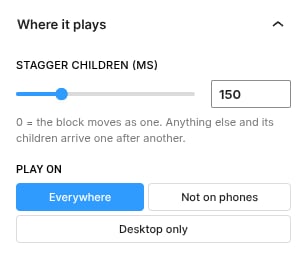
- Stagger children (ms)
- Play on
- Remove
- Preview
- Done
Scroll Animation Page FX animates a block in a post or page as it scrolls into view. The block can fade, slide, rotate or zoom into place, and text can fade or move in one line, word or letter at a time. The animations are the same ones used for layers in the Module Editor, described in In and Out Animations and Text Only Animations.
Scroll Animation is one of the Page FX effects, which are added in the WordPress block editor. There are two ways to add it.
The first is the Page FX · Scroll Animation block. Edit any post or page, click the block inserter, search for Scroll Animation 1, and click Page FX · Scroll Animation 2.
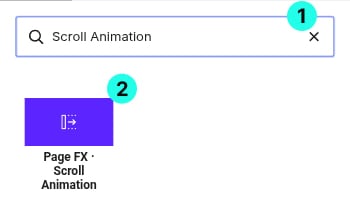
The block is a container. Any blocks placed inside it animate together as one.
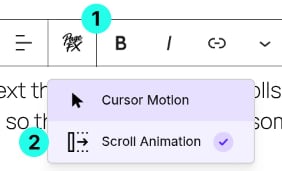
The second adds Scroll Animation to a block already on the page. Select the block, click Page FX 1 in the block toolbar, and click Scroll Animation 2. The block keeps its own content, and the animation is applied to it.
Scroll Animation can be added to Paragraph, Heading, List, Quote, Image, Group, Cover, Columns, Buttons, Media & Text, Gallery and Video blocks.
The Page FX menu lists every Page FX effect the selected block can take, and a tick marks the ones already switched on for it.
Some effects cannot share a block. Scroll Animation and Pan & Zoom cannot both be on for the same block, so while one of them is on, the other's row in the menu is grayed out and reads Blocked by followed by the effect that is on.
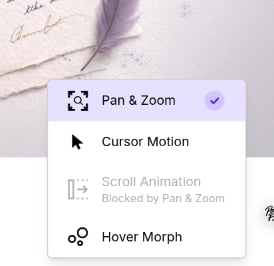
Scroll Animation can run on the same block as Cursor Motion and Hover Morph.
A Filmstrip on a Gallery or Columns block takes over every image inside it. An Image block inside one cannot take Scroll Animation.
Its menu reads Blocked by Filmstrip on every effect except Filmstrip. The Gallery or Columns block that holds the Filmstrip can still take Scroll Animation.
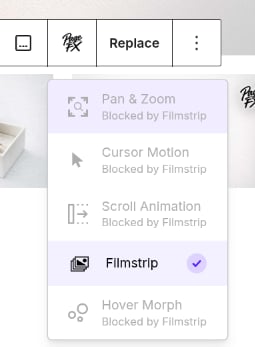
Switching Filmstrip on for a Gallery or Columns block that already holds blocks with Scroll Animation switches Scroll Animation off on those blocks. A notice at the bottom of the editor says how many were switched off.
The blocks keep their Scroll Animation settings, but the effect stays off until it is switched on again from the Page FX menu.
A block with an effect switched on shows a Page FX badge in its top right corner. Clicking the badge opens the block's Page FX menu. Paragraph and Heading blocks show no badge.

The animation does not play in the editor. It runs on the published page and in the preview. It does not run for a visitor whose device is set to reduce motion, and the block shows in place instead.
Both routes open the same Scroll Animation dialog, described in full below. The dialog differs only in which animations and settings each kind of block offers, and in the Remove button.
Page FX · Scroll Animation Block
The Page FX · Scroll Animation block holds other blocks and animates them together as they scroll into view.
The top of the block shows the name of the chosen animation beside a Settings button. Blocks are added inside it below that row, the same as in a Group block. A new block starts on the Rise animation.
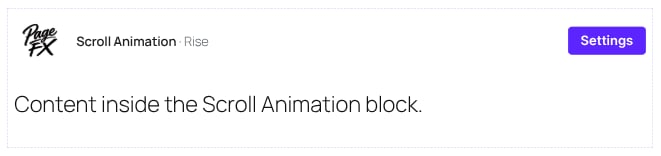
Settings (Button)
Opens the Scroll Animation dialog, where the animation and every setting of it are set.

Scroll Animation Panel
The Scroll Animation panel in the block sidebar shows the animation the block uses, and the button that opens the Scroll Animation dialog.
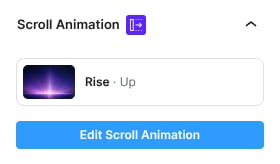
Edit Scroll Animation (Button)
Opens the Scroll Animation dialog, the same as the Settings button on the block.

Page FX · Scroll Animation Panel
The Page FX · Scroll Animation panel appears in the Settings tab of the block sidebar when a block with the Scroll Animation effect is selected. It shows the animation in use and the buttons that edit or remove the effect.
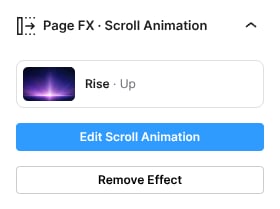
Edit Scroll Animation (Button)
Opens the Scroll Animation dialog, where the animation and every setting of it are set.

Remove Effect (Button)
Switches the Scroll Animation effect off for the block, which then shows in place without animating. The animation and its settings are kept, and come back if Scroll Animation is chosen from the Page FX menu again.

Scroll Animation Dialog
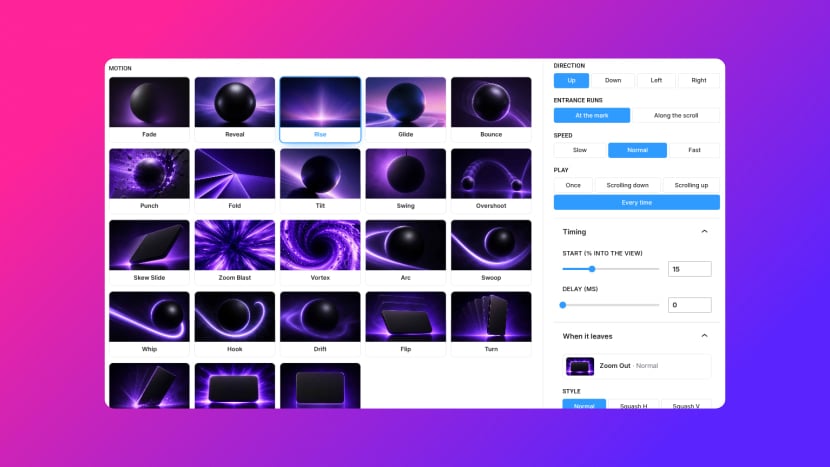
The Scroll Animation dialog holds every setting of the effect. The animations are on the left and the settings are on the right. The chosen animation's name is shown at the top of the settings, followed by the settings that depend on it.
Changes in the dialog apply to the block as they are made, and are saved with the post or page.
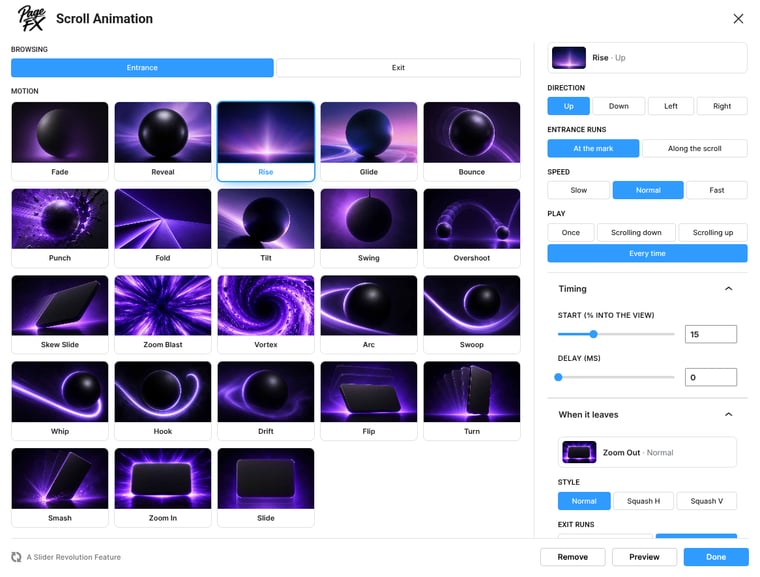
Browsing (Tab Select)
Setting Visibility
- Visible when Play set to Scrolling down, Scrolling up or Every time, or Entrance runs set to Along the scroll.
- Hidden when Play set to Once and Entrance runs set to At the mark.
Sets which animations the left side of the dialog shows. A block that can animate again, or that animates along with the scroll, can have an exit animation as well as an entrance animation.

Options:
- Entrance: The left side shows the animations that play as the block comes into view.
- Exit: The left side shows the animations that play as the block leaves, chosen for When it leaves.
Motion (Image Select)
Setting Visibility
- Visible when Browsing set to Entrance, or Browsing is hidden.
- Hidden when Browsing set to Exit.
Sets the animation that plays on the whole block. Hovering a tile plays the animation inside it, and clicking the tile applies it.
Most animations move in a direction set by Direction, and the rest have a Style.
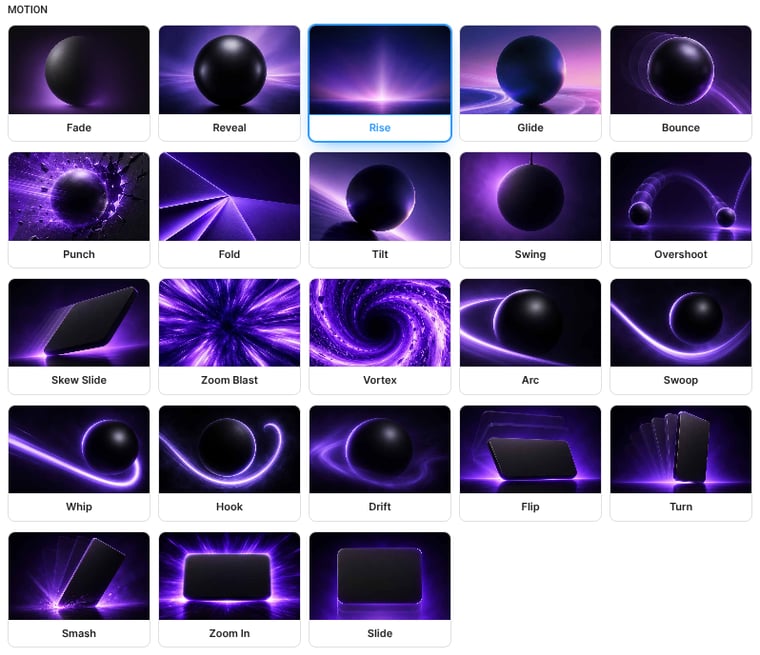
Options:
- Fade: The block fades in from transparent, with no movement.
- Reveal: The block fades in while it moves
90pixels, scales up from 80% and rotates6degrees back to level. - Rise: The block fades in while it moves
54pixels and scales up from 90% of its height and 96% of its width. - Glide: The block fades in while it moves
240pixels and returns from a stretched and skewed shape to its normal one. - Bounce: The block fades in while it moves
80pixels, and its stretched proportions pass their normal values several times before they stop at them. - Punch: The block fades in while it moves
22pixels, scales up past full size and back, and rotates10degrees back to level. - Fold: The block fades in while it rotates
82degrees in 3D around its trailing edge until it is flat, and moves30pixels. - Tilt: The block fades in while it moves
34pixels and rotates flat from a 3D tilt as it scales up from 92%. - Swing: The block fades in while it moves
60pixels and swings16degrees back to level around its top edge, rocking past level before it stops. - Overshoot: The block fades in while it moves
120pixels past its resting position and back, scaling up from 70% and rotating8degrees back to level. - Skew Slide: The block fades in while it moves
170pixels and returns from a16degree skew to its normal shape. - Zoom Blast: The block fades in while it scales down from 240% to full size, moves
40pixels and rotates5degrees back to level. - Vortex: The block fades in while it rotates
95degrees back to level, scales up from 32% and moves70pixels. - Arc: The block fades in while it moves along a curved path,
150pixels for Up and Down and190pixels for Left and Right. - Swoop: The block fades in while it moves along a long curved path, scales up from 90% and rotates
20degrees back to level. - Whip: The block fades in while it moves along a long curved path and returns from a
22degree skew to its normal shape. - Hook: The block fades in while it moves along a curved path, scales up from 94% and rotates
14degrees back to level. - Drift: The block fades in while it moves along a curved path and scales down from 108% to full size.
- Flip: The block fades in while it rotates one full turn in 3D, with no movement.
- Turn: The block fades in while it rotates
70degrees in 3D until it faces forward. - Smash: On Up, Down, Left and Right, the block fades in while it moves twice its own size, scales down from 200% and rotates
20degrees back to level. - Zoom In: The block fades in while it scales up to full size, with no movement.
- Slide: The block fades in while it moves
50pixels in a straight line.
Text (Image Select)
Setting Visibility
- Visible when Browsing set to Entrance or hidden, and the dialog is opened from a Page FX · Scroll Animation block, or from a Paragraph, Heading, List or Quote block.
- Hidden when Browsing set to Exit, or the dialog is opened from any other block.
Sets an animation that splits the block's text into lines, words or letters and animates each piece in turn. Each tile shows sample text with the animation's name below it.
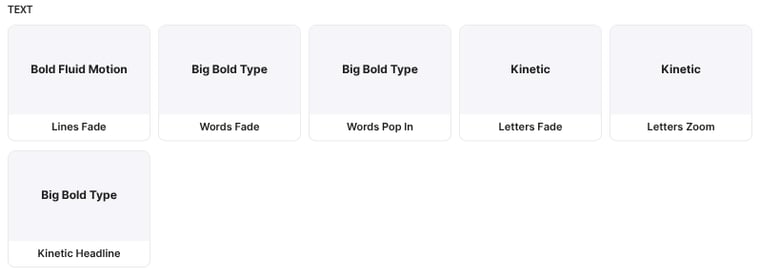
Options:
- Lines Fade: Each line fades in from transparent, one after another from the first line to the last.
- Words Fade: Each word fades in from transparent, one after another from the first word to the last.
- Words Pop In: The block and each word scale up to full size while they fade in, one word after another.
- Letters Fade: Each letter fades in from transparent, one after another from the first letter to the last.
- Letters Zoom: Each letter scales up from nothing and fades in while it moves
40pixels, one after another. - Kinetic Headline: Each word moves into place while its letters fade in and the space between them closes, first word first.
Direction (Tab Select)
Setting Visibility
- Visible when the chosen animation is any Motion animation other than Fade or Zoom In, or Letters Zoom or Kinetic Headline.
- Hidden when the chosen animation is Fade, Zoom In, Lines Fade, Words Fade, Words Pop In or Letters Fade.
Sets the direction the block, or each line, word or letter of its text, moves in as it comes into view. On Flip and Turn it sets the direction of the rotation, around the horizontal axis for Up and Down and the vertical axis for Left and Right.

Options:
- Up: The block or its pieces move upward into place.
- Down: The block or its pieces move downward into place.
- Left: The block or its pieces move leftward into place.
- Right: The block or its pieces move rightward into place.
- Center: The block moves up from below and tilts flat in 3D with no fade, offered on Smash only.
Style (Tab Select)
Setting Visibility
- Visible when the chosen animation is Fade, Zoom In, Lines Fade, Words Fade, Words Pop In or Letters Fade.
- Hidden when the chosen animation is any other.
Sets the variant of the chosen animation. Fade and the text animations offer Subtle, Medium and Strong, and Words Fade also offers Perspective. Zoom In offers Normal, Squash H and Squash V.

Options:
- Subtle: On Fade, the slowest fade. On the text animations, the shortest gap between one piece and the next.
- Medium: The middle speed of fade, or the middle gap between pieces.
- Strong: On Fade, the quickest fade. On the text animations, the longest gap between one piece and the next.
- Perspective: On Words Fade, the block also rotates flat from a 3D turn while each word turns to face forward.
- Normal: The block scales width and height together, from 80%.
- Squash H: The block scales mainly its width, from 30%.
- Squash V: The block scales mainly its height, from 30%.
Entrance runs (Tab Select)
Sets what drives the entrance animation, a set time once the block reaches a point on the screen or the scroll position itself.

Options:
- At the mark: The animation plays at its own speed once the block has come far enough into view, as set by Start (% into the view).
- Along the scroll: The animation advances as the page scrolls, and winds back when the page is scrolled up again.
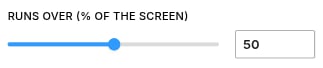
Runs over (% of the screen) (Number, range, slider)
Setting Visibility
- Visible when Entrance runs set to Along the scroll.
- Hidden when Entrance runs set to At the mark.
Sets how far the page scrolls while the entrance animation plays, as a percentage of the screen height. The animation starts when the top of the block reaches the bottom of the screen, and is complete once the block has risen this far.
On the last block of a page, the animation is completed when the page is scrolled to the very bottom, even if the block has not risen that far.
Options:
- 10: Minimum. The animation is complete after a short scroll.
- 90: Maximum. The animation runs over almost a full screen of scrolling.
Speed (Tab Select)
Setting Visibility
- Visible when Entrance runs set to At the mark.
- Hidden when Entrance runs set to Along the scroll.
Sets how fast the entrance animation plays, relative to its own length.

Options:
- Slow: The animation plays at 0.6 times its normal speed.
- Normal: The animation plays at its normal speed.
- Fast: The animation plays at 1.6 times its normal speed.
Play (Tab Select)
Setting Visibility
- Visible when Entrance runs set to At the mark.
- Hidden when Entrance runs set to Along the scroll.
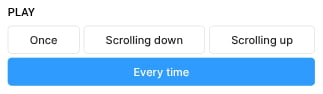
Sets whether the entrance animation plays again when the block comes back into view. Every option other than Once resets the block once it has left the screen entirely, so it can animate again.
Options:
- Once: The animation plays the first time the block comes into view, and the block then stays in place.
- Scrolling down: The animation plays each time the block is reached while scrolling down, and the block is already in place when it is reached while scrolling up.
- Scrolling up: The animation plays each time the block is reached while scrolling up, and the block is already in place when it is reached while scrolling down.
- Every time: The animation plays each time the block comes into view, from either direction.
Timing Section
Section Visibility
- Visible when Entrance runs set to At the mark.
- Hidden when Entrance runs set to Along the scroll.
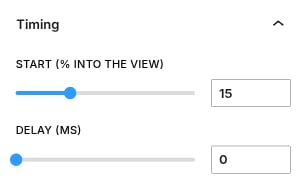
The Timing section sets when the entrance animation starts.
Start (% into the view) (Number, range, slider)
Setting Visibility
- Visible when Timing section is visible.
- Hidden when Timing section is hidden.
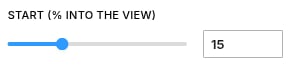
Sets how far the top of the block must rise above the bottom of the screen before the animation plays, as a percentage of the screen height.
Options:
- 0: Minimum. The animation plays as soon as the top of the block appears at the bottom of the screen.
- 50: Maximum. The animation plays once the top of the block reaches the middle of the screen.
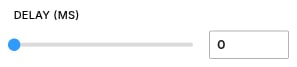
Delay (ms) (Number, range, slider)
Setting Visibility
- Visible when Timing section is visible.
- Hidden when Timing section is hidden.
Sets a wait in milliseconds between the block reaching the Start point and the animation playing. Until the animation plays, the block is held at the animation's starting state.
Options:
- 0: Minimum. The animation plays as soon as the block reaches the Start point.
- 3000: Maximum. The animation plays three seconds after the block reaches the Start point.
When it leaves Section
Section Visibility
- Visible when Play set to Scrolling down, Scrolling up or Every time, or Entrance runs set to Along the scroll.
- Hidden when Play set to Once and Entrance runs set to At the mark.
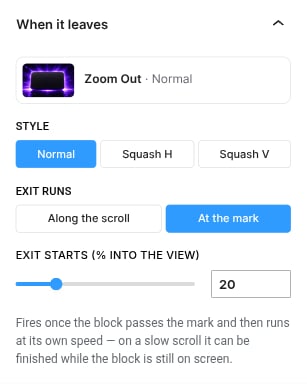
The When it leaves section sets an exit animation, which plays as the block scrolls off the top of the screen. It shows the chosen exit animation at its top.
The exit animation is chosen on the left of the dialog with Browsing set to Exit.
An exit animation only plays after the entrance animation has finished. When the page is scrolled back up, the exit is undone.
Motion (Image Select)
Setting Visibility
- Visible when Browsing set to Exit.
- Hidden when Browsing set to Entrance or hidden.
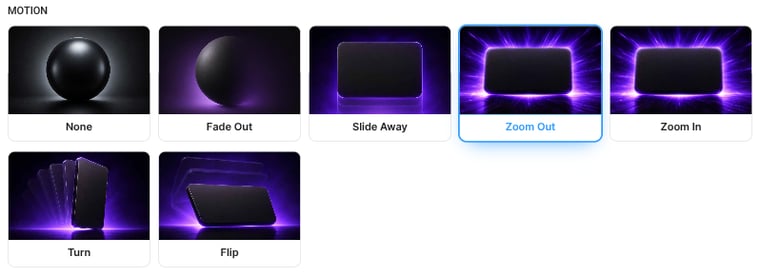
Sets the exit animation that plays on the whole block as it leaves. The exit animations are shown on the left of the dialog when Browsing is set to Exit.
Options:
- None: The block does not animate as it leaves.
- Fade Out: The block fades out to transparent, with no movement.
- Slide Away: The block fades out while it moves
50pixels in a straight line. - Zoom Out: The block fades out while it scales down from full size.
- Zoom In: The block fades out while it scales up from full size.
- Turn: The block fades out while it rotates
70degrees in 3D away from facing forward. - Flip: The block fades out while it rotates one full turn in 3D.
Text (Image Select)
Setting Visibility
- Visible when Browsing set to Exit, and the dialog is opened from a Page FX · Scroll Animation block, or from a Paragraph, Heading, List or Quote block.
- Hidden when Browsing set to Entrance or hidden, or the dialog is opened from any other block.
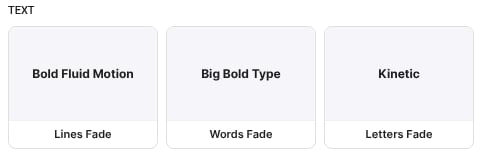
Sets an exit animation named after a text animation. On exit, the text is not split, and the whole block fades out at once.
Options:
- Lines Fade: The whole block fades out at once, with no split into lines.
- Words Fade: The whole block fades out at once, with no split into words.
- Letters Fade: The whole block fades out at once, with no split into letters.
Direction (Tab Select)
Setting Visibility
- Visible when When it leaves section is visible and the exit animation is Slide Away, Turn or Flip.
- Hidden when When it leaves section is hidden, or the exit animation is any other or None.
Sets the direction the block moves or rotates in as it leaves.
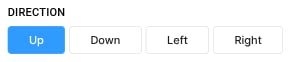
Options:
- Up: The block leaves upward.
- Down: The block leaves downward.
- Left: The block leaves to the left.
- Right: The block leaves to the right.
Style (Tab Select)
Setting Visibility
- Visible when When it leaves section is visible and the exit animation is Fade Out, Zoom Out, Zoom In, Lines Fade, Words Fade or Letters Fade.
- Hidden when When it leaves section is hidden, or the exit animation is any other or None.
Sets the variant of the exit animation. The fades offer Subtle, Medium and Strong, and Zoom Out and Zoom In offer Normal, Squash H and Squash V.
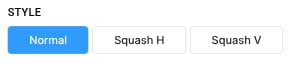
Options:
- Subtle: The slowest fade.
- Medium: The middle speed of fade.
- Strong: The quickest fade.
- Normal: The block scales width and height together, to 80% for Zoom Out or 125% for Zoom In.
- Squash H: The block scales mainly its width, to 30% for Zoom Out or 180% for Zoom In.
- Squash V: The block scales mainly its height, to 30% for Zoom Out or 180% for Zoom In.
Exit runs (Tab Select)
Setting Visibility
- Visible when When it leaves section is visible and an exit animation is chosen.
- Hidden when When it leaves section is hidden, or no exit animation is chosen.
Sets what drives the exit animation, the scroll position itself or a set time once the block passes a point on the screen.
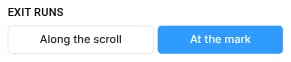
Options:
- Along the scroll: The exit advances as the page scrolls, and is complete when the bottom of the block leaves the top of the screen, so it never finishes while the block is still in view.
- At the mark: The exit plays at its own speed once the block passes the Exit starts point, so on a slow scroll it can finish while the block is still in view.
Exit starts (% into the view) (Number, range, slider)
Setting Visibility
- Visible when When it leaves section is visible and an exit animation is chosen.
- Hidden when When it leaves section is hidden, or no exit animation is chosen.
Sets the point where the exit begins, as a distance below the top of the screen in percent of the screen height. The exit begins when the top of the block rises past this point.
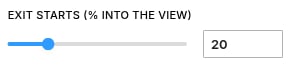
Options:
- 0: Minimum. The exit begins when the top of the block reaches the top of the screen.
- 90: Maximum. The exit begins when the top of the block is near the bottom of the screen.
Where it plays Section
The Where it plays section sets which screens the animation plays on and, on blocks that hold other blocks, whether those blocks animate together.
Stagger children (ms) (Number, range, slider)
Setting Visibility
- Visible when the dialog is opened from a Page FX · Scroll Animation block, or from a Group, Columns, Buttons, Gallery or List block.
- Hidden when the dialog is opened from any other block.
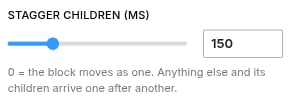
Sets a gap in milliseconds between the blocks inside this one. Above 0, each block inside plays the animation in turn, one after another. A block with only one block inside it moves as one.
Options:
- 0: Minimum. The whole block moves as one.
- 600: Maximum. Each block inside starts its animation 600 milliseconds after the one before.
Play on (Tab Select)
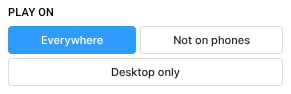
Sets which screen sizes the animation plays on. Where it does not play, the block shows in place.
Options:
- Everywhere: The animation plays on every screen size.
- Not on phones: The animation does not play on screens
480pixels wide or narrower. - Desktop only: The animation does not play on screens
778pixels wide or narrower.
Remove (Button)
Setting Visibility
- Visible when the dialog is opened from a block that Scroll Animation was added to from the Page FX menu.
- Hidden when the dialog is opened from a Page FX · Scroll Animation block.
Switches the Scroll Animation effect off for the block and closes the dialog, the same as Remove Effect in the block sidebar.
Preview (Button)
Opens a preview of the post or page in a separate browser tab, where the animation plays as it does on the published page. The editor autosaves the post first, because the preview is built from the autosave.

Done (Button)
Closes the dialog. The changes made in it are already applied to the block.