
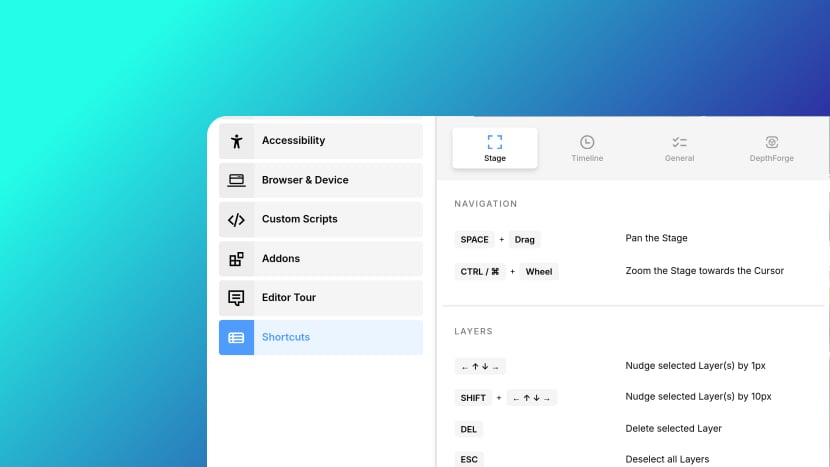
Shortcuts Panel
UI Navigation Map: Shortcuts panel

Go to the Module Editor, click Settings in the Top Bar to open the Settings Sidebar, and click Shortcuts, then:
- Opening & Closing the Panel
- Stage Tab
- Stage Navigation Shortcuts
- Layers Shortcuts
- Resize & Drag Shortcuts
- Timeline Tab
- Timeline Navigation Shortcuts
- Frames & Keyframes Shortcuts
- General Tab
- Slides & Lists Shortcuts
- Inputs & Popups Shortcuts
Slider Revolution's editor, the Module Editor, has keyboard and mouse shortcuts for panning, zooming, moving layers, editing animation frames and working with slides. The Shortcuts panel is a list inside the editor of all of them, grouped by the part of the editor they work in.
This article covers every shortcut the panel lists, tab by tab, and how the panel opens and closes.
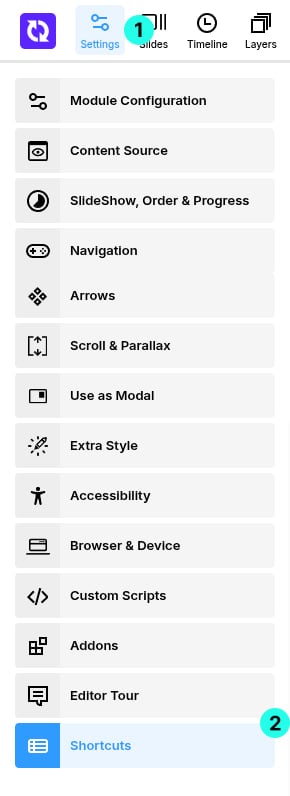
To open the panel, go to the Module Editor and click the Settings button 1 in the Top Bar to open the Settings Sidebar. Then click Shortcuts 2 at the foot of the sidebar's list.
The panel only lists shortcuts. Nothing in it can be changed, and clicking an entry does nothing.
Opening & Closing the Panel
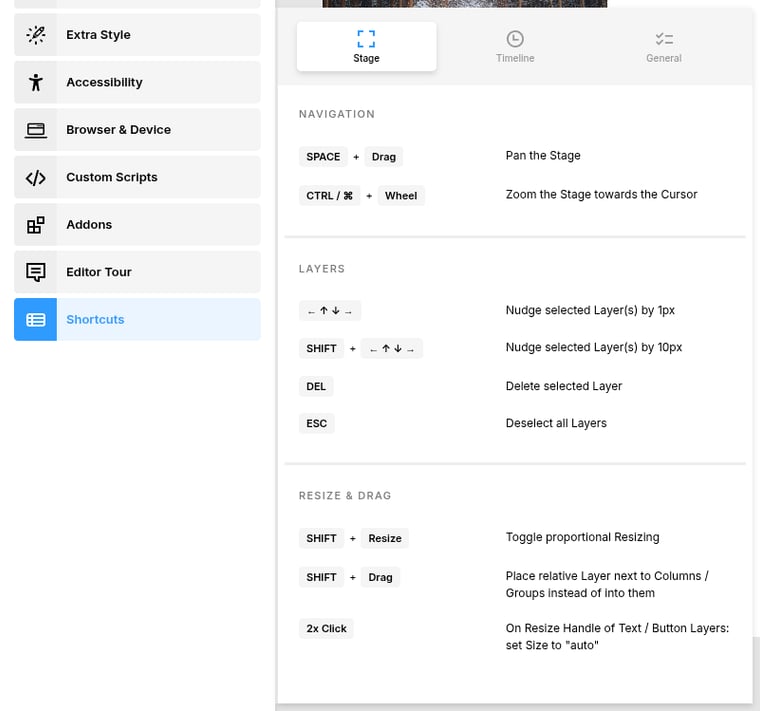
The Shortcuts panel opens beside the Settings Sidebar, over the left edge of the Stage, with a row of tabs across its top. The Stage tab is selected the first time the panel opens.
Click a tab to show its shortcuts. The panel remembers the last tab shown, so reopening it in the same editing session shows that tab again.
To close the panel, press ESC or click Shortcuts in the Settings Sidebar again. Closing the Settings Sidebar also closes the panel.
Addons can add tabs of their own to the panel, listing the shortcuts that addon's features use.
Stage Tab
The Stage tab lists the shortcuts that work on the Stage, the central area of the editor where the current slide is shown and its layers are selected and arranged.
Stage Navigation Shortcuts
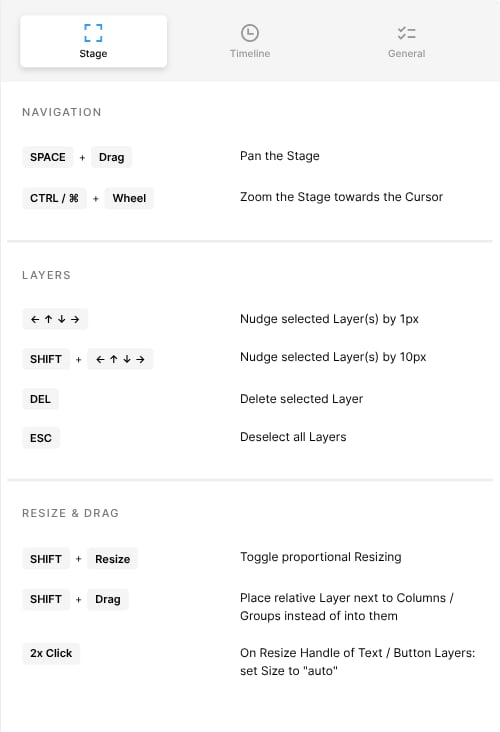
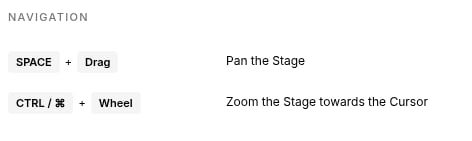
SPACE + Drag: Pans the stage view.CTRL/⌘ + Wheel: Zooms the stage in and out, towards the cursor position.
Layers Shortcuts
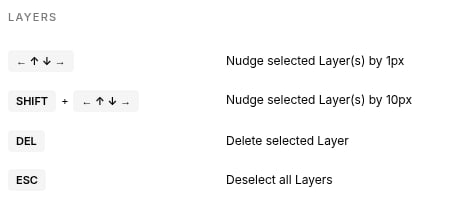
← ↑ ↓ →: Moves the selected layer or layers by1pxin the direction of the arrow.SHIFT + ← ↑ ↓ →: Moves the selected layer or layers by10pxin the direction of the arrow.DEL: Deletes the selected layer.ESC: Deselects all layers.
Resize & Drag Shortcuts
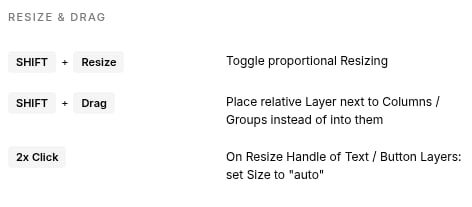
SHIFT + Resize: Toggles proportional resizing while a layer's resize handle is dragged.SHIFT + Drag: Places a relatively positioned layer next to a Column or Group instead of into it, when the layer is dragged over that container.2x Clickon a resize handle of a Text or Button layer: Sets the layer's size toauto.
Timeline Tab
The Timeline tab lists the shortcuts that work in the Timeline, the panel that opens below the Stage and shows when each layer's animation frames play.
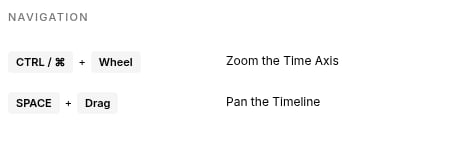
Timeline Navigation Shortcuts
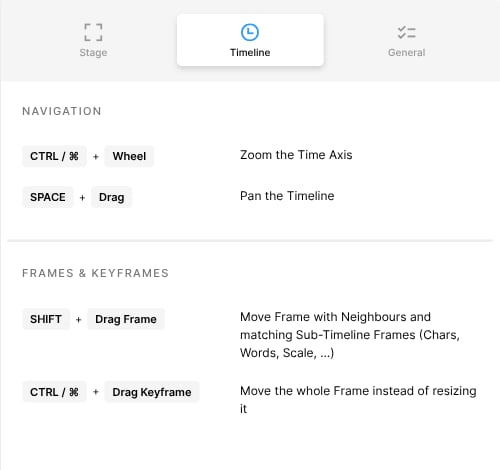
CTRL/⌘ + Wheel: Zooms the time axis in and out, towards the cursor position.SPACE + Drag: Pans the timeline.
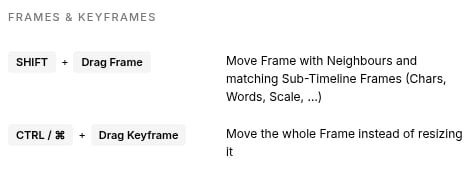
Frames & Keyframes Shortcuts
SHIFT + Drag Frame: Moves the frame together with its neighboring frames and any matching frames on attribute tracks, such as Chars, Words or Scale.CTRL/⌘ + Drag Keyframe: Moves the whole frame instead of resizing it.
General Tab
The General tab lists shortcuts that work across the editor rather than in one area, for slides, lists, input fields and popups.
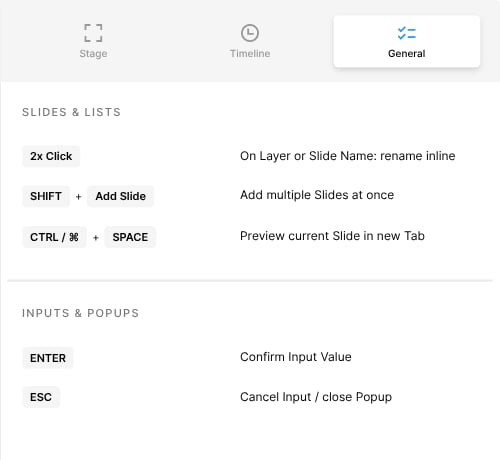
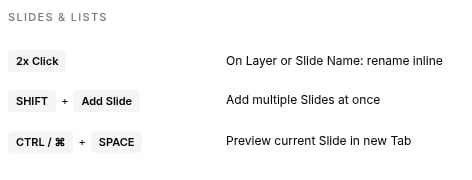
Slides & Lists Shortcuts
2x Clickon a layer name or slide name: Renames it in place.SHIFT + Add Slide: Adds multiple slides at once, one per image chosen from the media library. The Add Slide button is in the Slides sidebar.CTRL/⌘ + SPACE: Previews the current slide in a new browser tab.
Inputs & Popups Shortcuts
ENTER: Confirms the value typed into an input field.ESC: Cancels the value being typed into an input field, or closes the open popup.