Slide Actions
UI Navigation Map: Slide actions

In the Right Sidebar click the Action icon to enter Action Mode, click Add New Action, then in the Action Settings Panel open the Type dropdown and choose an action from the Slide group:
- Slide Actions
- Go To Slide Panel
- Type
- Event
- Trigger
- Target(s) Section
- Slide
- Position in Slide
- Timing Section
- Delay
- Next Delay
- Pause Slide Playback Panel
- Type
- Event
- Trigger
- Timing Section
- Delay
- Next Delay
- Resume Slide Playback Panel
- Type
- Event
- Trigger
- Timing Section
- Delay
- Next Delay
- Toggle Playback Panel
- Type
- Event
- Trigger
- Timing Section
- Delay
- Next Delay
- Go To Slide Panel
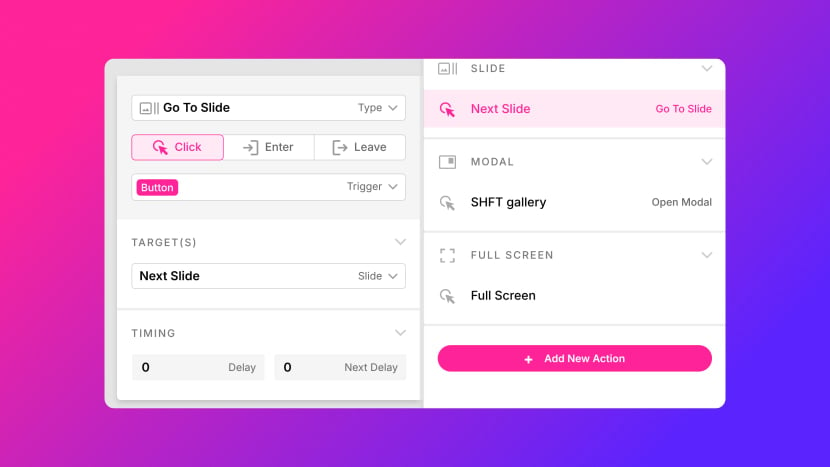
An action makes something happen when a visitor interacts with a layer, such as a click on a button. Actions are set up in Action Mode, one of the three modes of the Module Editor's Right Sidebar.
The Slide actions control the module's slides. Go To Slide changes to a chosen slide. Pause Slide Playback, Resume Slide Playback and Toggle Playback stop and restart the slideshow, the automatic change from one slide to the next.
This article covers the four Slide actions and every setting in their panels.
To set one up, go to the Module Editor and click the Action icon 1 in the Mode Switcher of the Right Sidebar to enter Action Mode.
Then click Add New Action 2, which opens the Action Settings Panel.
Open the Type dropdown 3 and choose an action from the Slide group.
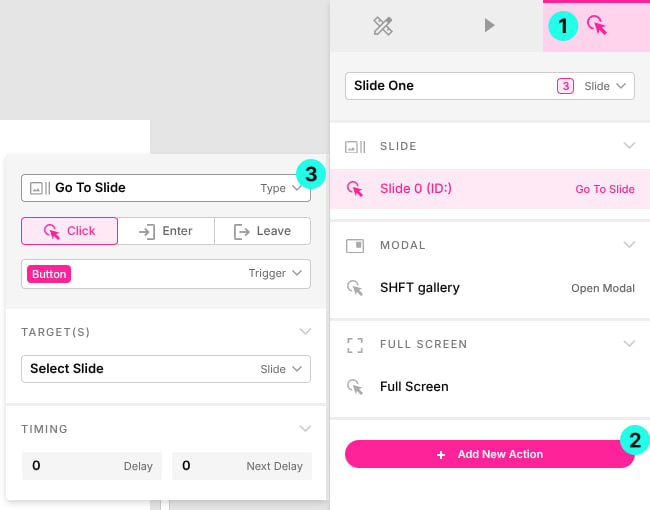
An action is added to the slide shown in the editor, and runs from the layers chosen in its Trigger.
Go To Slide Panel
The Go To Slide panel configures which slide the module changes to, and what triggers the change. It is the action behind custom navigation, such as a button that jumps to the last slide.
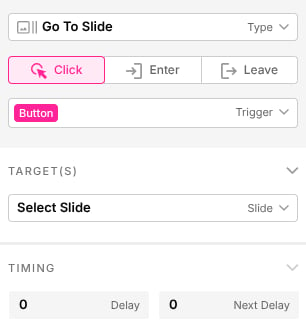
Type (Dropdown)
Sets which action is performed when the trigger fires. Choosing Go To Slide from the Slide group of the list gives this panel.

Event (Tab Select)
Sets which visitor interaction with the trigger layers changes the slide.

Options:
- Click: Changes the slide when a trigger layer is clicked or tapped.
- Enter: Changes the slide when the pointer moves over a trigger layer.
- Leave: Changes the slide when the pointer moves off a trigger layer.
Trigger (Multi-select)
Selects the layer or layers that change the slide. The list is searchable, and any number of the current slide's layers can be selected.

Target(s) Section (Expander)
In the Target(s) section choose the slide to change to, and on a Story Telling module, where in that slide to land.
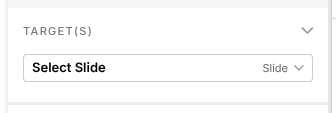
Slide (Dropdown)
Setting Visibility
- Visible when Target(s) section is expanded.
- Hidden when Target(s) section is collapsed.
Selects the slide the module changes to. The list shows Select Slide until a slide is chosen.
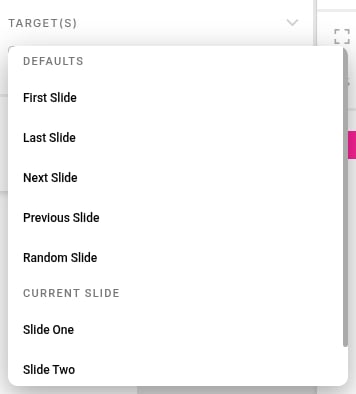
The Defaults group names a slide by its position, so it keeps working when slides are added, removed or reordered. Below it, under Current Slide, every slide of the module is listed by its title, or by its number where it has none.
Options:
- First Slide: Changes to the first slide.
- Last Slide: Changes to the last slide.
- Next Slide: Changes to the slide after the current one.
- Previous Slide: Changes to the slide before the current one.
- Random Slide: Changes to a slide chosen at random.
- A slide of the module: Changes to that slide.
Position in Slide (Text)
Setting Visibility
- Visible when the module is a Story Telling module and the Target(s) section is expanded.
- Hidden when the module is any other type.
Sets where inside the chosen slide a Story Telling module lands. A Story Telling module moves through its slides as the page scrolls, so the action scrolls the page to that point of the slide.
Enter start, end, a share of the slide such as 40%, or a time into the slide such as 2500ms. A number with no unit counts as milliseconds, and an empty field lands at the start.
The chosen slide can be the slide the trigger layer is on, so a button can scroll the story to a later point of its own slide.
The position is shown after the action's name in the action list, following an @.
Timing Section (Expander)
In the Timing section set the pauses that surround the action, so that a sequence of actions can be staggered rather than all firing at once.
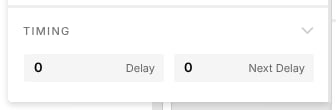
Delay (Number, milliseconds)
Setting Visibility
- Visible when Timing section is expanded.
- Hidden when Timing section is collapsed.
Sets how long to wait after the event fires before the slide changes. A value of 0 runs it immediately.
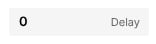
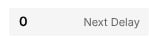
Next Delay (Number, milliseconds)
Setting Visibility
- Visible when Timing section is expanded.
- Hidden when Timing section is collapsed.
Sets a pause measured from this action, before the next action on the same trigger runs.
Pause Slide Playback Panel
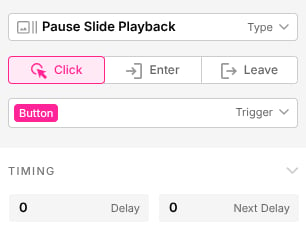
The Pause Slide Playback panel configures what pauses the slideshow. While it is paused the module stays on the current slide, until the slideshow is resumed.
Type (Dropdown)
Sets which action is performed when the trigger fires. Choosing Pause Slide Playback from the Slide group of the list gives this panel.

Event (Tab Select)
Sets which visitor interaction with the trigger layers pauses the slideshow.

Options:
- Click: Pauses the slideshow when a trigger layer is clicked or tapped.
- Enter: Pauses the slideshow when the pointer moves over a trigger layer.
- Leave: Pauses the slideshow when the pointer moves off a trigger layer.
Trigger (Multi-select)
Selects the layer or layers that pause the slideshow. The list is searchable, and any number of the current slide's layers can be selected.

Timing Section (Expander)
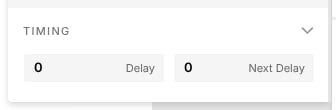
In the Timing section set the pauses that surround the action, so that a sequence of actions can be staggered rather than all firing at once.
Delay (Number, milliseconds)
Setting Visibility
- Visible when Timing section is expanded.
- Hidden when Timing section is collapsed.
Sets how long to wait after the event fires before the slideshow pauses. A value of 0 runs it immediately.
Next Delay (Number, milliseconds)
Setting Visibility
- Visible when Timing section is expanded.
- Hidden when Timing section is collapsed.
Sets a pause measured from this action, before the next action on the same trigger runs.
Resume Slide Playback Panel
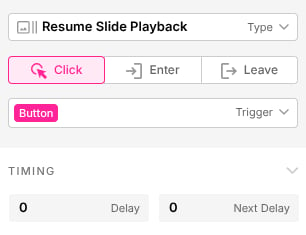
The Resume Slide Playback panel configures what resumes a paused slideshow, so the module moves on from the current slide again.
Type (Dropdown)
Sets which action is performed when the trigger fires. Choosing Resume Slide Playback from the Slide group of the list gives this panel.

Event (Tab Select)
Sets which visitor interaction with the trigger layers resumes the slideshow.

Options:
- Click: Resumes the slideshow when a trigger layer is clicked or tapped.
- Enter: Resumes the slideshow when the pointer moves over a trigger layer.
- Leave: Resumes the slideshow when the pointer moves off a trigger layer.
Trigger (Multi-select)
Selects the layer or layers that resume the slideshow. The list is searchable, and any number of the current slide's layers can be selected.

Timing Section (Expander)
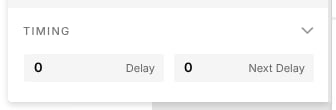
In the Timing section set the pauses that surround the action, so that a sequence of actions can be staggered rather than all firing at once.
Delay (Number, milliseconds)
Setting Visibility
- Visible when Timing section is expanded.
- Hidden when Timing section is collapsed.
Sets how long to wait after the event fires before the slideshow resumes. A value of 0 runs it immediately.
Next Delay (Number, milliseconds)
Setting Visibility
- Visible when Timing section is expanded.
- Hidden when Timing section is collapsed.
Sets a pause measured from this action, before the next action on the same trigger runs.
Toggle Playback Panel
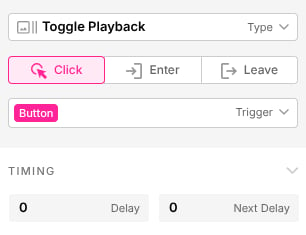
The Toggle Playback panel configures a trigger that pauses the slideshow when it is playing and resumes it when it is paused, as a single play and pause button does.
Type (Dropdown)
Sets which action is performed when the trigger fires. Choosing Toggle Playback from the Slide group of the list gives this panel.

Event (Tab Select)
Sets which visitor interaction with the trigger layers pauses or resumes the slideshow.

Options:
- Click: Pauses or resumes the slideshow when a trigger layer is clicked or tapped.
- Enter: Pauses or resumes the slideshow when the pointer moves over a trigger layer.
- Leave: Pauses or resumes the slideshow when the pointer moves off a trigger layer.
Trigger (Multi-select)
Selects the layer or layers that pause or resume the slideshow. The list is searchable, and any number of the current slide's layers can be selected.

Timing Section (Expander)
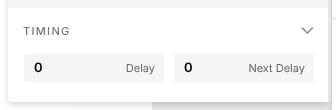
In the Timing section set the pauses that surround the action, so that a sequence of actions can be staggered rather than all firing at once.
Delay (Number, milliseconds)
Setting Visibility
- Visible when Timing section is expanded.
- Hidden when Timing section is collapsed.
Sets how long to wait after the event fires before the slideshow pauses or resumes. A value of 0 runs it immediately.
Next Delay (Number, milliseconds)
Setting Visibility
- Visible when Timing section is expanded.
- Hidden when Timing section is collapsed.
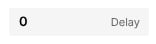
Sets a pause measured from this action, before the next action on the same trigger runs.